U.4.48
SEL-421 Relay User’s Guide Date Code 20090715
Basic Relay Operations
Reading Oscillograms, Event Reports, and SER
This example assumes that you have successfully established communication
with the relay (see Making an EIA-232 Serial Port Connection on page U.4.5).
In addition, you must be familiar with relay access levels and passwords (see
Changing the Default Passwords: Terminal on page U.4.9 to change the
default access level passwords). You should also be familiar with
ACSELERATOR QuickSet (see Checking Relay Status: ACSELERATOR QuickSet
on page U.4.11 and Section 3: PC Software).
Step 1. Configure the communications port.
a. Start
ACSELERATOR QuickSet.
b. On the top toolbar, open the Communication menu,
and then click Port Parameters.
You will see the Port Parameters dialog box similar to
Figure 4.7.
c. Select the Data Speed, Data Bits, Stop Bits, Parity,
and RTS/CTS that match the relay settings. The
defaults are 9600, 8, 1, None, Off, respectively.
d. Click OK to update the
ACSELERATOR QuickSet
communications parameters.
e. Confirm that the Communications Status bar at the
bottom of the
ACSELERATOR QuickSet window says
Connected.
Step 2. Confirm the correct
ACSELERATOR QuickSet passwords.
a. Reopen the Communication menu and click Port
Parameters.
b. Enter your Access Level 1 password in the Level One
Password text box, and your Access Level 2 password
in the Level Two Password text box.
c. Click OK to accept changes and close the dialog box.
Step 3. Open the
ACSELERATOR QuickSet Analysis menu and click
View Event History to view the Event History.
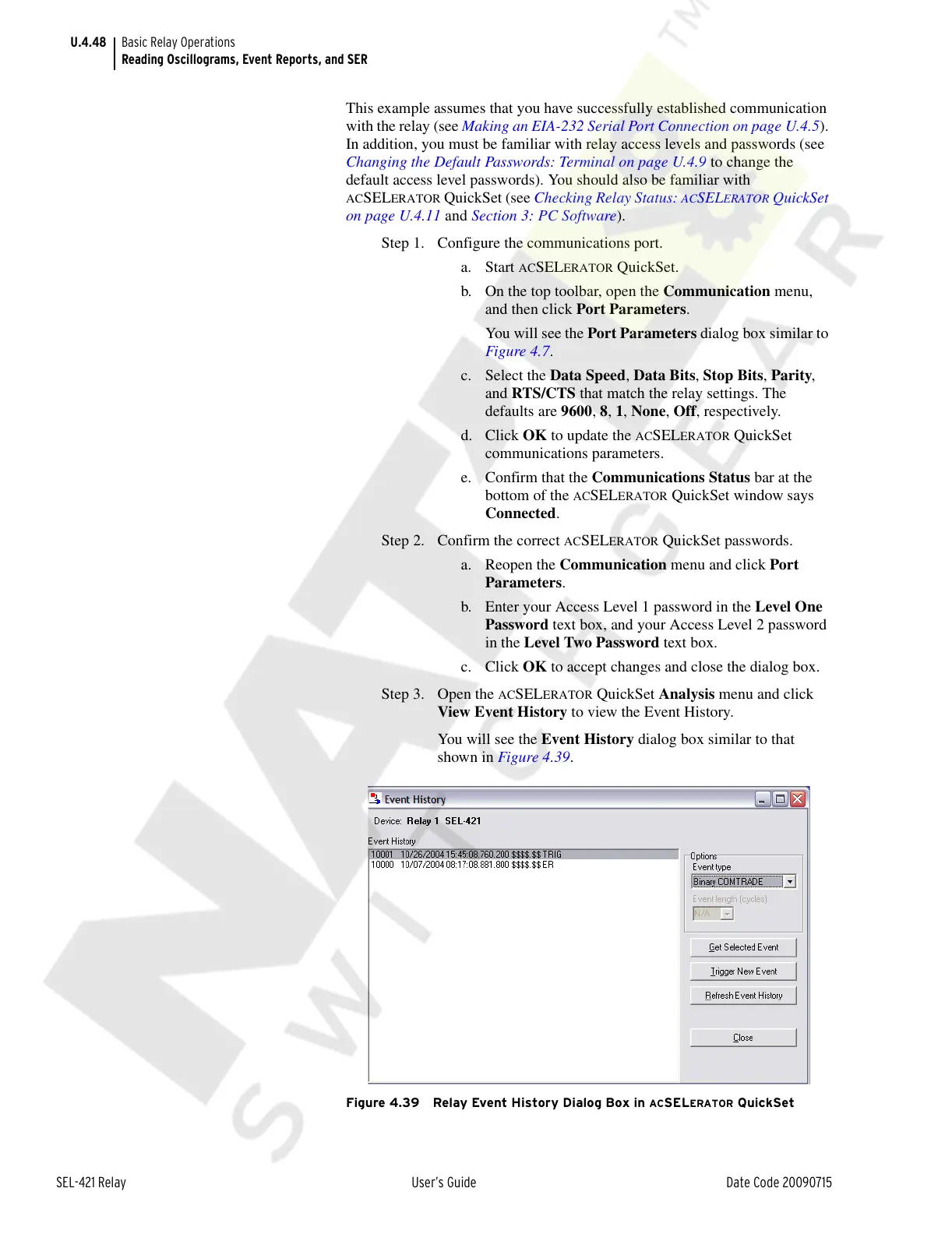
You will see the Event History dialog box similar to that
shown in Figure 4.39.
Figure 4.39 Relay Event History Dialog Box in ACSELERATOR QuickSet
Courtesy of NationalSwitchgear.com


 To Next Page