U.6.37
Date Code 20090715 User’s Guide SEL-421 Relay
Testing and Troubleshooting
Checking Relay Operation
This example assumes that you have successfully established communication
with the relay (see Making an EIA-232 Serial Port Connection on page U.4.5).
In addition, you must be familiar with relay access levels and passwords (see
Changing the Default Passwords on page U.4.6 to change the default access
level passwords and enter higher relay access levels). You should be familiar
with
ACSELERATOR QuickSet (see Section 3: PC Software).
Step 1. Configure the relay.
Perform the procedure listed under Step 1 in Checking the
Negative-Sequence Directional Element (Phase Faults) on
page U.6.30.
Step 2. Set test values in the relay.
Perform the procedure listed under Step 2 in Checking the
Negative-Sequence Directional Element (Phase Faults) on
page U.6.30.
Step 3. Set the phase distance element reach.
a. Select the Phase Distance button of the
ACSELERATOR
QuickSet Settings tree view.
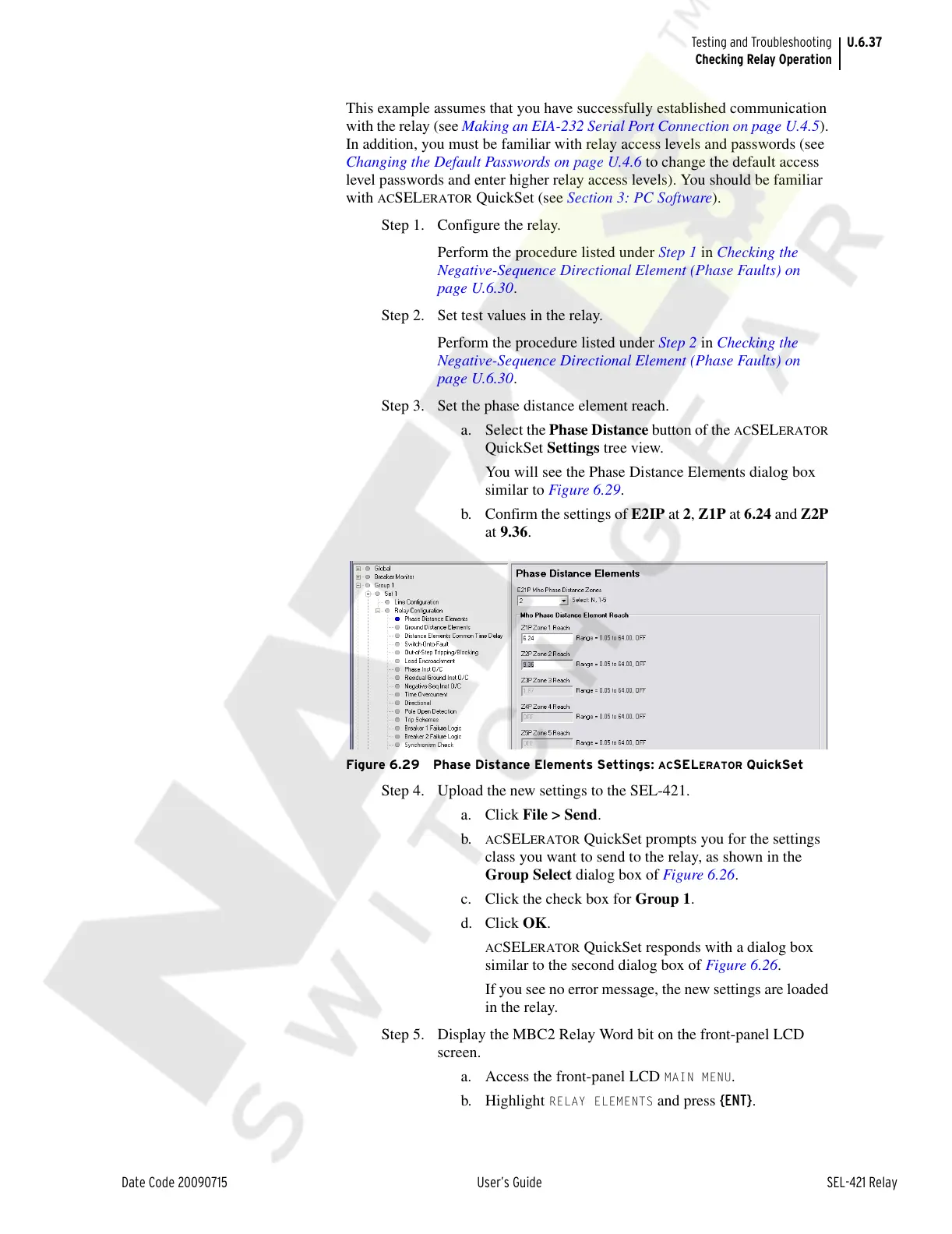
You will see the Phase Distance Elements dialog box
similar to Figure 6.29.
b. Confirm the settings of E2IP at 2, Z1P at 6.24 and Z2P
at 9.36.
Figure 6.29 Phase Distance Elements Settings: ACSELERATOR QuickSet
Step 4. Upload the new settings to the SEL-421.
a. Click File > Send.
b.
ACSELERATOR QuickSet prompts you for the settings
class you want to send to the relay, as shown in the
Group Select dialog box of Figure 6.26.
c. Click the check box for Group 1.
d. Click OK.
ACSELERATOR QuickSet responds with a dialog box
similar to the second dialog box of Figure 6.26.
If you see no error message, the new settings are loaded
in the relay.
Step 5. Display the MBC2 Relay Word bit on the front-panel LCD
screen.
a. Access the front-panel LCD
MAIN MENU.
b. Highlight
RELAY ELEMENTS and press {ENT}.
Courtesy of NationalSwitchgear.com


 To Next Page