Open Visual Timecode Editor 99
NEO Lighting Control Console
Cue Controls
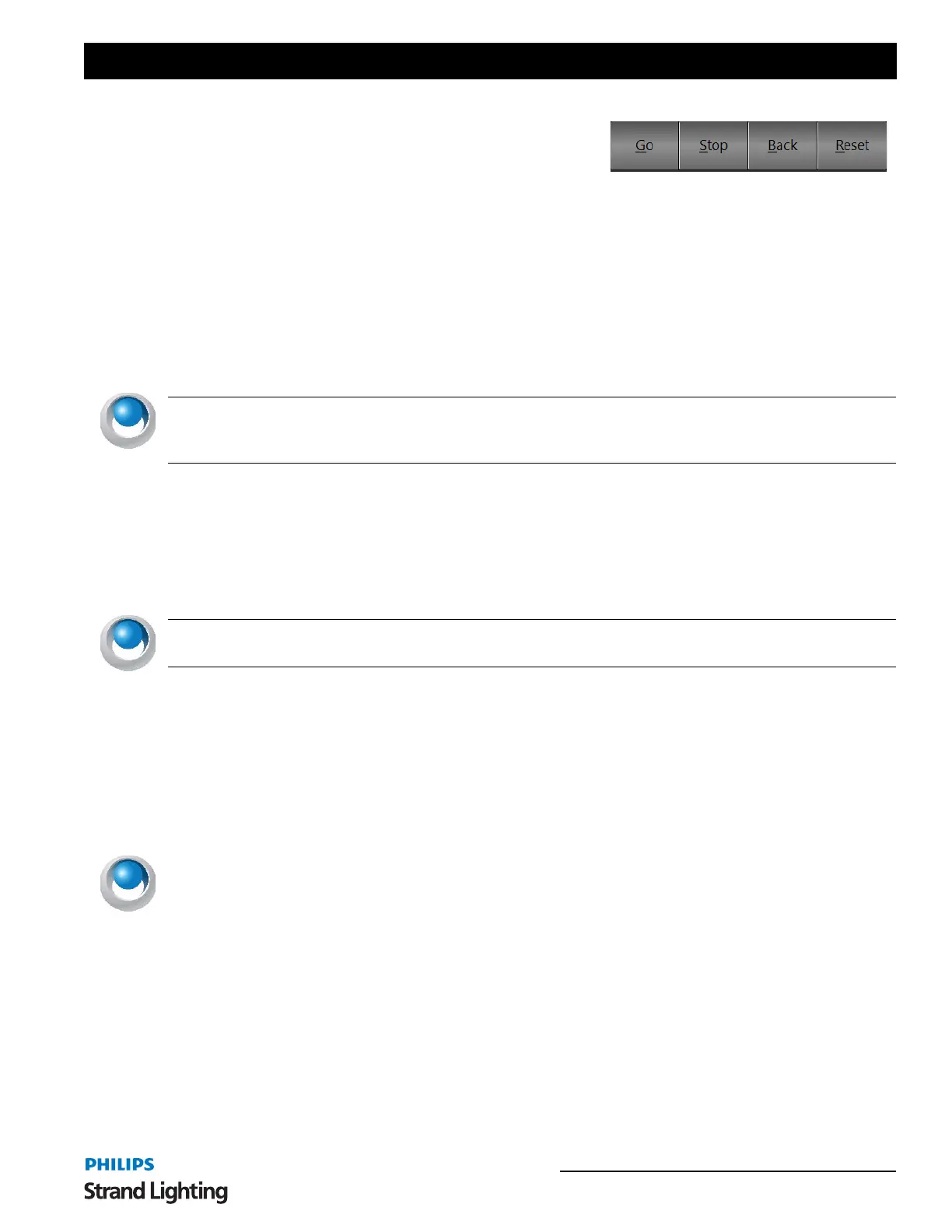
On screen cue controls are available in the Cue List display.
GO - triggers the cue to run in the recorded time.
STOP - will pause the running cue.
BACK - will return to the previous cue.
RESET - will reset to the top of the cue list.
Cue Number
The cue number represents the order that the cues appear in the list and by default, it also determines the run order of
the show. Cue numbers can be set to any number you want by clicking within the field and typing the new value.
Cue numbers must be between 0.000 and 4294966.999. When editing cues it is not necessary to enter the decimal part
if all you want is an integer value.
NEO NOTES & TIPS: NEO will automatically re-order the cue list as soon as you exit the field and thus save the
new value. The "next cue" value will not be changed if you edit the cue number so you must manually ensure that the
show follows the desired sequence.
The most common use for editing the cue number is to insert a new cue between two existing cues. To do this, change
the cue number to a valid number between the two cues.
Example…
To insert a new cue between cues 2 and 3 we would create a new cue and change its number to 2.5. To ensure that the
show follows the sequence 2, 2.5, 3 we would need to change the "next cue" number of cue 2 to 2.5 and the "next
cue" of 2.5 to 3.
NEO NOTES & TIPS: Changing the cue number can also be used to park a cue for use later. To do this, simply
change the cue number to a high value and ensure that none of the other cues have the "next cue" set to this value.
Description
This field is for your own reference and provides the ability to describe the lighting state contained in the cue. By
default, this description contains the cue number. This can be changed by clicking within the field and entering the
new description.
Channels
This is a list of the channels included in the cue. This list can be edited by entering the channels separated by a coma
(,) or a space. To edit, click inside the field and type the desired channel list or edit using left and right arrow keys.
You can also enter channels using the same syntax as the command window.
Examples:
[1][+][3][+][4][+][1][0][/][2][0][-][1][5][ENTER]
This will add channels 1, 3, 4 and channels 10 through to 20 excluding 15 to the cue.
[1][/][1][0][-][5][@][2][ENTER]
This will add channels 1 through to 10 excluding 5 into the cue and set the level to 20%.
The channels included in the cue can also be edited by clicking on the (
...) button to the right of the field or by double
clicking on the grid cell. This will bring up the "Cue List Detail" window. This window provides greater control over
the maximum value the channel will reach when the cue is executed, and provides access to intelligent fixture
attributes.



 To Next Page