User’s Manual
68 Software Configuration
Open a Saved Show
When you start-up NEO, the "current show" will be loaded automatically. Any programming or changes made will be
applied and saved to this "Current Show". Opening a saved show will make the selected show file the "Current
Show".
A standard windows "open file" dialog will appear when this option is selected.
NEO NOTES & TIPS: NEO always has the "current show" loaded. All changes made to the system such as
creating a new cue or effect is automatically saved to the current show.
Open a Server Based Show File
NEO can connect to a remote show file to allow multiple users to manipulate the same show. Opening a remote show
file is very similar to opening a local show file with the additional requirement of the remote server name.
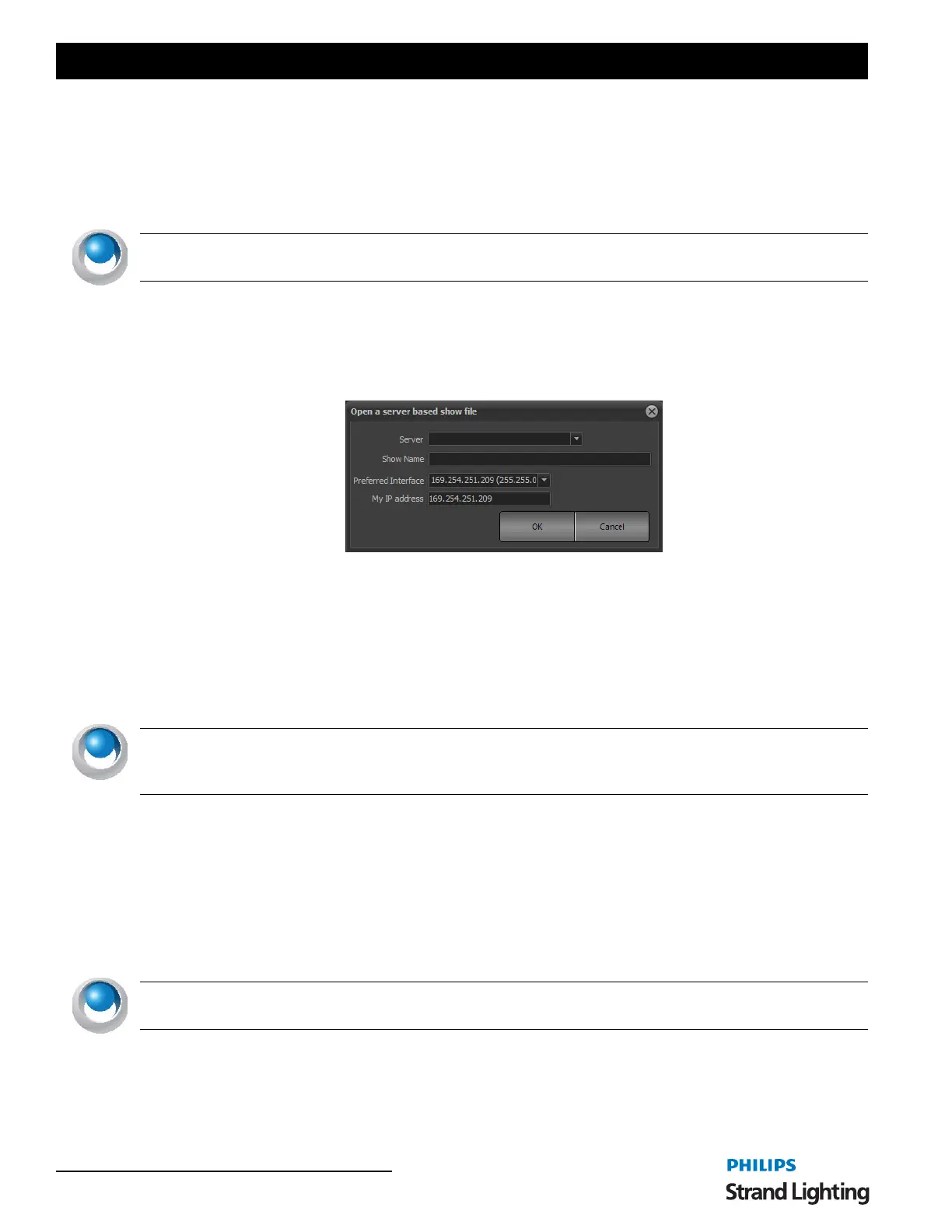
After selecting this option the dialog below will appear:
Connecting to a remote show is similar to the opening a regular show file. You must enter the name of the remote
system in the "server name" field. This can be either the machine name or the IP address.
In the show name field enter the full path on the remote system to the file. Unfortunately Firebird does not provide an
ability to browse for the file name so you must enter the full patch manually.
The "preferred interface" option can be used to set the network interface that should be used for communication
between NEO systems. This is highly recommended that you not use the same network interface as your DMX output
(assuming Ethernet based DMX) as this may affect the DMX performance.
NEO NOTES & TIPS: If you are using NEO on the same host computer as the firebird system you must still
connect in the same way. If you open the show file using the regular "Open saved show" then the server will not be
able to open the file and all remote users will be locked out.
Once you have entered all of the settings click on the "OK" button to connect to the show. If successful you should
see the show file open normally.
Save (Show) as…
Saving a NEO show will make a new show file that contains all the same data as the current show. There should be no
change to the data you are actively working on in the system.
When selecting this option a standard Widows save dialog will prompt you for the file name to save the new show
under. The new show file will be given an extension of ".FDB".
NEO NOTES & TIPS: If you select an existing show, all information will be overwritten by the "current show". A
warning dialog will inform you if you are about to overwrite an existing show.
Import from an existing show file - Use this option to load elements from another show file and merge them into the
current show. When selecting this option a standard widows open dialog will prompt you for the file name of the
show file you want to import from.



 To Next Page