Hardware Interfaces 243
NEO Lighting Control Console
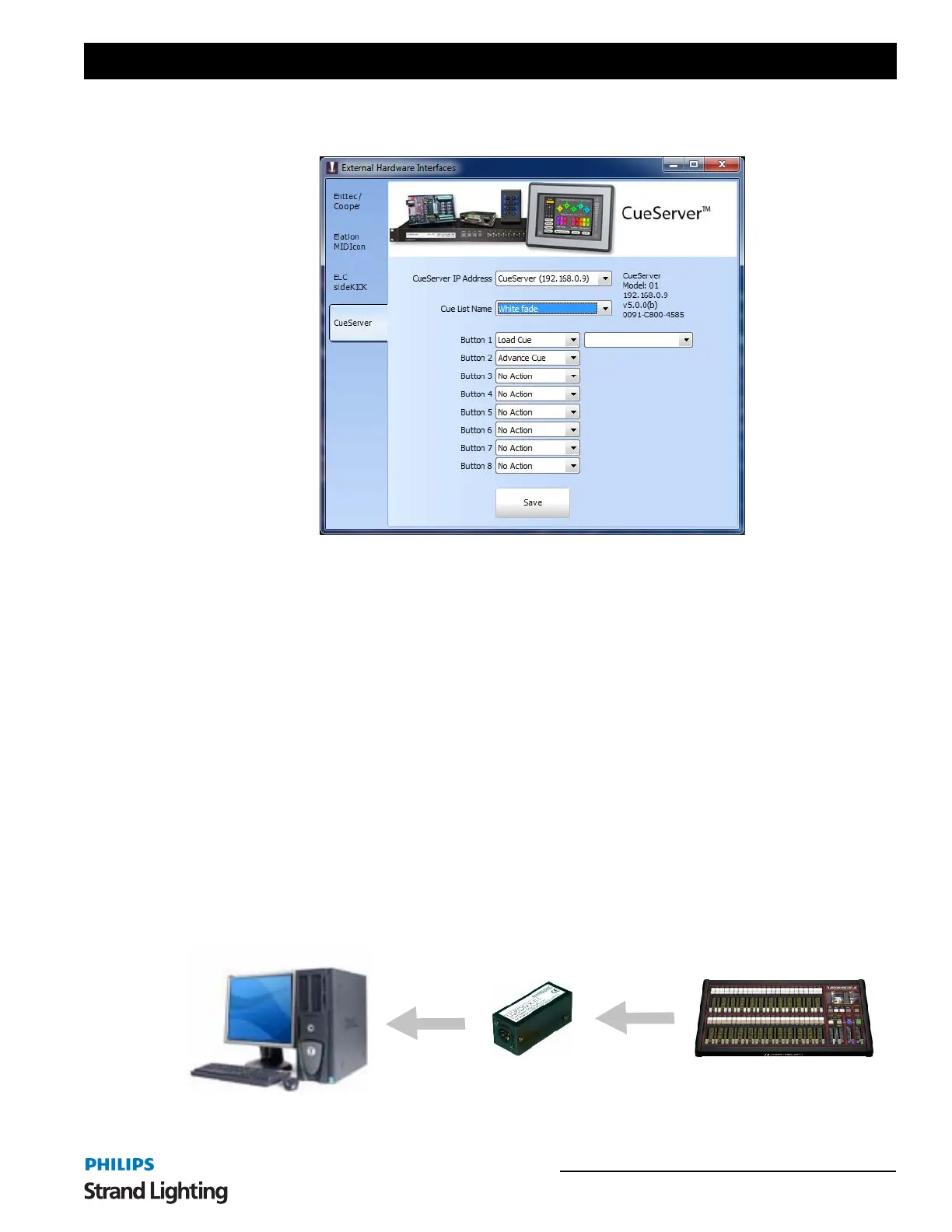
the cue list you want to upload and the actions you want for each of the buttons. NEO will then take care of creating
the necessary resources containing your show data and upload it in one operation.
When this window is opened NEO will automatically search for CueServers connected on the network. You can
select the CueServer you want to send a show file to by selecting it from the drop down combo box at the top of this
window. Detailed information about the selected CueServer will be shown on the right including its version number,
model and serial number.
Use the "Cue List Name" selection to set the cue list you want to load onto the device.
The CueServer has 8 buttons on the front of the device that can be set to either advance the cue list or load to a
specific cue. Use the selection box to set the action you want for each of the buttons. If the "Load Cue" option is
selected a second drop down box will be shown for you to select the cue you want.
Click on the "Save" button to upload the cue list you have selected into the CueServer. If your show file contains a lot
of effects then this may take a while as each effect is rendered.
Hardware Submasters
NEO provides the ability to add physical hardware to the system by using any standard DMX lighting desk, MIDI
Control desk or Playback wing. By connecting the DMX-IN hardware, you can connect your existing lighting desk to
the software.
NEO will only use the first 100 channels of the lighting desk as submasters, but these 100 channels can be paged to
provide up to 100,000 submasters.
External Hardware Wings - CueServer


 To Next Page