User’s Manual
138 Software Configuration
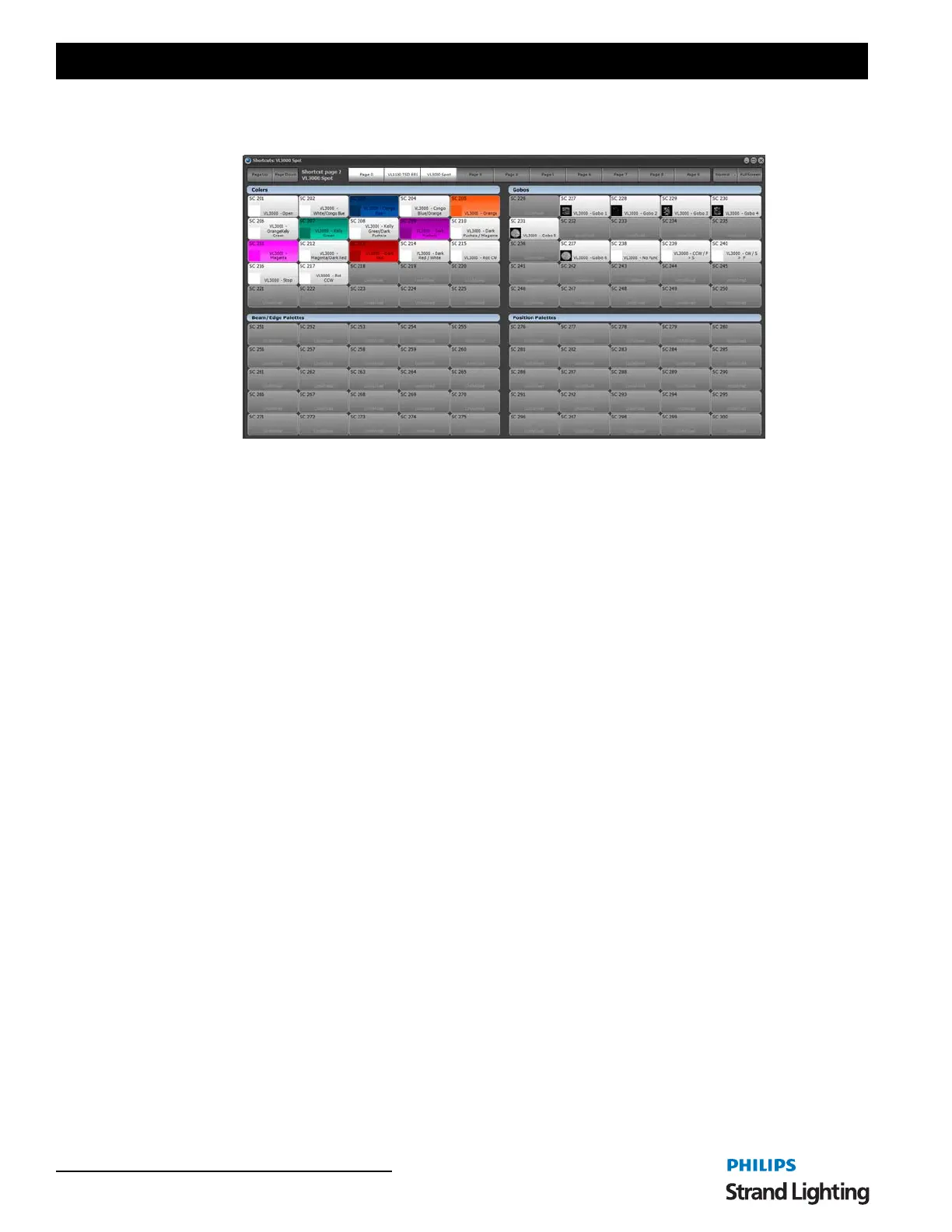
An alternative way to access these palettes is to use the shortcut window or an external shortcut keyboard. To open
the shortcut window click on the "Shortcuts" button on the main NEO window.
In the above example you will see the shortcuts that we have created in the earlier examples. In the top right corner of
this window is a button that will toggle between the text "Normal" and "4-Up". The display in Figure 179 shows the
window in "4-Up" mode. This mode segments the shortcuts into 4 groups with configurable labels. In this mode we
can see why the specific shortcut number was chosen. We chose shortcut 51-53 for the position presets because these
match the "Position Palette" label in the shortcut window.
By default the color palettes automatically assign the appropriate background color to the button representing the
color that the palette will produce.
Pressing any of the shortcuts in this window will apply the palette associated with it without needing to open the drop
down menus in the channel display.
Using this window we can still enter timing information on the keyboard before pressing the shortcut. Pressing the
number 3 before pressing a color palette will apply that palette in 3 seconds.
By adding selection shortcuts to this window you can select some fixtures, set the color and set the position with 3
clicks of the mouse or presses on a touch screen.
Cue List Based Shows
While using palettes and channel groups is not required for programming a show you will find that by creating your
show with building blocks will make it easier to make changed later. At the same time palettes and channel groups
will also make programming quicker because you will minimize the need to setup moving lights for each cue.
When recording a cue in NEO will the channel state and all attributes associated will be store so that it can be recalled
for playback. The values recoded are referred to as hard values because the value recorded directly represents the
output values.
For Example: Channel 1 = 50%
When palette recording is enabled NEO stores the reference to the palette rather than the actual value of the attribute.
This means that if a palette is changed any cues that reference that palette will automatically use the new value. The
cue does not actually hold the value of the attribute but obtains the value when the cue is run by looking up the
referenced palette.
For Example: Channel 1 = Dimmer Palette = 50%
If "Dimmer Palette" is changed to 60% then channel 1 will automatically reflect this change.
A good example of where this is useful is with position presets. If we create a show and record hard values with every
cue then the show moves to a different venue we need to go back and revisit every cue and change the positions of the
lights. If the show is recorded with position presets then a change in venue only requires that we update the position
presets that are referenced by the cue list.


 To Next Page