User’s Manual
70 Software Configuration
MIDI Learn
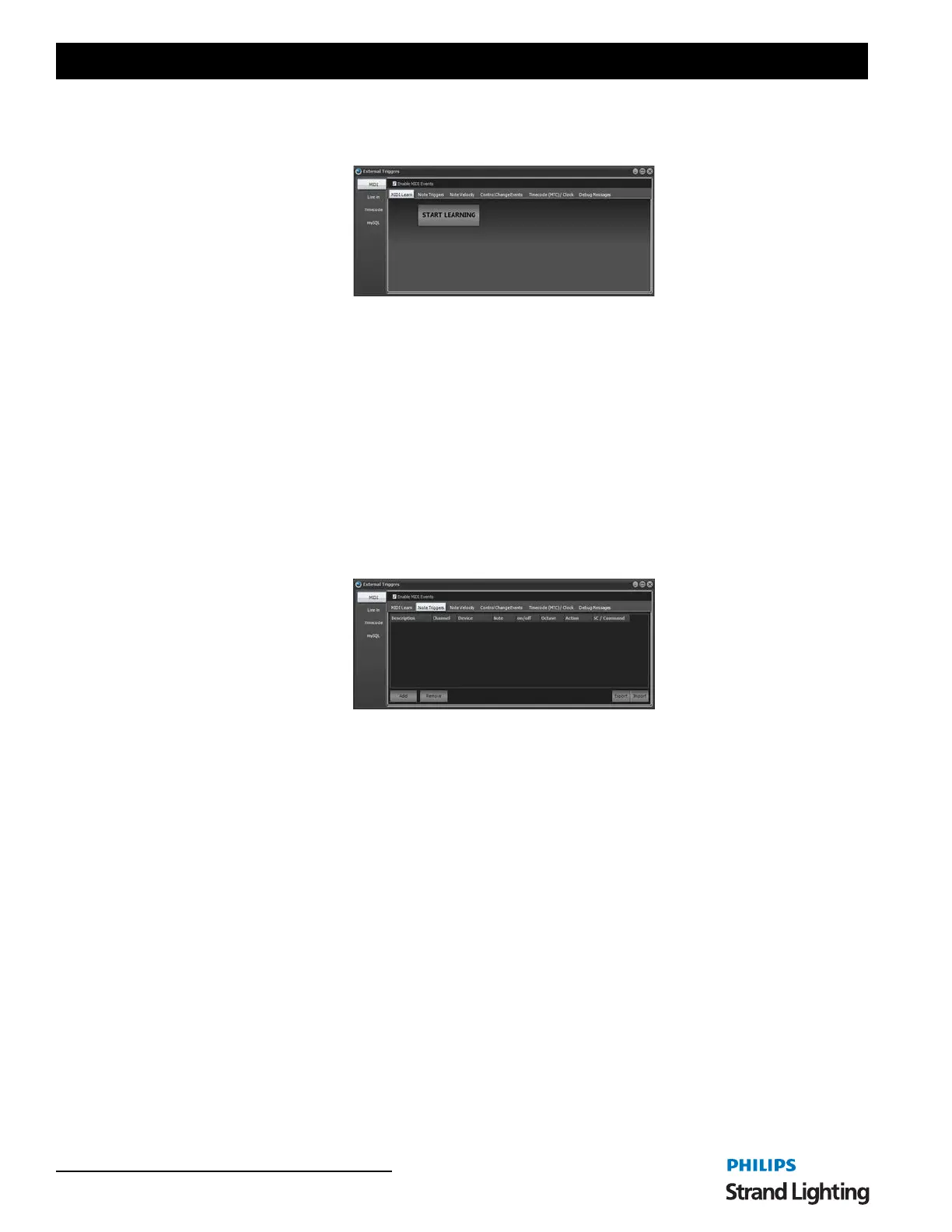
To make it easier to setup MIDI triggers NEO can learn events as you go.
Click on the "START LEARNING" button begin listening for MIDI events. As soon as a MIDI event occurs in the
software the "Found MIDI event" options will be shown.
Use the ACTION options to determine what the MIDI event will do. To the right of the action options will appear any
additional parameters requires. For example to fire a shortcut you must set what shortcut number you want to fire.
Once you have set what you want the event to do click on the Save button.
Click on the Cancel button to return to the "Start Learning" state.
Use the "Save & Start" button to save the event action and return to the learn state.
Note Triggers
The "Note Triggers" tab provides the ability to add any number of note triggers to the system. Click on the "Add"
button to create a new line in the list of triggers. To remove a trigger click on the row you wish to remove and click on
the "Remove" button.
Each trigger requires the following settings;
Description - This provides a way to identify the trigger by entering a description for your reference.
Channel - Identify the MIDI Channel to listen on (1-16)
Device - Device number to listen to (default 0)
Note - This is an instrument note that will trigger the event.
On/Off - Determine if the system will trigger by a note on or note off event.
Octave - An interval between two notes that are seven steps apart on a musical scale.
Action - Each trigger can either execute the "cue go" operation, execute a system shortcut or run a command. Use the
drop-down combo to select one of these options.
Shortcut/Command - If the action is set to "shortcut", this field is used to specify what shortcut number you want
this trigger to execute. If set to command enter the command syntax into this field.
Import / Export - To help manage a large number of MIDI note triggers you can import this information from a
coma separated text file (csv). Click on each of these buttons to open a standard windows file dialog to select the file
you want to import or export.
When choosing the import option a dialog will pop up asking you if you want to remove existing entries before
importing the new data.



 To Next Page