FX List (Effects Editor) 117
NEO Lighting Control Console
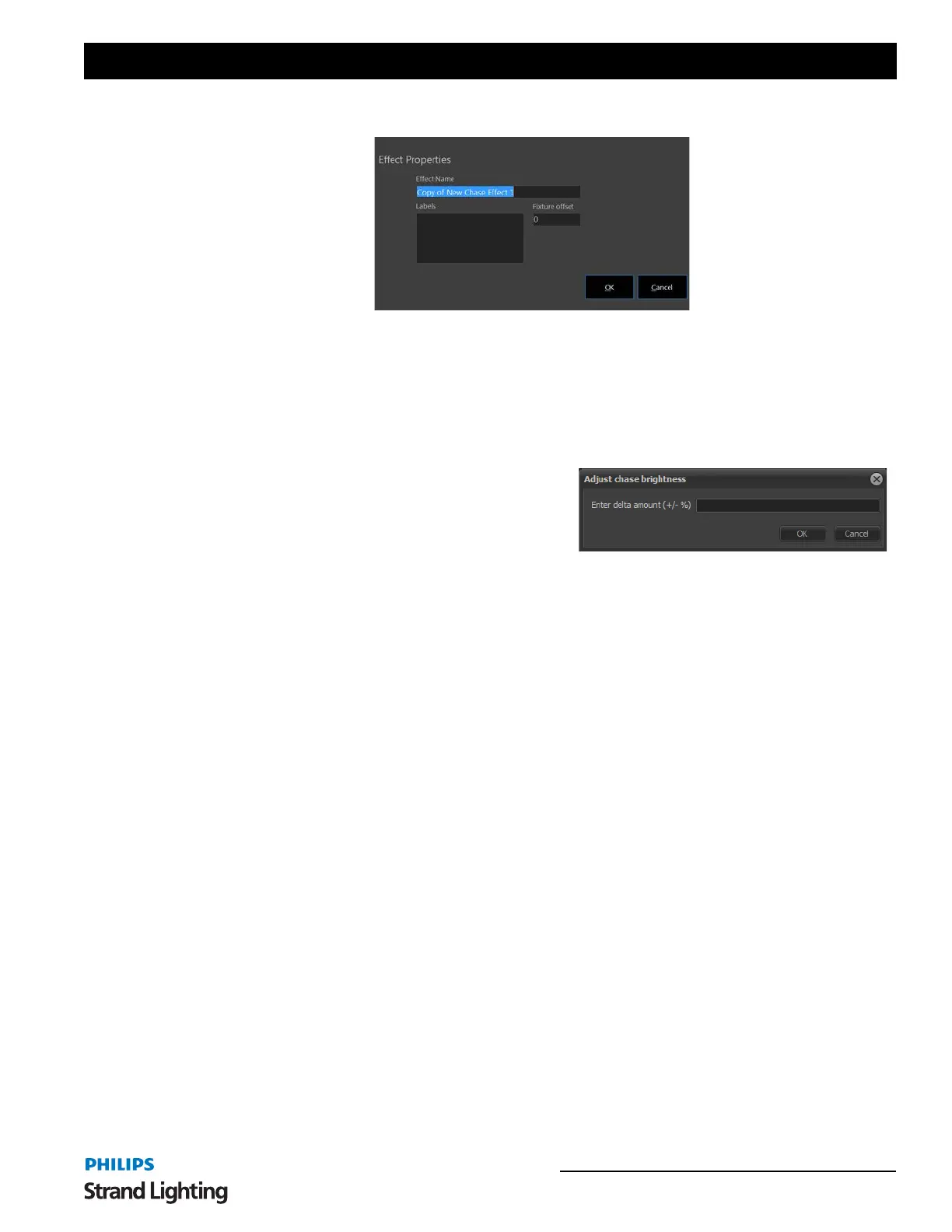
Make a Copy of This Effect (Offset Fixtures)
This copies the selected effect when it's easier to start from an existing effect and gives you the opportunity to offset
the fixtures.
Find and Replace Media Paths
Use this option to conveniently update the location of media on your HDD in one step. If a media effect is already
selected when choosing this option then the path used in that effect will automatically be used as the "Path to replace"
field.
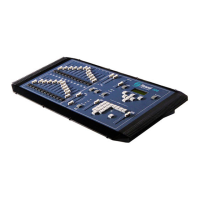
Adjust Chase Brightness
This will adjust the fixture's intensity in the effect by a relative
amount.
Adjust Color Levels
This will adjust the fixture's color intensity in the effect by a
relative amount.
Adjust Red Levels
This will adjust the fixture's red level in the effect by a relative amount.
Adjust Green Levels
This will adjust the fixture's green level in the effect by a relative amount.
Adjust Blue Levels
This will adjust the fixture's blue level in the effect by a relative amount.
Create an Independent FX Playback
Once you have created your effect you can quickly add the effect to a playback control using the "Create Playback"
button at the bottom of the effect list. A new playback will appear in the "Effect Playbacks" window that can then be
used to run the effect outside of the effects editor.


 To Next Page