User’s Manual
110 Software Configuration
Media - To playback media files, flash animations, or control a DV desk.
DMX Recorder - The DMX recorder will use the DMX input system of NEO to record a continuous stream of data
that can be played back at any time.
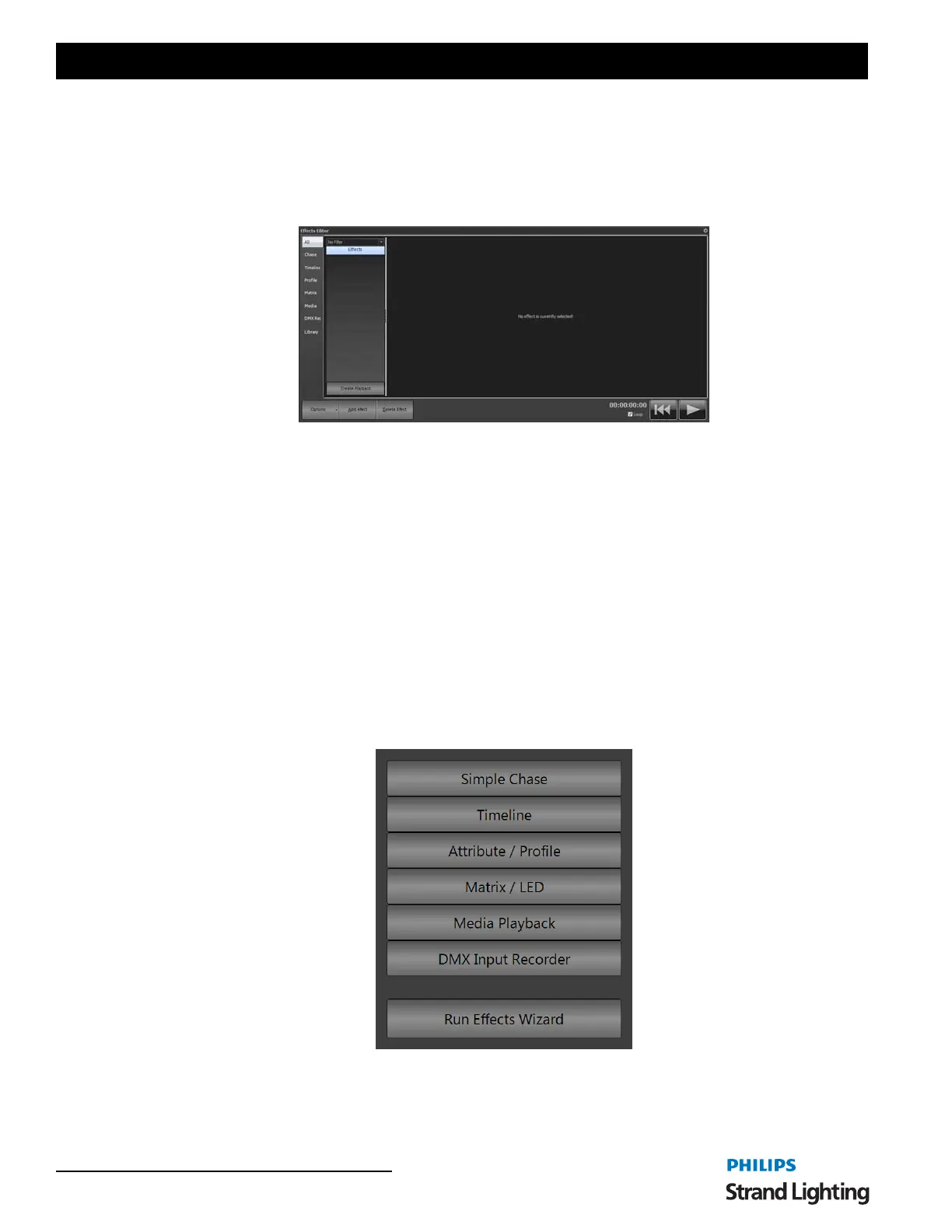
To access the effects editor, click the "Effects Editor" button on the Command Line interface window or press the F5
key on your keyboard.
Effect Filters
NEO provides the ability to set filters with every effect to make managing a large number of effects easier. Double
click on any of the effects to edit the list of filters that describe this effect. For example a moving light effect that does
a circle might be given the filters - Movement, Intelligent Lights, Rear truss.
Use the combo box at the top of the effects list to select the filter you want to apply. The effects list will now only
show effects that match these criteria.
You can also use the tabs on the left of the window to only show effects of a particular type. By default all of the
effect are shown but if you only want media effects you can select this only this tab.
The last tab on the left of the window is different to the others in that it will switch to showing the effects stored in the
Library. Library effects do not get deleted with a new show and can be used to create other effects.
Creating New Effects
To create new effects click the "Add Effect" button. As soon as you click on the add button the effect creator pop up
window appears.



 To Next Page