FX List (Effects Editor) 127
NEO Lighting Control Console
"Copy all segments" ignores the currently highlighted segment and places all of the segments associated with the
fixture onto the clipboard.
To place a copied segment or segments onto a fixture, select the "Paste" option while the mouse is over the fixture
you would like to paste to.
NEO NOTES & TIPS: When pasting, if a segment conflicts with segments that already exist for this fixture you are
pasting to, nothing will happen.
After a paste operation, the segments will remain in the clipboard to allow you to paste segments to as many fixtures
as desired.
This feature is useful after creating a moving light path to copy the newly created path to all of the other fixtures in
the effect. To do this, create a path for the first fixture and then select the copy all function. To create the path for all
of the remaining fixtures simply paste to each one in turn.
Profile Effect
Create this type of effect to assign a time vs. profile path to specific attributes of fixtures. When the effect runs the
selected attribute will apply the set values over a set time. Profile effects are a very powerful way to create complex
effects with minimal effort. Once you are use to using this type of effect you will find it the most common effect
system you will use.
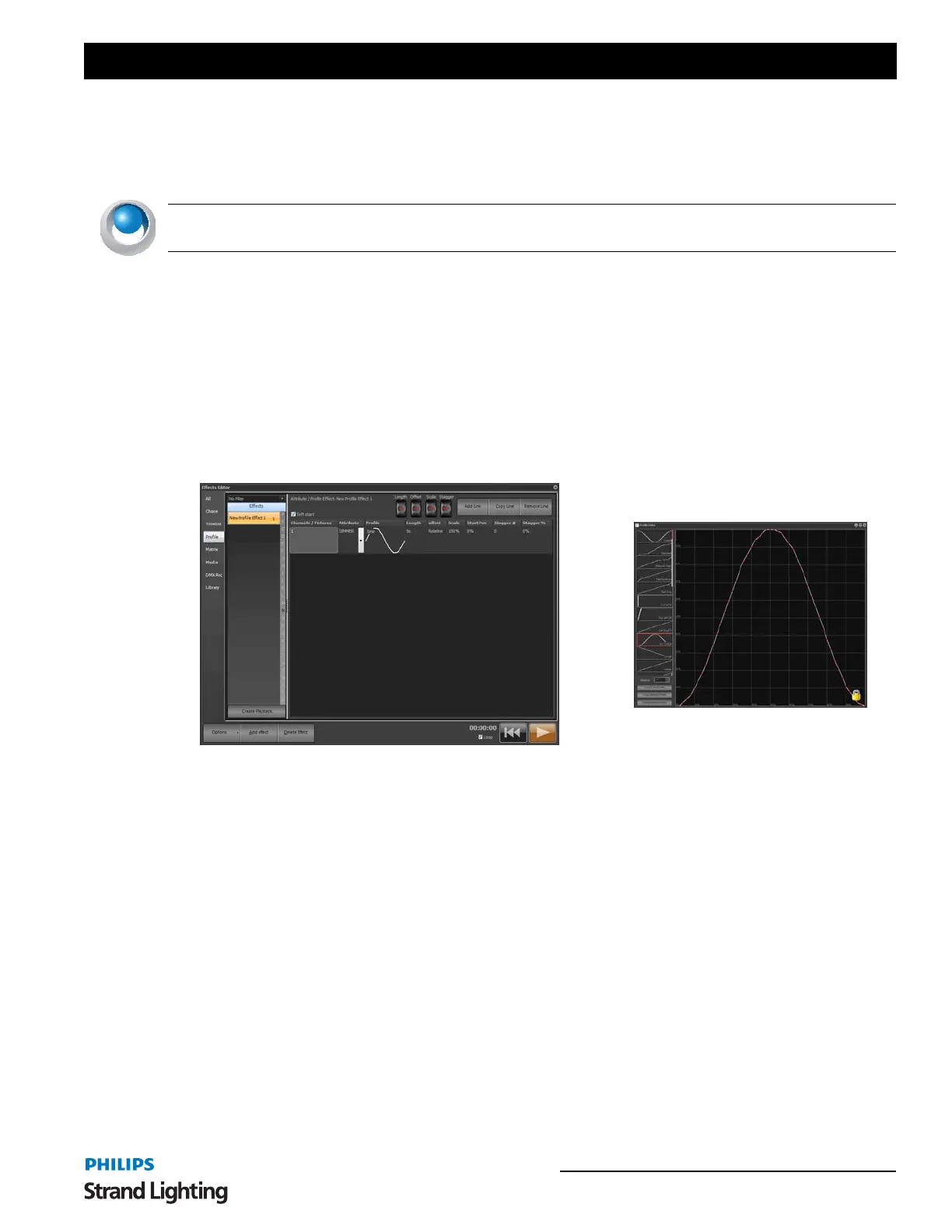
In the above example a profile effect has been created to operate in fixtures 200 through to 204. There are two
elements in this effect, the first is a "sine" wave working on the pan property and the second is a "Inverse cosine"
wave on tilt.
For each attribute you want to apply a profile path to you need to create a separate line in the items table. In the above
example 2 entries are required to create a circle with the fixtures. The first entry controls the pan property and the
second the tilt. If the desired effect was a ballyhoo we might only require one entry applying a profile to the tilt
property.
To add an entry in the items table simply click on the "Add Line" or "Copy Line" button. This will create a new line
with either blank values or the same values as the previous line. To delete an entry click on the "Remove Line"
button.
Channels / Fixtures
This is a simple list of fixtures that the profile and attribute will operate on. You can use the same channel syntax as
the Command Line interface to enter the channel list. By default channel will remain in the order they were typed. To
sort the list of channels right click and select sort from the popup menu. The order that the channels are listed in is
important for the stagger operation.
Effects Editor, Property / Attribute Effects - Sine and Inverse Cosine



 To Next Page