Groups Display 81
NEO Lighting Control Console
11. Groups Display
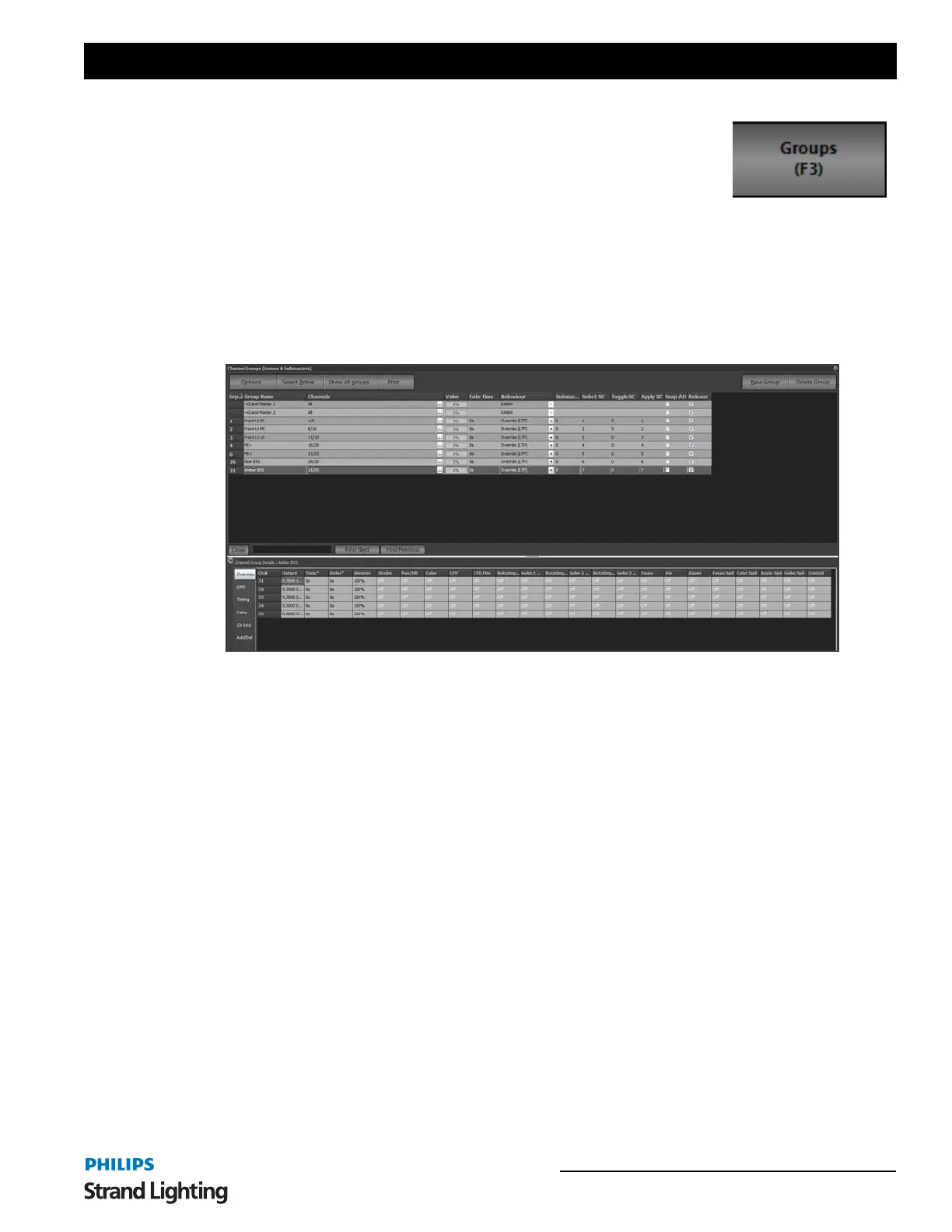
Channel groups (Scenes & Submasters) are a convenient way to manipulate a number of channels and fixtures with
one control. Channel groups can operate on any number of fixture attributes and do not need to operate on the
dimmer. You can also add channel groups into cues, thus creating stage looks that can be altered in one location and
applied across all cues.
Channel groups can also be used to aid with selecting fixtures in the channel display. By assigning a selection
shortcut the channels contained in the group can be selected or de-selected using either the shortcut or the menu
option on the channel display window.
Channel groups are most commonly associated with traditional scenes or submasters, however you do not need
submasters to use channel groups. A channel group is a snapshot of a lighting state where the output of each channel
in the group is a proportion of the group value.
To create a new blank group in blind, click on "New Group." This will create a group without any channels assigned
and all fields set with default values.
To remove a group from the system, click on the row containing the group and click on the button "Delete Group." A
dialog box will prompt you to confirm that you wish to remove the group. Click on the "OK" button to remove the
group or "Cancel" to return to the previous window.
Group Number
The group number is the numerical ID of the group.
Group Name
The group name is a description field that provides easy identification of the group. Enter a meaningful description
for future reference.
Channels
This is a list of the channels included in the group. This list can be edited by entering the channels using Command
Line. You can also enter channels using the same syntax as the command window.
[1][+][3][+][9][ENTER] will add channels 1 and 3 and 9 to the editing group.
The channels included in the group can also be edited by clicking the (
...) button to the right of the field or by double
clicking on the grid cell. This will bring up the "Channel Group Details" window. This window provides greater



 To Next Page