User’s Manual
62 Software Configuration
On-Screen Shortcuts
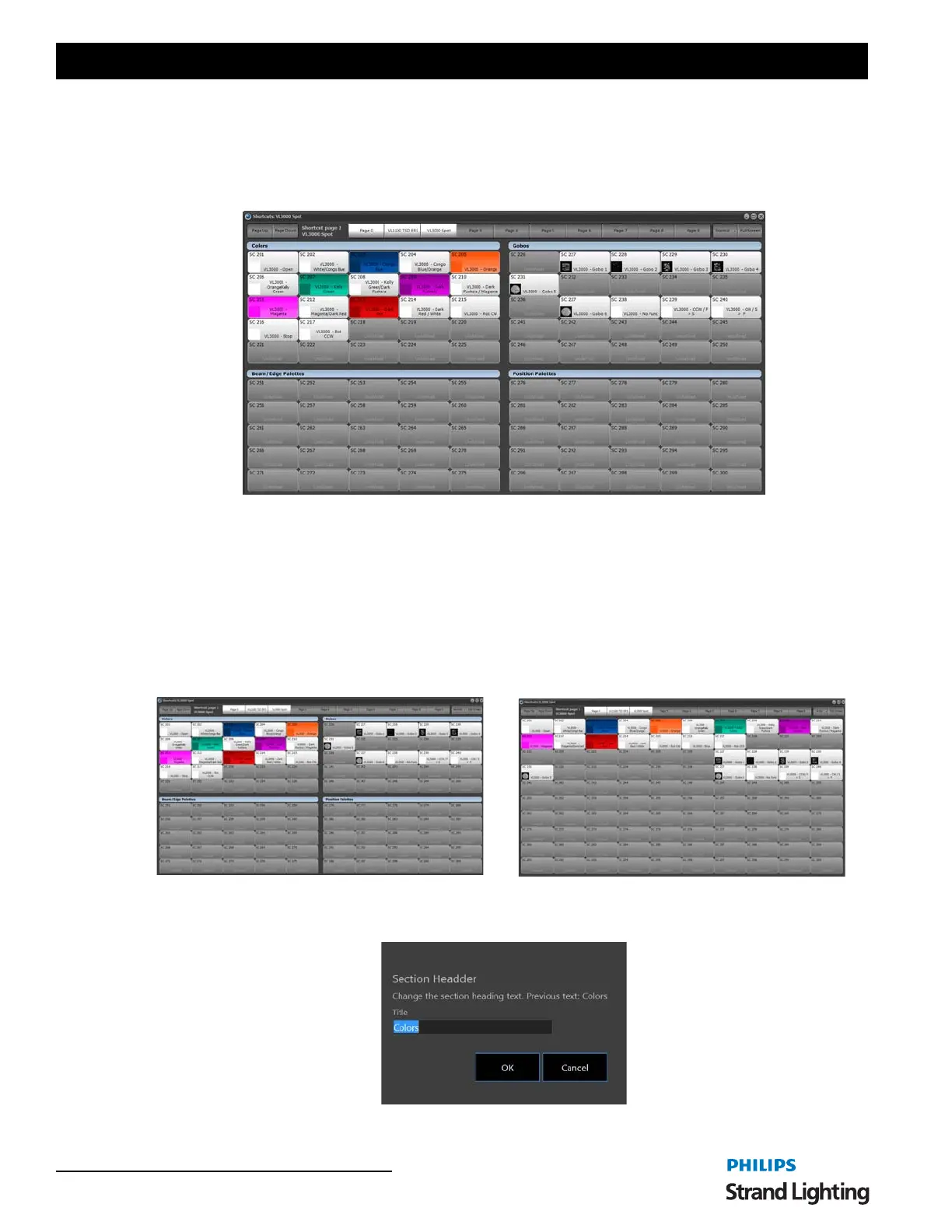
The shortcut window is a grid of 100 buttons each tagged with a number, description, and color.
If a shortcut is not assigned the button will appear greyed out and cannot be selected. When a shortcut is assigned a
default description is created and appears below the shortcut number.
Figure 7: On-Screen Shortcuts
There are two (2) view modes that can change the display of the on screen shortcuts. You can switch between the
modes by clicking on the button to the left of the "Full Screen" button. The label of this button will toggle between
"Normal" and "4 UP" depending on the mode you are in. In "Normal" mode the shortcuts will appear as a 10 x 10 grid
with the shortcuts numbered with 1 in the top left corner and 100 in the bottom right corner. In "4 Up" mode the
shortcuts will be arranged in to 4 groups. Each of the groups will have a user definable heading that will default to
Color Palettes, Beamshape Palettes, Positions and Groups.
To change the label for each of the groups in "4 Up" mode click anywhere in the heading.
Figure 8: Shortcut Grouping Title Edit
4 Up Mode Normal Mode



 To Next Page