Tutorial 231
NEO Lighting Control Console
STEP 2
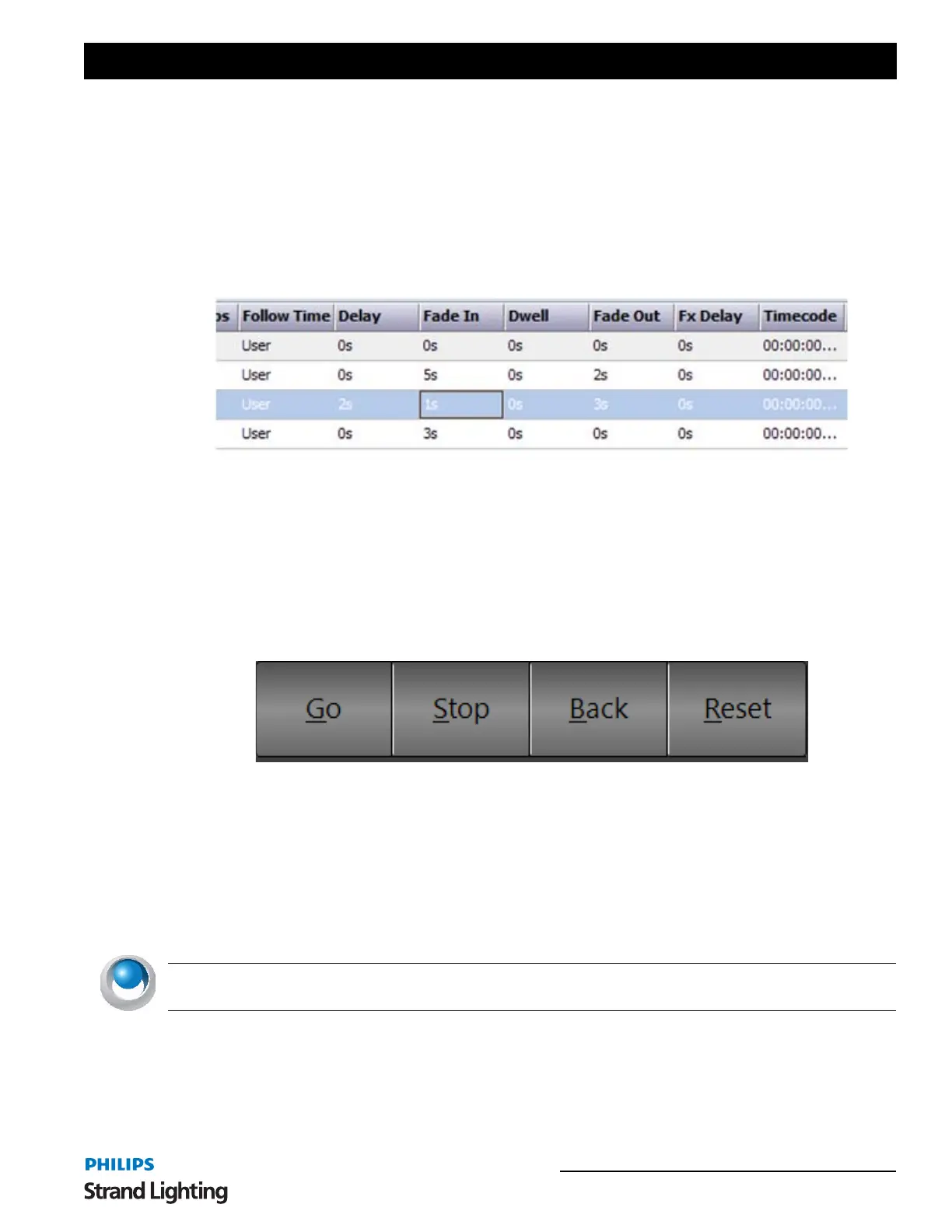
We do not want cues 1 and 2 to cross fade, so we need to set a delayed start on cue 2 of 2 seconds. This will cause cue
2 to wait the same length of time it takes cue 1 to fade out. In the row for cue 2, enter the number 2 in the field
labelled "Delay" and enter a 1 into the field "Fade In".
STEP 3
For cue 3 we do want a cross fade so we can set the "fade out" of cue 2 to 3 seconds and the "fade in" of cue 3 to 3
seconds.
The right-hand fields should now be set as per the figure below:
Running the Show
We are now ready to run our show for the first time and see the result of the procedure above. If you have a real
lighting rig connected to the system, you should see the result apply to your dimmer system. If you do not have any
dimmers connected, use the "Channel Display" or "Raw DMX View" to see the output.
If the start cue (cue 0) is not highlighted in green, select it as the starting cue by double-clicking on the status column
for its row. In this example, we have chosen to leave this cue blank without any fixtures set. There is no reason not to
use this cue other than to have a blacked-out state when the show begins.
Along the bottom of the cue list editor are the playback controls for the currently selected cue (highlighted in green).
Press the "Cue Go" button and notice how channels 2, 3, and 6 slowly fade from zero to their set values over a period
of 5 seconds. Once this cue has finished, (A progress bar in the status field of the cue list grid will show when the cue
has finished execution) click the "Cue Go" button again to go from cue 1 to cue 2. This time cue 1 will fade out, and
then cue 2 will slowly fade in. The current cue will always be highlighted in by a green arrow and you will notice this
will following the cue execution
At any time we can return to the previous cue by clicking on the "Back" button and can stop a cue execution (i.e. Fade
In) by clicking on the "Stop" button.
NEO NOTES & TIPS: A show can be run either via the Show Editor as per the example above, or via the Show
Runners.
Cue Playback Controls



 To Next Page