FX or Effects Playbacks 155
NEO Lighting Control Console
Add a playback to the system by pressing the "Add" button at the bottom of the page. The new playback will be
placed at the end of the list. To remove the last playback click on the "Remove" button provided. A confirmation
dialog will ask that you are sure you want to remove the playback.
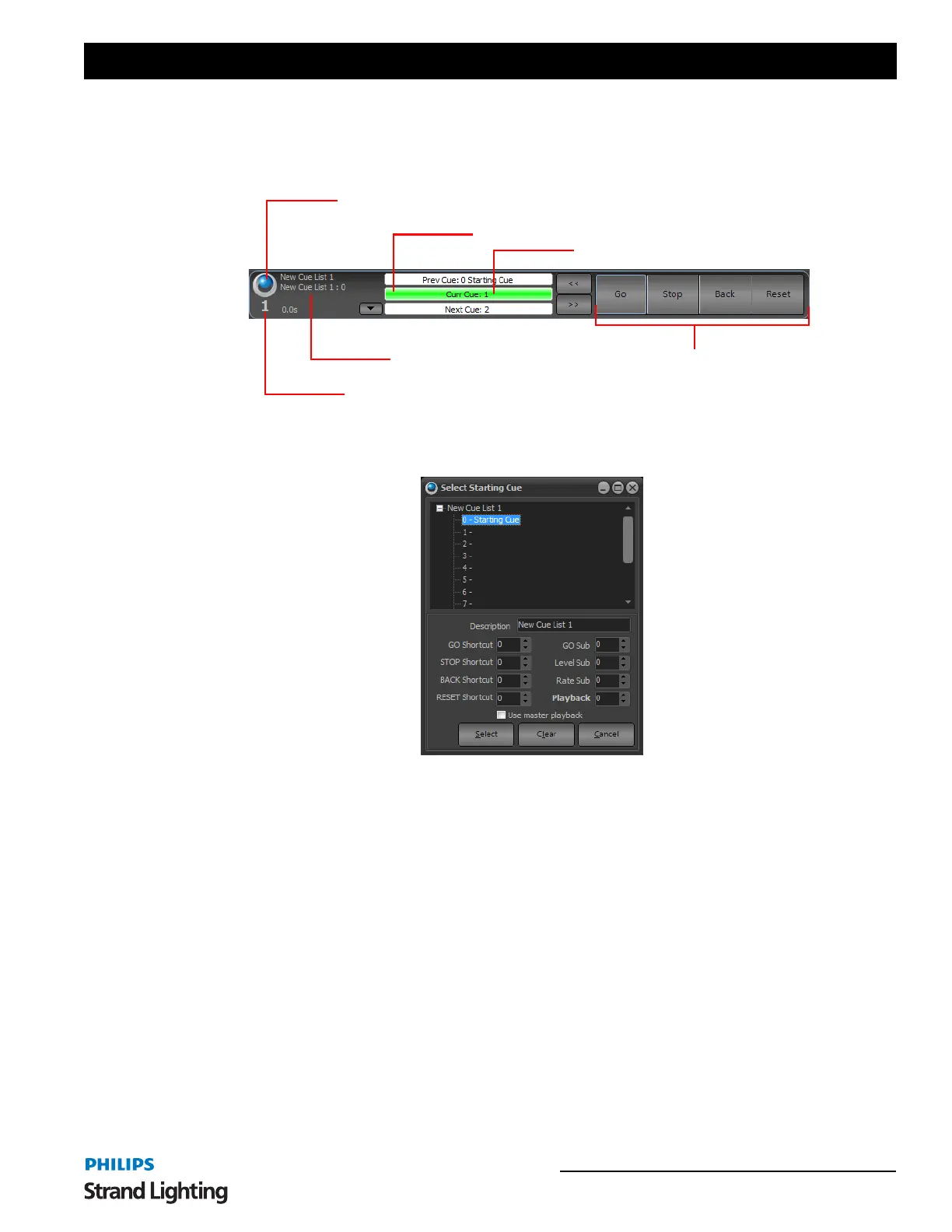
Click on the button on the left of the playback to assign a cue list and starting cue. The following dialog will appear
listing the available cues and cue lists in the system.
Expand the cue list that you want by clicking on the small plus next to its name and then select the starting cue
(Normally Cue 0). Click on "Select" to use this as in the cue playback or click "Cancel" to return without making any
changes.
To clear out the cue playback and disable the controls use the "Clear" button.
The description field can be used to enter a meaningful name to the cue playback for future reference. Use the other
fields to set shortcuts and submasters to the playback.
After you have selected a valid cue list and starting cue number, the playback controls will become active. You can
now use them to run your show.
To move a playback to a different location right click anywhere on the playback and select "Move" from the resulting
menu. The mouse cursor will change to a small hand indicating for you to click on the playback you want to move it
to.
22. FX or Effects Playbacks
"Effect Playbacks" provide a quick and easy way to access effects in an ad-hoc manner. Once you have created your
effects (See "Effects Editor" to learn how), they can be used either within cue lists or manually from effects runners.
Assign the cue list and starting
cue number using this button.
Show Runner Number
Cue List Group
Current Cue
Cue Progress
Playback Controls
Cue Playback, Cue Selection


 To Next Page