Shortcuts 61
NEO Lighting Control Console
group named "Front Light", you could type FRONT LIGHT @ 100 ENTER to turn that group on. It's very fluid and
functional.
Master Fade Time
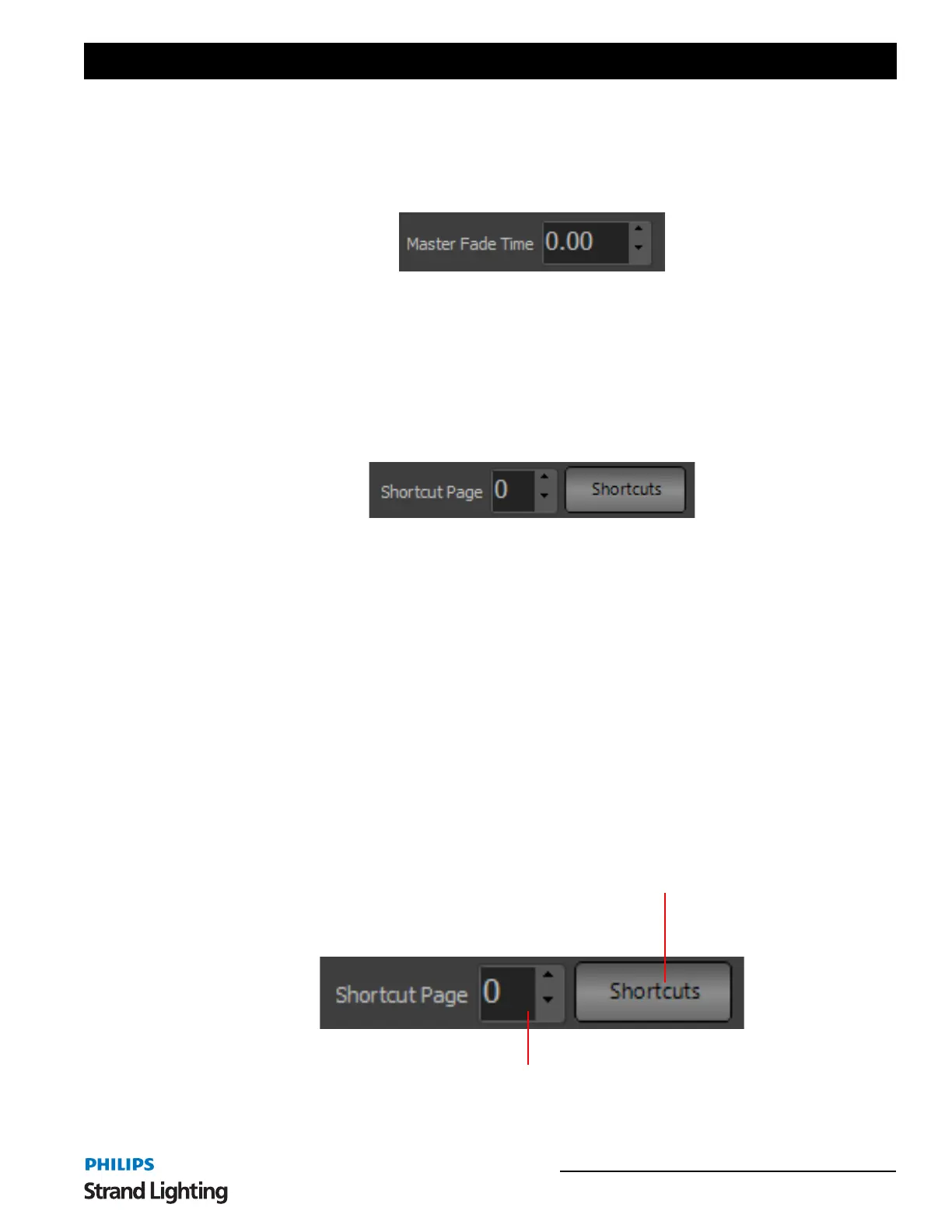
The master fade can be set for all channels by entering a value into a fade edit box to the left of the shortcut controls.
Once you have set the desired fade all changes made to the fixture will apply over this time.
The default fade time specifies the time a channel will take to get from its current value to the new value. Internally
this value will be overridden by the show and effects controls so it is not necessary to have the default fade at zero
when running shows.
3. Shortcuts
Shortcuts are designed to provide quick access to a number of functions within the software. Some of the assignments
that can be made to shortcuts include:
• Channel selection
• Channel Group Selection
• Cue Go / Back / Pause / Reset
• Execute Fixture Properties
• Effects Run / Pause / Reset
• Execute level groups
• And many more…
As with submasters, shortcuts can be accessed through an on-screen display or by the NEO console hardware. On-
screen shortcuts also have the added feature of being designed for use with a touch screen display.
NEO provides 100,000 user-assignable shortcuts that are accessed through 100 pages. Access to the on-screen
shortcuts is obtained by clicking on the button to the right of the shortcut page selection.
Open on-screen shortcut page
Shortcut Page



 To Next Page