User’s Manual
88 Software Configuration
To create a new cue list click on the "Options" drop down menu and select "Create a new Cue List" from the resulting
options. A dialog will appear titled "Create New Cue List".
Enter the name of the cue list you want to create and click "OK" to continue.
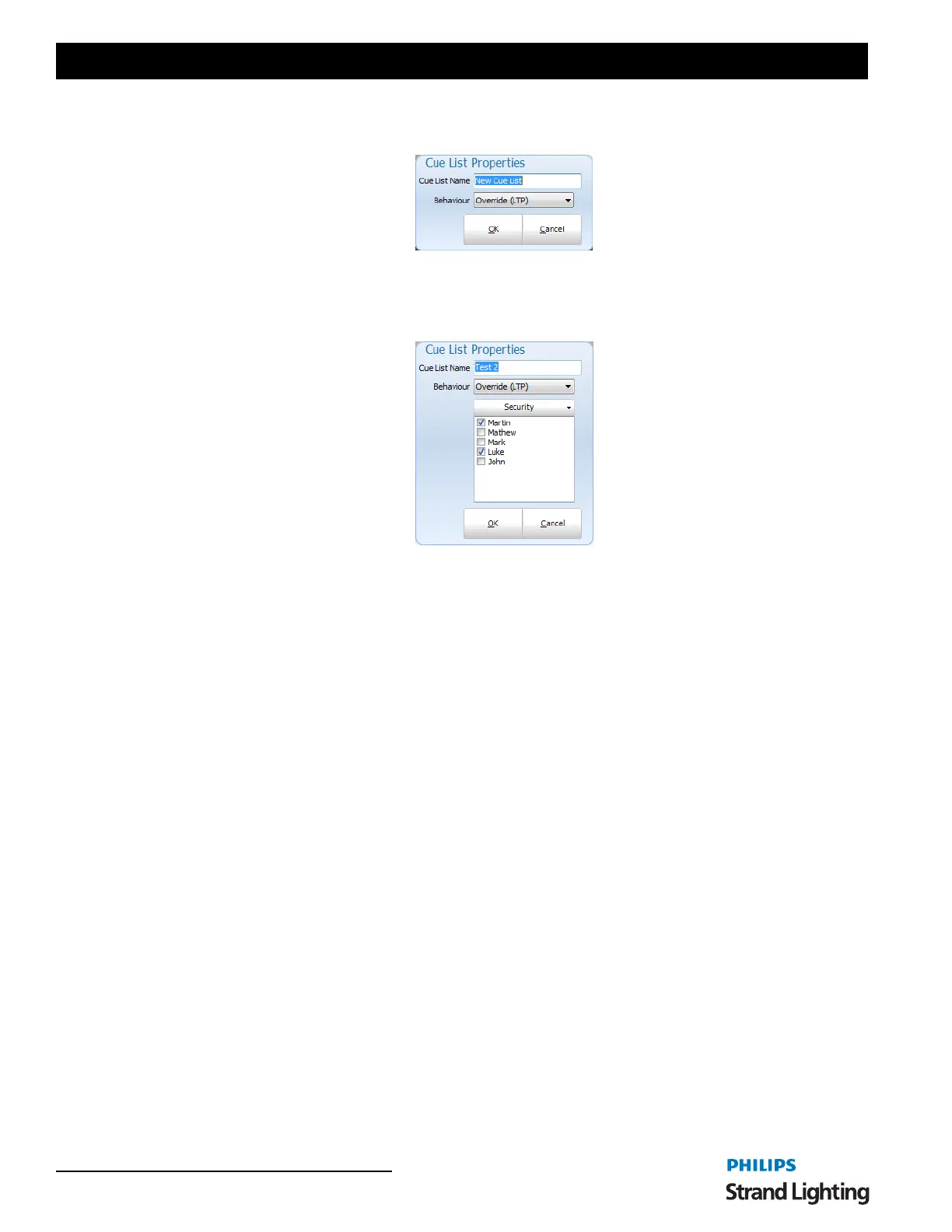
To change the name, right click on the cue list name and select "Edit Cue List Name". A dialog will appear that is
used to not only set the name nut also change the behavior of the cue list during playback.
Behavior
Each cue list can be assigned a behavior type that is used when the cue list is played back. By default this is set to
Latest Takes Precedence (LTP) however you can change this to Build, Highest Takes Precedence (HTP) or Exclusive.
LTP is also called "override" in the channel groups as the output of this behavior will override whatever the channel is
currently set to and apply the new value.
The behavior set by this option will result in playback of the cue list following the same rules as the behavior set by
channel groups. See "Behavior" on page 213 for further details.
Cue List Security
If you have user security enabled then a security option will be visible. Click on the security button to open the
security list. This is a list of users in the system with a check box indicating if that user can modify the cue list. Any
user can view and run a cue list but only those allowed can modify it. To prevent a user from viewing or running a cue
list use the security options in the main User Security window found in the Options menu of the Command Line
interface.
To remove a cue list select the desired cue list from the list (Selected cue lists will be highlighted) then click on the
"Options" drop down menu and select "Remove current cue list".
A confirmation box will prompt you to confirm this operation. If you are sure you want to delete the group, click the
"OK" button
Active vs. Selected Cue Lists
A selected cue list is the cue list you are currently editing. The name of the cue list is highlighted to identify that it is
selected. To select a different list simply click on the desired cue list name. The selected cue list is always the one
shown in the right hand panel of the window.
The active cue list refers to the play controls in the bottom right of the window. The active cue list is the cue list
currently loaded into this master playback and is identified by the green triangle to the left of the name. The currently
active cue within the list is also highlighted in the same color if that cue list is showing.



 To Next Page