User’s Manual
134 Software Configuration
Creating Color Palettes
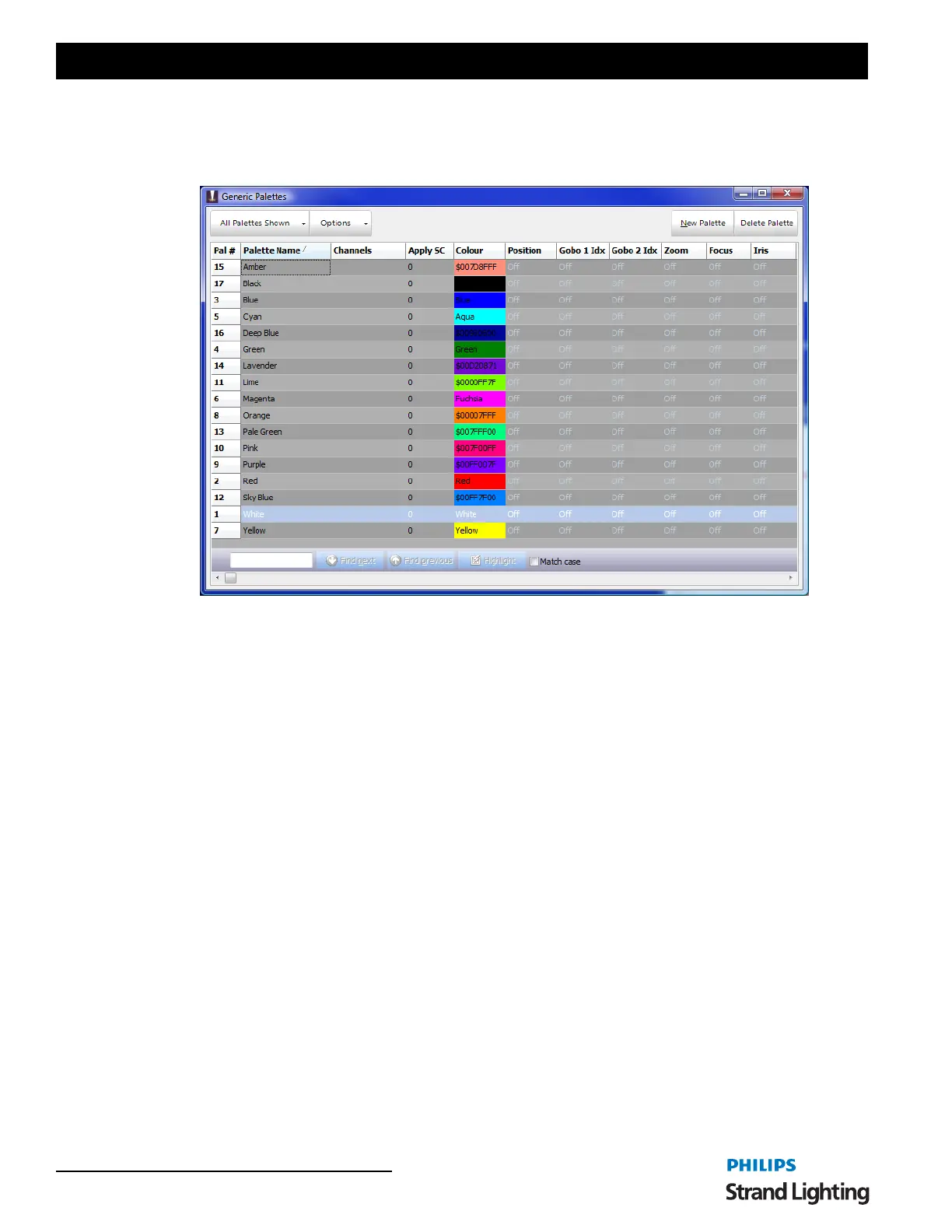
The easiest way to start working with color palettes is to open the palette window and choose "Create Default Show
Colors" from the options menu.
You will see that 17 default colors are created for you when using this option. Note that all of the other attributes
listed (position, gobo 1 idx etc) are all set to "Off". This means that when the palette is applied these attributes will
not apply. If we want the "Blue" palette to also apply a zoom setting then we can simply enter a value into the
appropriate field.
To create your own color click on the "New Palette" button and enter a name when prompted. A new line will appear
in the palette list with all attributes set to "Off" by default.
Double click on the color field for your new palette and the NEO color chooser will appear. Use this window to set
the real world color for your new palette and click "Select" to close this window and store the color into the palette.
For each of the colors we have created enter a shortcut number starting at 1 into the shortcut field. You can enter these
numbers into any order you wish.
Show/Hide search bar - will expose or hide the search bar.
Palettes (Generic Palettes)
Palettes are often referred to as generic palettes or generic control items. This is because palettes do not care what
fixture they get applied to. Using smart logic inside the software a palette can be applied to any fixture regardless of
its capabilities. Obviously if a fixture does not have a specific attribute (zoom for example) then the palettes will not
do anything with that fixture.
The application of some palettes is not always obvious but this highlights the power of what can be done with them.
For example if a palette containing color information is applied to a CMY fixture then NEO will work out what levels
to set the CMY flags to reproduce this color. If the fixture only has a color wheel then NEO will find the color that is
the closest match to the color in the palette. If the fixture has no color attributes at all then it will calculate the grey
level of that color and apply this as a dimmer percentage.
The disadvantage of palettes is that they hold one set of values for any fixture they get applied to. This is useful for
color where NEO can work out how to apply the setting to the fixture but is not so useful for position where the same
pan & tilt angle will have a different position on stage for each fixture. A 20deg tilt on a fixture upstage is a different
position to 20deg tilt of a fixture down stage. To get around this we need a palette that is capable of holding different



 To Next Page