Programming Button Layout 27
NEO Lighting Control Console
[Last] / [Next] - Advances to next or reverses to previous channel. Also acts as a tab key for navigating dialog boxes.
[Thru] - Used when entering a range of numbers.
[Bksp] - Backspace
[0 - 9, .] - 10-Key Numerical Entry.
[On] - Takes intensity value to designated ON level for all selected channels. This level can be changed in: System
Properties > System Settings.
[Full] - Takes intensity value to 100% for all selected channels.
[Out] - Takes intensity value to zero for all selected channels.
[@] - Used to enter specific intensity value for all selected channels.
[Shift] - Used in conjunction with command/action keys for advanced functionality.
[Enter] - Completes an action or selection when entered from the Command Line.
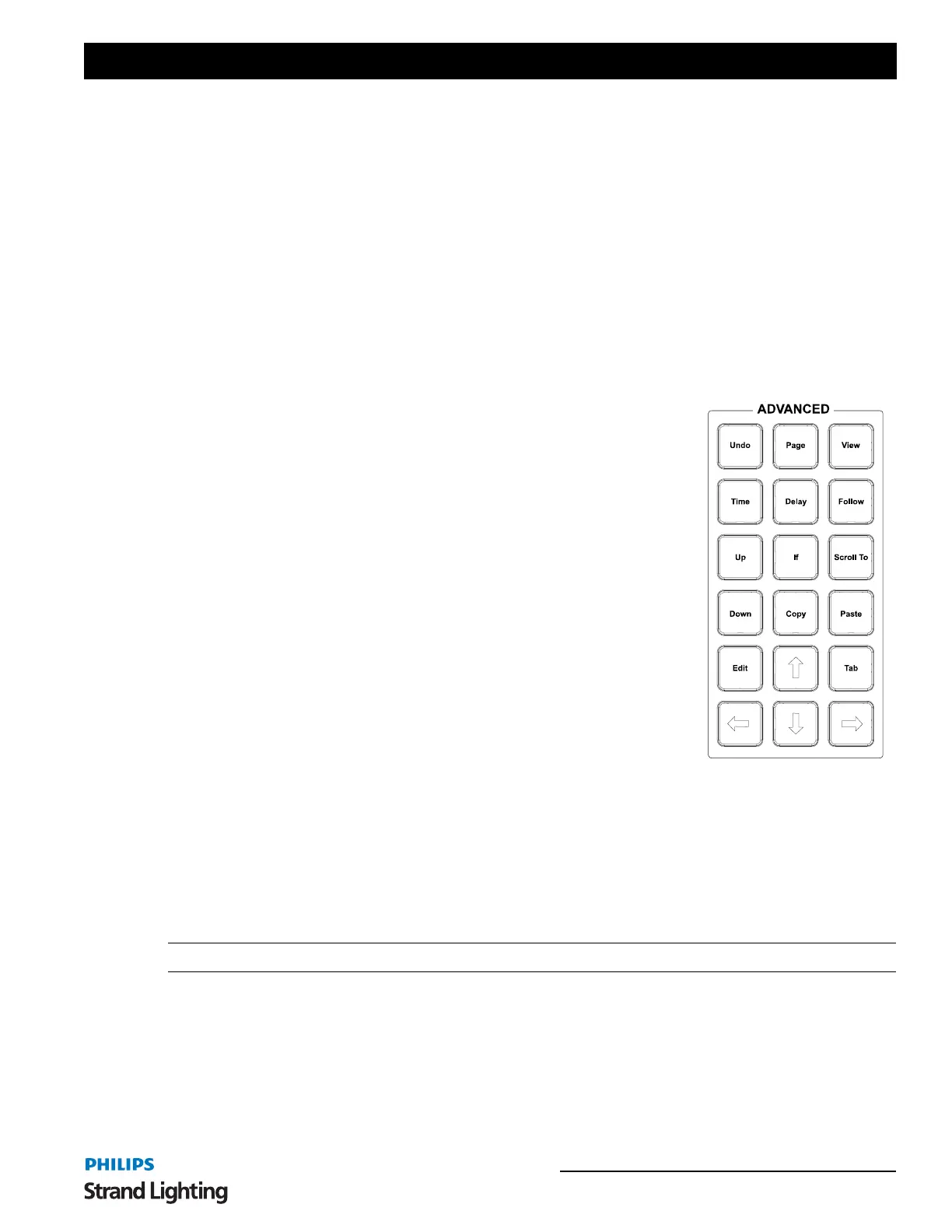
Advanced Keys
[Undo] - Allows undoing of the last level change [UNDO] [ENTER], the last
record [UNDO] [RECORD] [ENTER], update, goto or delete action. Two presses
releases selected devices or undoes selected commands. See Undo command at the
top of the main monitor for more advanced Undo history options.
[Page] - Will "page" the channel display down to show additional fixtures. (Shift +
Page will "page" up.)
[View] - Allows the user to use VIEW on the command line. User can identify a
range of fixtures to view. Example: [VIEW][1][THRU][200][ENTER].
[VIEW][ALL] shall restore to default.
[Time - Allows you to set the times for cues and other elements. Example: [CUE]
[1] [TIME] [5] [ENTER].
[Delay] - Any delay value will hold the cue for the delayed amount of time prior to
activating the cue. Example: [CUE] [1] [DELAY] [2] [ENTER]
[Follow] - Assigns a cue a follow command. A follow command on any cue will
allow the next cue to run automatically after the follow time has expired.
[Up] - Takes selected channel up a predetermined amount (e.g. 10%). Also works
in other instances, such as time windows, data fields, etc. Change this setting in
System Properties > System Settings.
[If] - Allows the use of IF on the command line for advanced IF/THEN statements.
[Scroll To] - Allows display to "scroll to" a specified fixture.
[Down] - Takes selected channel down a predetermined amount (e.g. 10%). Also works in other instances, such as
time windows, data fields, etc. Change this setting in System Properties > System Settings.
[Copy] - Allows data to be copied* from selected channels. Example: [1] [@] [COPY]{COPY FROM} [2] [ENTER].
Note: *Also works as a traditional Windows copy when data is selected.
[Paste] - Will apply the copied data as a traditional Windows paste action.
[Edit] - Allows data to be editable.
[Tab] - Advances to the next edit cell with dialogue boxes.
[Arrow Keys] - Moves the cursor in the desired direction within dialogue boxes.



 To Next Page