Submasters and Submaster Pages 65
NEO Lighting Control Console
On-Screen Submasters
The on-screen submasters can be viewed as either a slider control or a grid similar to the channel display. The slider
view will provide access to up to 30 submasters per page. Each of the submasters per page is represented by a single
slide control and spin edit box. The grid view will display as many submasters per page as set in the system
properties. Each submaster is represented as a square in the grid that can be selected and modified using the scroll
wheel on your mouse.
NEO NOTES & TIPS: NEO can support up to 100,000 submasters by connecting external hardware to the system.
Not all submasters can be viewed on screen when in fader mode. If you configure more than 30 submasters per page
then only the first 30 will be visible in this mode.
To switch between the fader view and the grid view click on the button to the right of this window. Clicking on this
will toggle between each of the views.
At the top of this window is a series of buttons to change the submaster page. Changing the page in this window will
not change the page number on the main window as it is possible to have the on-screen submasters set to a different
page to any external hardware you might be using.
Fader Mode
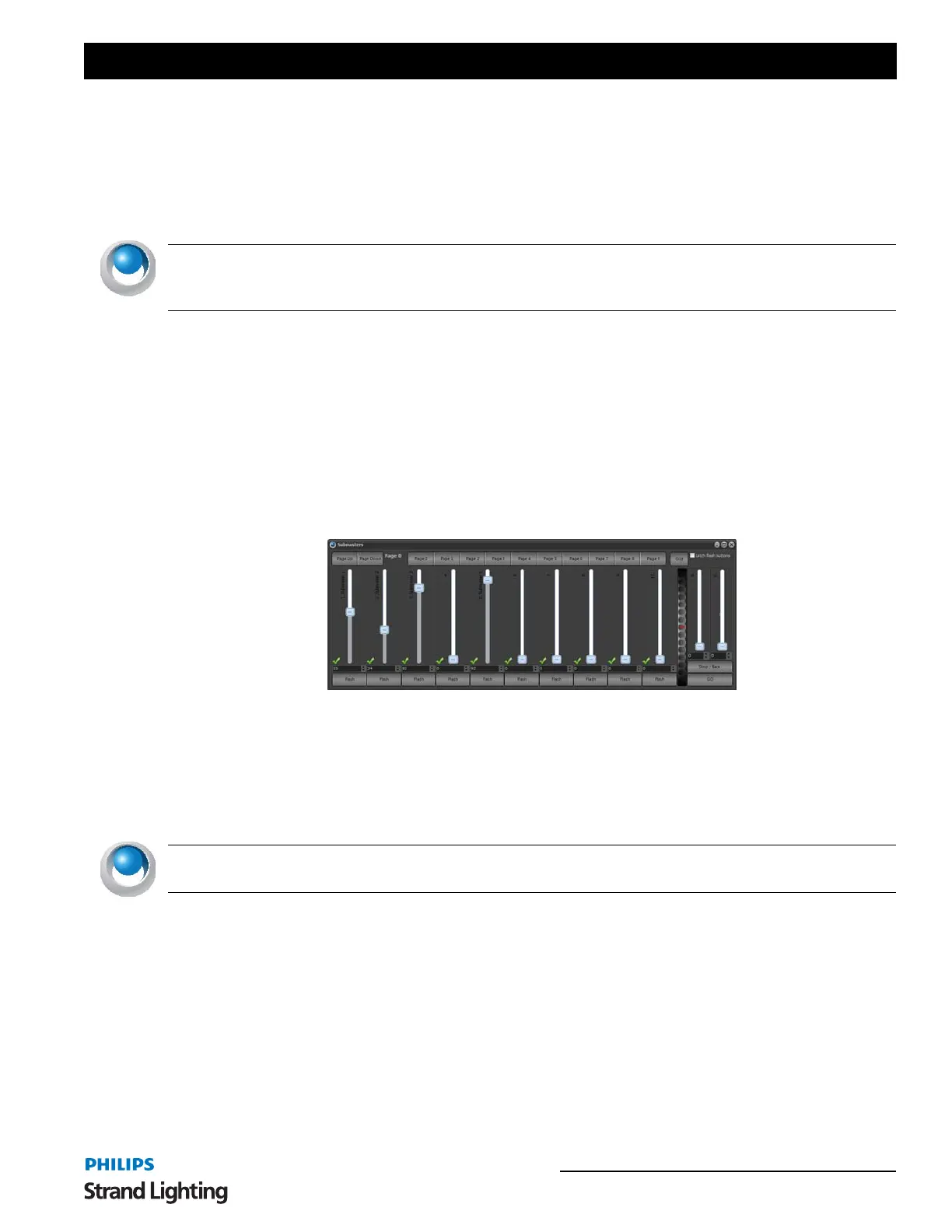
Setting a submaster can be done by using your mouse to click-and-drag the slide control, or by typing a value in the
edit box below the slider. If you move the slide control, the value in the edit box will change to reflect the new
position and changes to the edit box will be reflected in the slide position.
Figure 10: Submaster Window - Fader Mode
The "Flash" button at the bottom of each submaster can be used to temporarily set the submaster to full. Once this
button is release the submaster will return to its previous state.
Selecting the "Latch flash buttons" option at the top of the window will change the behavior of the flash button so that
you do not need to hold the mouse button down. With the toggle option on, clicking and releasing the flash button
will take its position to full. To return to the previous state click the flash button again.
NEO NOTES & TIPS: If hardware submasters are being used, you will also see the slide position and edit box
value change to reflect the hardware.
Right clicking on a submaster will bring up additional options to help identity each fader.
Change Description - Use this option to label the submaster. The label will appear along the top of the fader.
Set Description Color - The color of the description can be changed by selecting it form this option.
Reset Description Color - Select this option to return the color of the description back to its original color.
Lock/Unlock Submaster to all pages - A locked submaster will remain on screen regardless of the page change.
This is useful for keeping some operations on screen all of the time.
When a submaster is locked to all pages a small yellow padlock will appear in the top right corner of the slider
control.



 To Next Page