User’s Manual
170 Software Configuration
System Properties, System Settings Tab
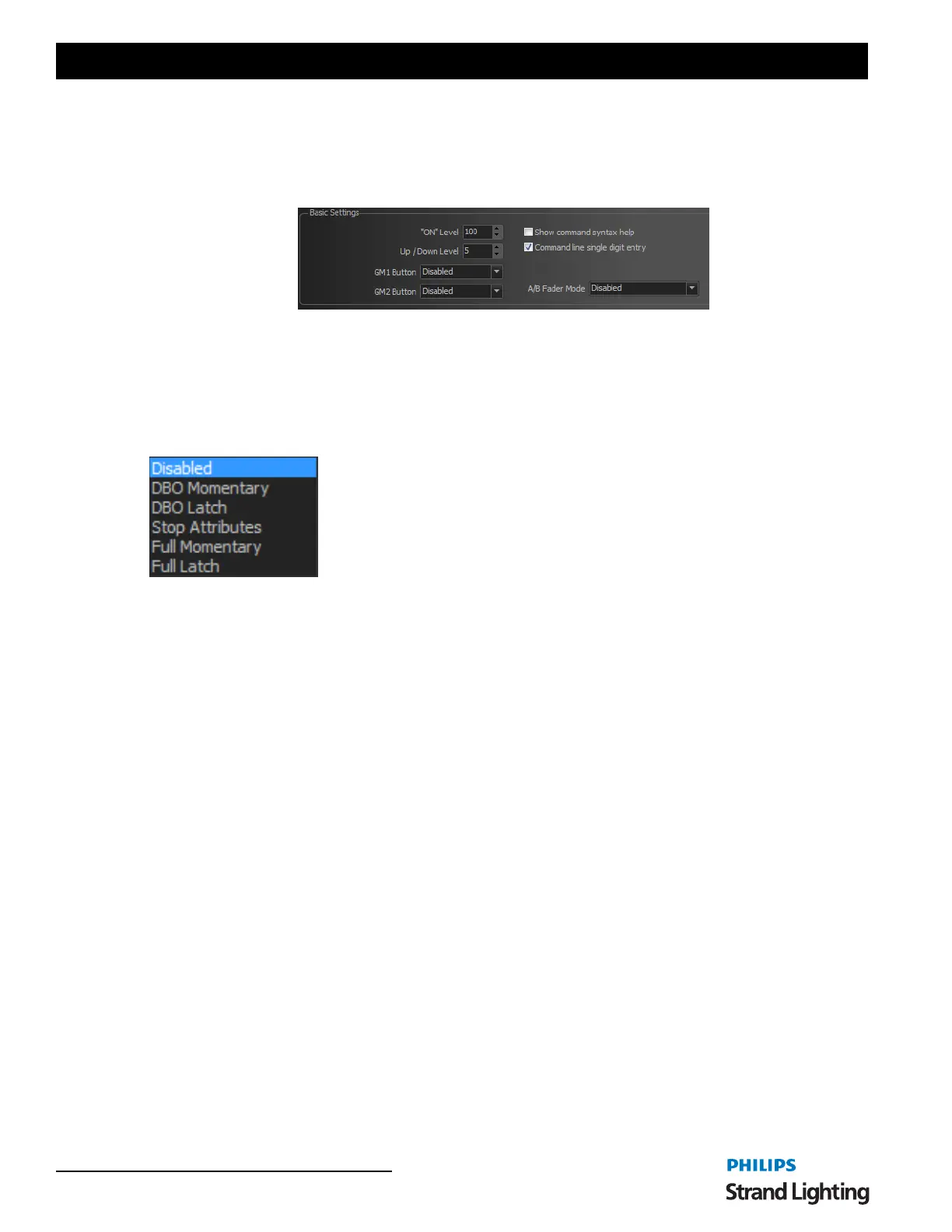
Basic Settings
These are the settings most likely used during traditional programming on your NEO console. System Settings stay
with the console and are not saved with the showfile.
On Level
Use this to specify the value fixtures will be set to when clicking on the "ON" or "SOLO" buttons in the channel
window. This also applies to the ON command in the command window.
Up / Down Level
Pressing the [UP] [DOWN] keys level change.
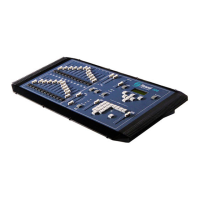
GM (Grand Master) Buttons
Disabled - feature is turned off. Button will not function.
DBO Momentary - will blackout all fixtures configured for this GM button as long
as the button is depressed.
DBO Latch - will blackout all fixtures configured for this GM button as a toggle.
Pressing again shall release.
Stop Attributes - will pause all attribute movement for all fixtures configured for this
GM button.
Full Momentary - will take all fixtures configured for this GM button to full as long as the button is depressed.
Full Latch - will take all fixtures configured for this GM button to full as a toggle. Pressing again shall release.
Show Command Syntax Help
Default On - This option will toggle the balloon popup that provides context sensitive help about the commands
being entered. As you enter a command in the system the popup will appear telling you what commands are valid in
the context of what has been types so far.
Command Line Single Digit Entry
Default on - In most cases when entering commands the channel values are in multiples of 10 (e.g. 10%, 20%, 50%
etc.). To save the typing of an extra digit this mode allows you to enter just the first number and the additional 0 will
be added automatically.
With this mode on you can still enter values below 10 by putting a 0 in front of the number (e.g., 03%, 05%, 08%).
A/B Fader Mode
Disabled
If you chose this option, the sliders will do nothing. If you are just doing a "GO SHOW", this is the safest mode of
operation as inadvertent moves on these faders will have no effect.
PB (Playback) Master + Disabled
In this mode, the left hand fader is the overall intensity master of the cue list assigned to this playback and the right
hand fader is disabled. You may want to use this mode if you are sure that you will never want to manually execute
fades and don't want to inadvertently start a transition by touching a fader.
PB (Playback) Master + Crossfader
In this mode, the left hand fader is the overall intensity master of the cue list assigned to this playback and the right
hand fader is, at will, a manual cross fader. The [GO] and [Halt/Back] buttons function as normal, but at any time you


 To Next Page