Scheduled Tasks 75
NEO Lighting Control Console
7. Scheduled Tasks
Scheduled tasks allow you to setup recurring lighting events using the real time clock of Windows. Each task can be
scheduled to run daily, weekly, monthly, one-time only, every hour, or every X seconds. Each task executes a NEO
shortcut.
The following tasks are frequently performed when you want to schedule a task to run on your computer.
Create a Scheduled Task
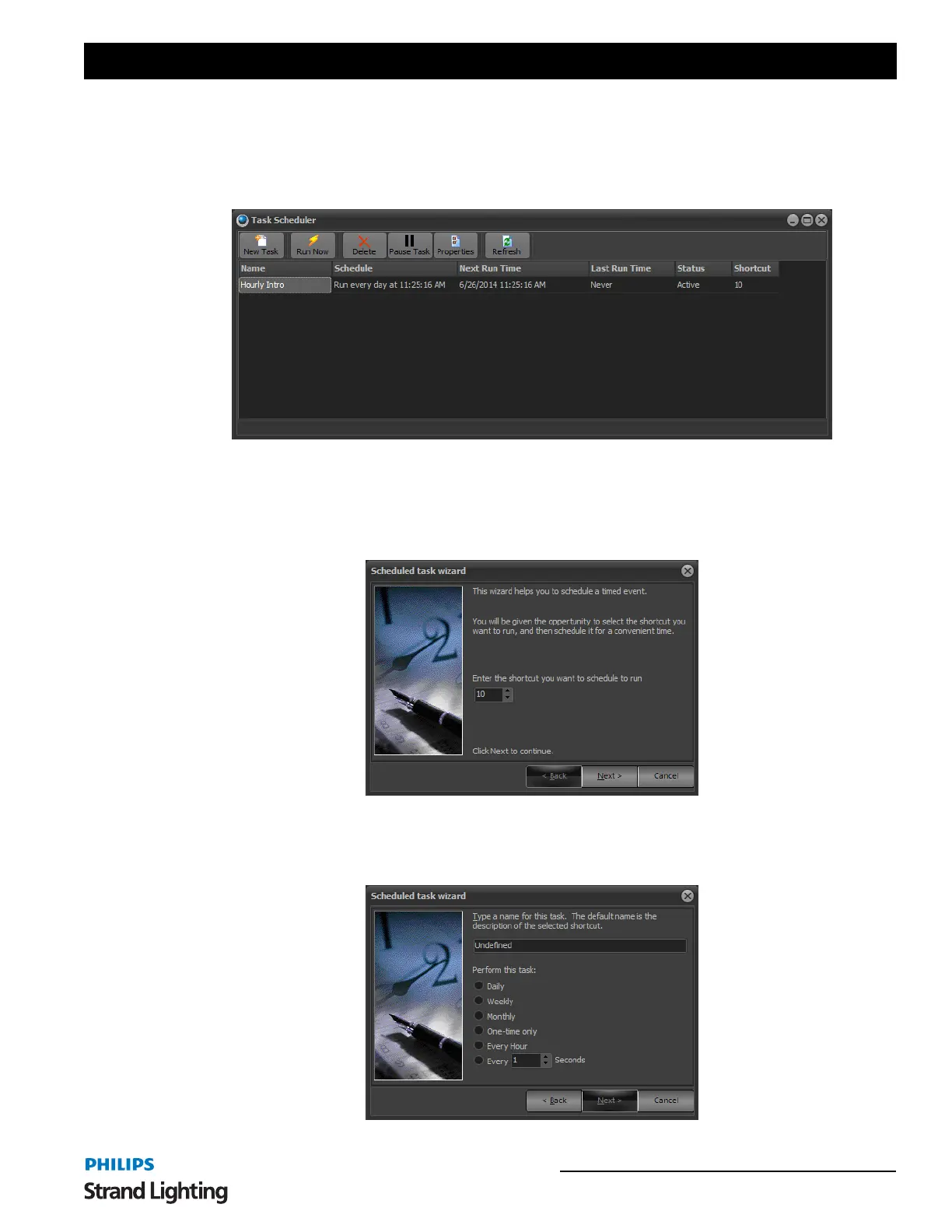
Before a task can be scheduled to run, one or more tasks must be created. To create a new task click on the "New
Task" button at the top left of the window.
1) As soon as you click select "New Task" the scheduled task wizard will start. Select the shortcut you want to
execute on every occurrence of the task and click "Next" to continue.



 To Next Page