User’s Manual
100 Software Configuration
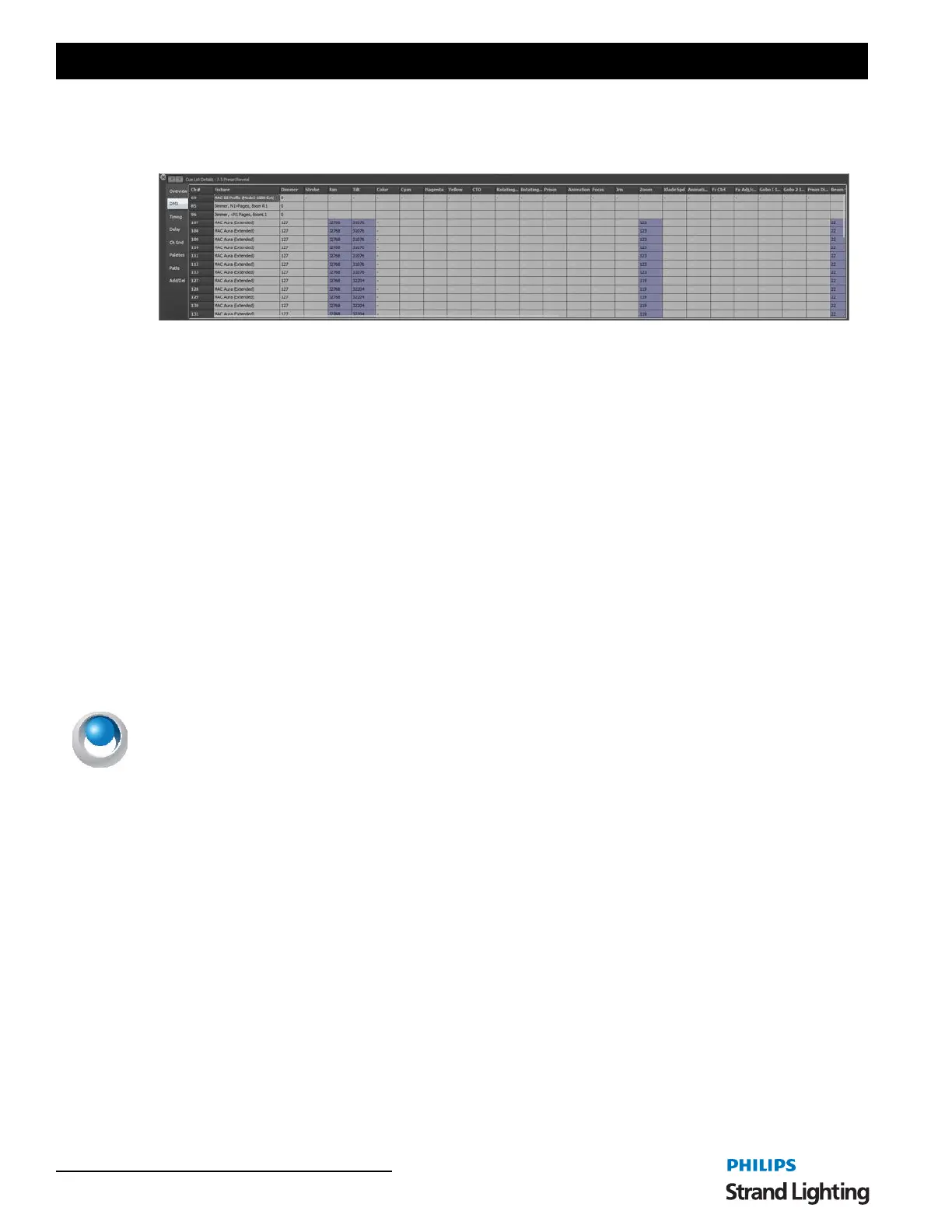
From version 2.9 onward the "Cue List Detail" window will default open and docked to the bottom of the cue list
window. You can undock it at any time by clicking and dragging the bar (below the x) running down the left of the
panel.
This window has seven tabs down the left hand edge that correspond to the different information you may want to
edit.
If a channel does not have an attribute for a displayed column the cell will be greyed out and cannot be edited. An "n/
a" will also appear in the cell.
The values set in the overview and DMX tabs will determine the value that the attribute will reach when the cue is
executed.
Tricks for Editing Multiple Cells at Once
This window provides a few hidden techniques to make entering large amounts of information easier.
The first step to using these features is to select multiple cells at once. By holding down the mouse button you can
click and drag over any number of cells in the grid and all of the cells will become selected. You can select multiple
cells but selecting the first one and then holding the shift key down and selecting the last one. You can select multiple
cells in any number of columns however it may not make sense to edit some columns together.
Once you have selected the cells you want to edit enter a value into the first cell and press the enter key. As soon as
you are done all of the highlighted cells will receive the value you have entered.
Time and Delay fields - The time and delay columns will also accept the same technique for entering values into
multiple cells. These fields however also support additional syntax for spread timing. You can enter a range of times
using the / as a through command.
Examples:
1/10 - This will put time values into the selected cells spreading them between 1 and 10 seconds. The first cell will
receive 1 second and the last cell 10 seconds. Every other cell will receive a value between 1 and 10second depending
on their position.
2/15/3 - This is similar to the above example but the middle value will be placed into the middle cell of the selected
range. So that the first cell will receive 2 seconds the middle cell will receive 15 seconds and the last cell 3 seconds.
All other cells will receive a proportion of the range entered.
r 10 - the "R" is a special modifier that means "random". Using the r in front of the value means that the result will be
a random number between 0 and 10. All of the selected cells will receive a different random number.
Overview
The overview tab will show the attributes values as real world information. Most values will be shown as percentage
information but some values may show other data. A gobo control for example will show an image of the gobo
selected and the color controls will show the color that is currently assigned.
This tab also provides optional time and delay for the individual 1/channels. For attribute level timing see the
"timing" and "delay" tabs.
Block - Check the "Block" check box to force this channel to not follow tracking instructions. All of the values set in
the cue will be applied to the live output regardless of the previous cue execution.


 To Next Page