User’s Manual
132 Software Configuration
17. Media Effect
The media playback provides an easy way to trigger audio and video clips from with NEO. You can use this feature to
playback sound effects or video clips within a cue lists.
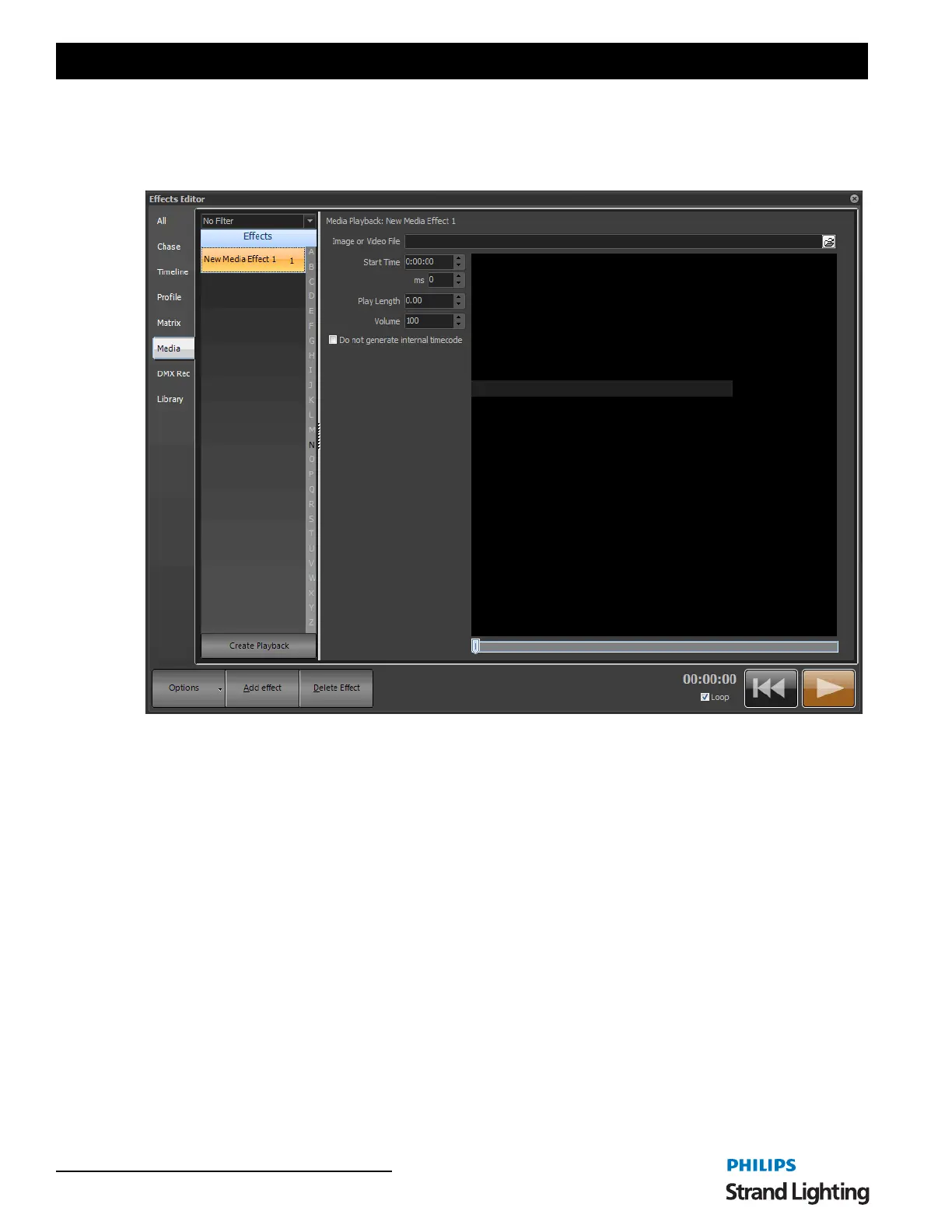
Once you have created the effect you can modify the file that will play, where the file starts playing (in seconds) and
how long it will play for.
File Name: This is the actual media file located somewhere on your system. Use the button at the end of the edit box
to open a file dialog for locating your media.
Start Time: Set the time in HH:MM:SS:MS that you want the media clip to play from. If (for example) you want the
clip to play 1 minute and 23 seconds into the file then enter 00:01:23:00 into the edit provided.
Play Length: Set the length in decimal seconds that the clip will play for before either stopping for playing again
from the start position. A play length of 3.5 will play for 3 and a half seconds each time it runs.
Volume: This value will override the volume of the effect when it is played back.
Don't generate internal timecode: The internal timecode will always read the last played effect time. If you want to
play other media while using the internal timecode of a master track turn this off for all of the audio tracks other than
the one you want timecode red from.
The system relies on the correct codec's for the media to be played back. If the codec is not available on the system
then an error may occur when attempting the playback.
There are a number of global media playback controls that can be set in the "System Properties". See “Media” on
page 187.
If you attempt to play a video file and have only a single monitor connected then the software will only show the
video in a window on you primary display. In a multi monitor situation the system will default to use the 2nd display
as the full screen output of the video clip.


 To Next Page