User’s Manual
26 Controls
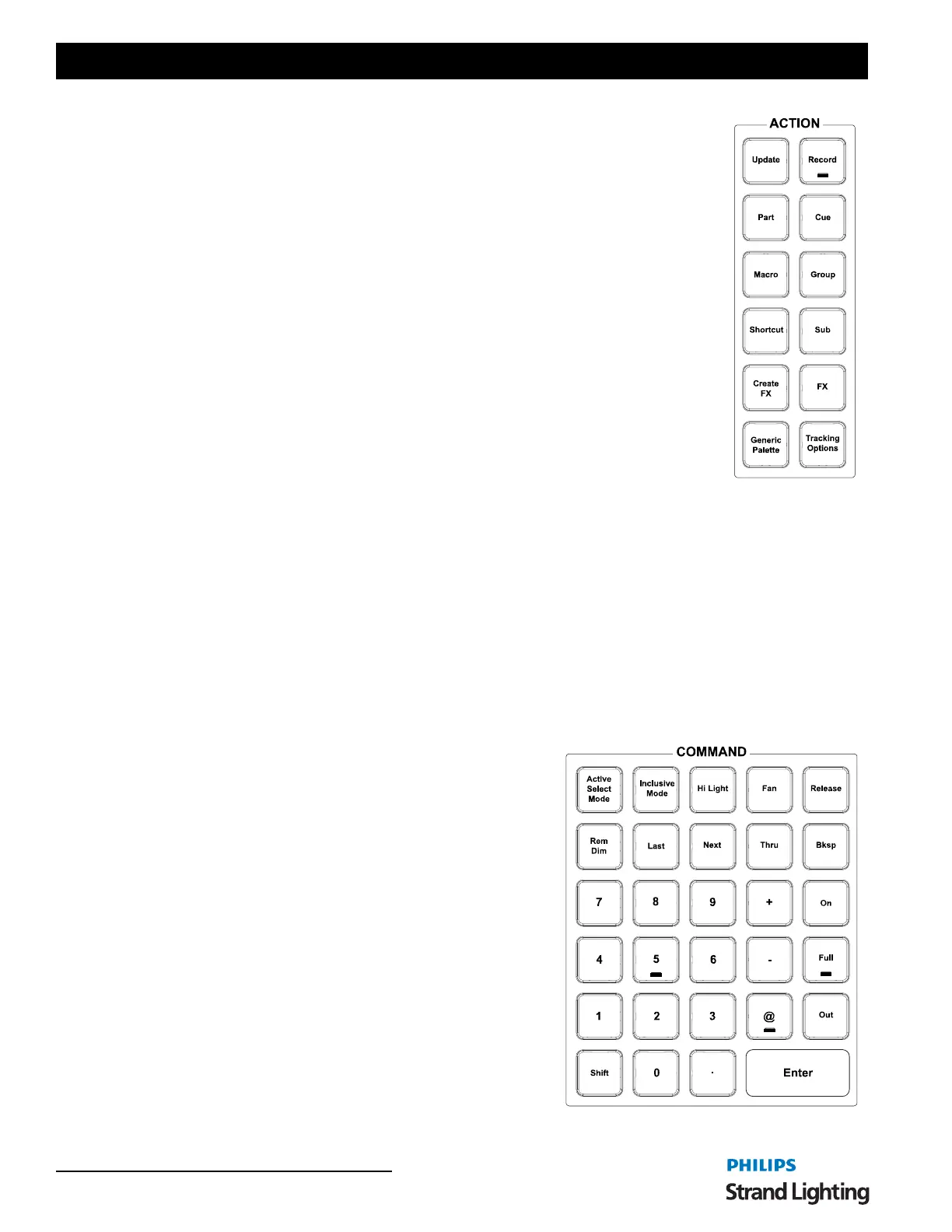
Action Keys
[Update] - Stores changes to selected item. This could be a Cue, Group or other item. Ex:
[UPDATE] [CUE] [1] [ENTER].
[Record] - Stores lighting state as a selected item. This could be a Cue, Group or other item.
Ex: [RECORD] [CUE] [1] [ENTER].
[Part] - A portion of a single cue that can be assigned a unique time value. Ex: With channels
selected and changed [PART] [B] [ENTER] will assign selected channels to the desired part
(Part B in this example). Continue part assignment until completed. Then Record or Update
to store or edit the cue. Parts B thru Z are available.
[Cue] - A recorded state that can be played back in time.
[Macro] - Triggering device for stored keystroke entry.
[Group] - Specifies group selection. Ex: [GROUP] [1] [ON] or [RECORD] [GROUP] [1]
[ENTER].
[Shortcut] - A shortcut is a quick route to a particular setting or feature that is used
frequently. A Shortcut can be triggered from the Shortcut buttons on the console, from the
Shortcut page, a Cue, a Group or at startup.
[Sub] - A fader that controls a group. Look in the Groups display and you'll find a Submaster
column where you can assign a submaster to a group. In addition, when recording groups there is a box where a
submaster can be assigned. Quick recording is available by typing [RECORD] [SUB] [#] [ENTER]. This will record
a group of the same number and apply the submaster as a fader to that group.
[Create FX] - Will take a current effect from the Effect Library and create a new show based effect.
[FX] - Places FX on the command line for command line operation. Allows the ability to assign effects to cues and
run effects manually.
[Generic Palette] - Places PALETTE on the command line for command line operation. Allows the ability to create
Generic Palettes. A generic palette is stored information that doesn't care what fixture or type of fixture it is applied
to. So you can build a Palette called Red and it can be applied to any fixture type patched and it will turn the light red.
(Assuming the fixture type can do it.)
[Tracking Options] - Toggles through the tracking options for recording and updating purposes.
Command Keys
[Active Select Mode] - Sets the selected fixture at Full and allows
NEXT/LAST to run through all fixtures to perform a rig check.
[Inclusive Mode] - Will add any fixtures selected to the existing
selection set.
[Hi Light] - Will send selected fixtures to the "Hi Light" value.
The goal of Hi Light is to allow the user to identify the
highlighted fixtures on stage when many fixtures are in use. This
usually will set the fixture to full intensity, clear all color
parameters and all beam parameters. However, each fixture type's
hi light values can be adjusted within the fixture library editor.
[Fan] - Launches the Fan tool. This is used for dynamic level
changes.
[Release] - First press - will release all selected fixtures. Second
press will release all fixtures.
[Rem Dim] - Switches all channels, except those which are
selected, off.



 To Next Page