Open Visual Timecode Editor 97
NEO Lighting Control Console
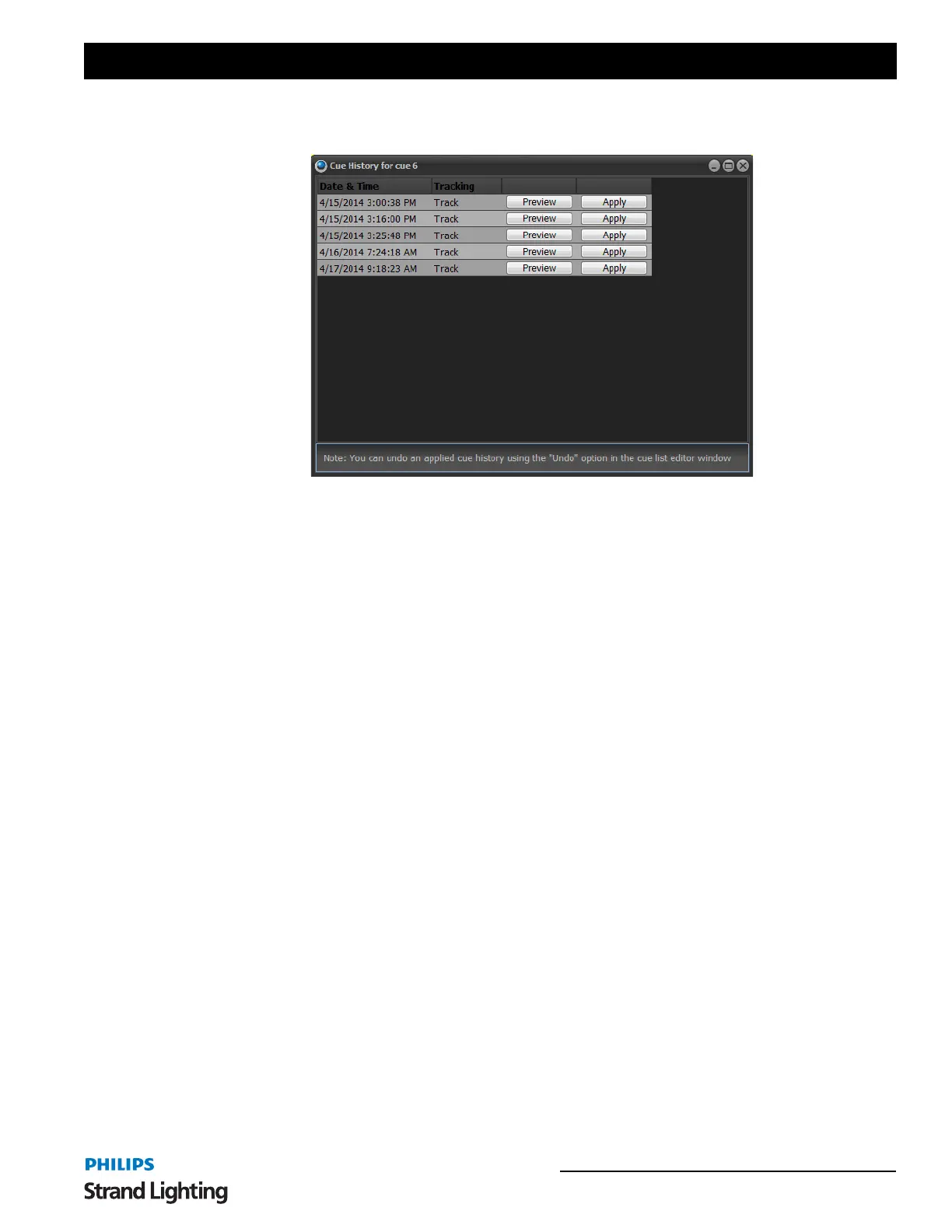
When a cue is reverted to a previous state the current state is also added to the history table so that no state is ever
lost.
Use the preview button to apply on stage what the cue looked like at the specified date and time. Click on the apply
button to set the state of the current cue to what it was at the selected date and time.
Toggle Blocking on the Selected Cues
When running in full tracking mode you can set an entire cue to be a block cue. A block cue will use the cue as the
absolute state that is expected. If a channel does not exist in the cue then it will be turned off. Use this option to toggle
the "block" flag for the cues that are currently selected.
Block Cue
This will open up the submenu for globally setting the flags on all fixtures inside the selected cue.
Set "Block" on all cues - This option will check all blocking flags in the selected cue.
Un-Set "Block" on all cues - This option will un-check all blocking flags in the selected cue.
Mark Cue
Set "Mark" on all cues - This option will check all mark flags in the selected cue.
Un-Set "Mark" on all cues - This option will un-check all mark flags in the selected cue.
Set Trigger (Selected Cues)
To modify the trigger setting of multiple cues select the rows you want to change, right click and select the trigger
from the sub menu. You can select the rows by clicking on the very left of the row where the current row indicator is
shown. Hold the control and shift keys while clicking with the left mouse button to select more than one row.
If you have the "trigger" column selected then this menu option will apply to every cue in the current cue list.
Timestamp on Cue Go
Turn this option on to learn the timecode for a show by running it in real time. Every time the "Go" button is pressed
in the playback controls the timecode will be record for the next cue with no timecode recorded.
Timestamp on Doubleclick Timecode Field
Turn this option on to learn the timecode when you double click on the timecode field.
Lock 1st Column
This locks the first column from editing.
Lock Row Height
This locks all row heights.



 To Next Page