Objet30 User Guide 6 Operating and Maintaining the Printer
DOC-34025 Rev. I 6-10
want to replace the cartridges of Model and Support material currently
loaded in the printer to avoid the need for replacing them during printing.
Note: When you click Print in GrabCAD Print, a warning message appears if
there is not enough of one or more material.
For loading material cartridges and replacing empty ones, see "Loading
Model and Support Cartridges" on page 6-5.
For changing the type of material currently loaded, see "Changing the
Printing Material" on page 6-18.
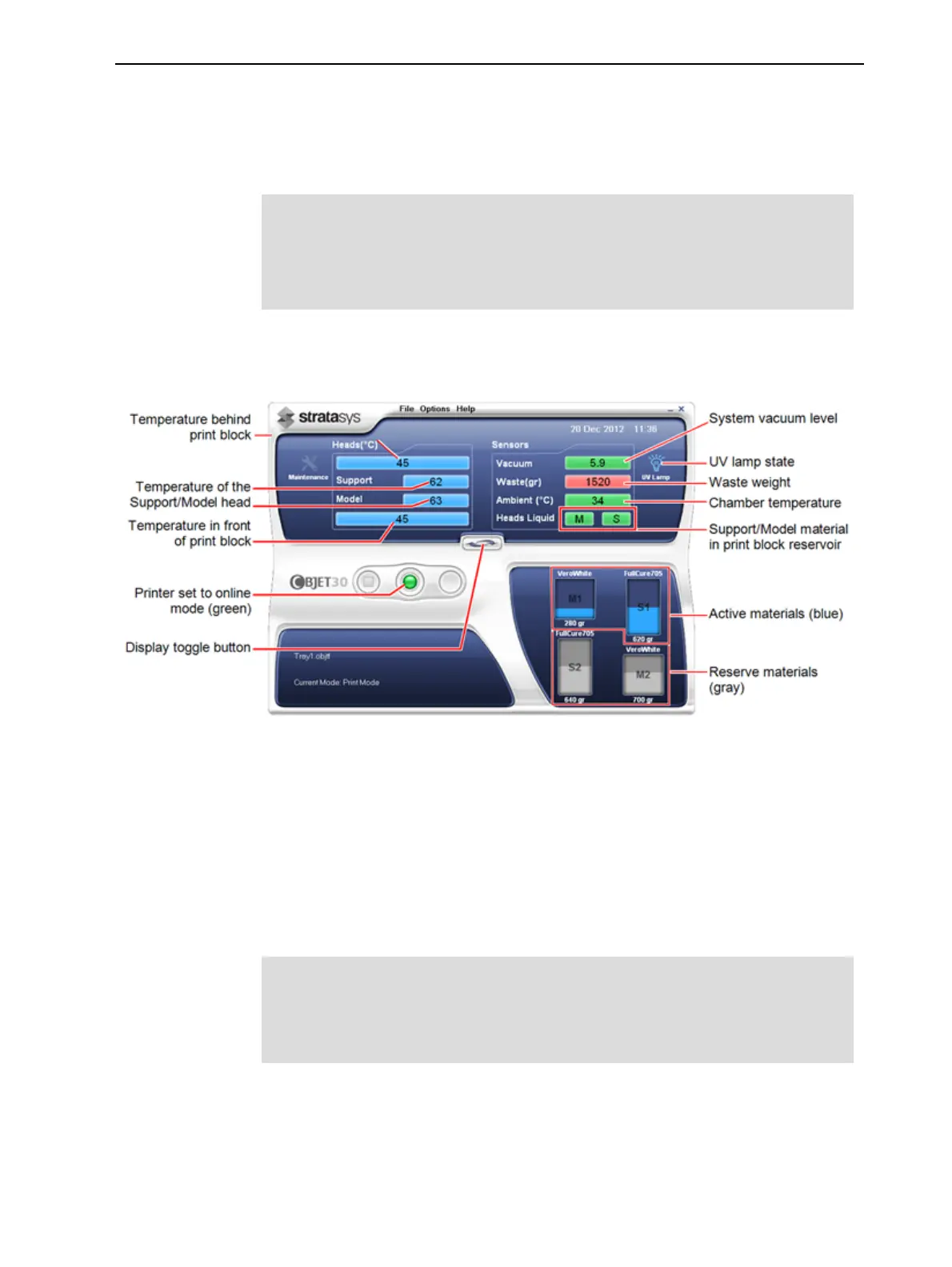
You can monitor printer status by switching the printer interface display. To do
this, click the display toggle button on the printer interface screen.
Figure 6-7 Printer status
Starting Printing
To begin printing:
➢ On the printer interface, click the red button to switch the printer to online
mode.
The color of the button changes from red to green (see the figure on
page 6-4). If there is a job in the Job Manager queue, it is sent to the printer.
If there is a job in the printing queue, it is sent to the printer.
When switching the printer to online mode, a message is displayed if a
maintenance activity is required to ensure optimum printing quality. (See
"Routine Maintenance Schedule" on page 6-31.) Maintenance notifications
can be disabled/enabled from the Options menu.













 To Next Page