Objet30 User Guide 5 Using Objet Studio
DOC-34025 Rev. I 5-32
3. On the Alignment toolbar, click an appropriate icon to change the
alignment.
or—
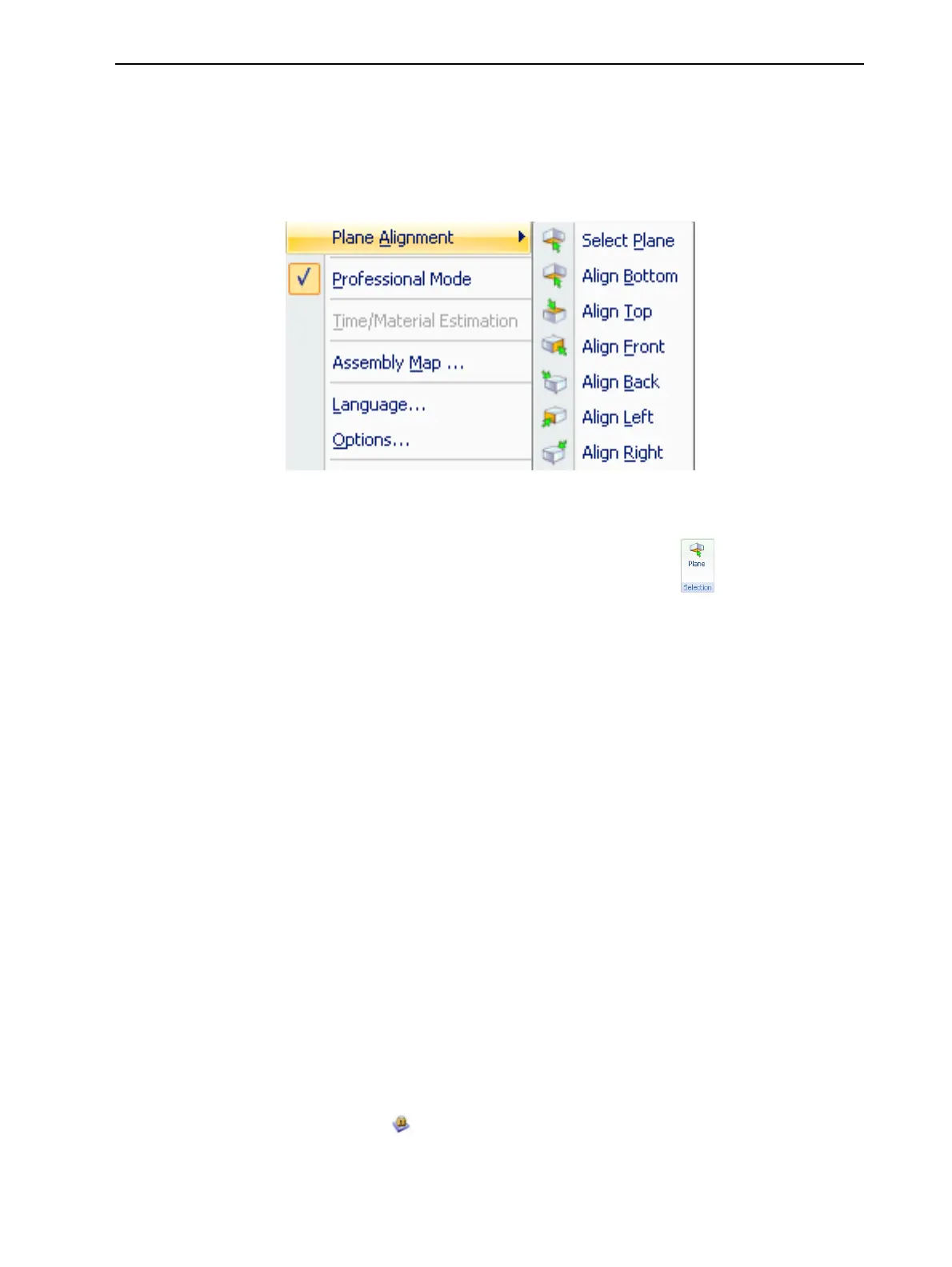
From the Tools menu, select Plane Alignment, and select an alignment
option.
Figure 5-30 Tools menu, Plane Alignment options
To cancel plane selection after re-aligning objects on the build tray:
➢ On the Tray Settings or Model Settings ribbon, click .
or—
➢ From the Tools menu, select Plane Alignment > Select Plane.
To flip an object 180 degrees on any axis:
1. Select the object.
2. From the Object menu, select Flip > Flip X / Flip Y / Flip Z.
To make precise changes to the object’s orientation on any axis:
1. Select the object.
2. Display the Transform dialog box (see Figure 5-28 on page 5-30).
3. Change the Rotate parameters for each axis.
Freezing Model Orientation
If you manipulate an object on the build tray, you can freeze its orientation so
that it does not change when you position it automatically (see "Automatic
Positioning" on page 5-21).
To freeze an object:
1. Select an object on the build tray.
2. On the Model Settings ribbon, in the Manipulate group, or on the Model
Toolbar, click .













 To Next Page