Objet30 User Guide 5 Using Objet Studio
DOC-34025 Rev. I 5-4
Launching Objet Studio
After you install Objet Studio, a launch icon appears on the Windows
desktop. Open the application by double-clicking this icon, or by selecting
Objet Studio from the Start menu.
Objet Studio Interface
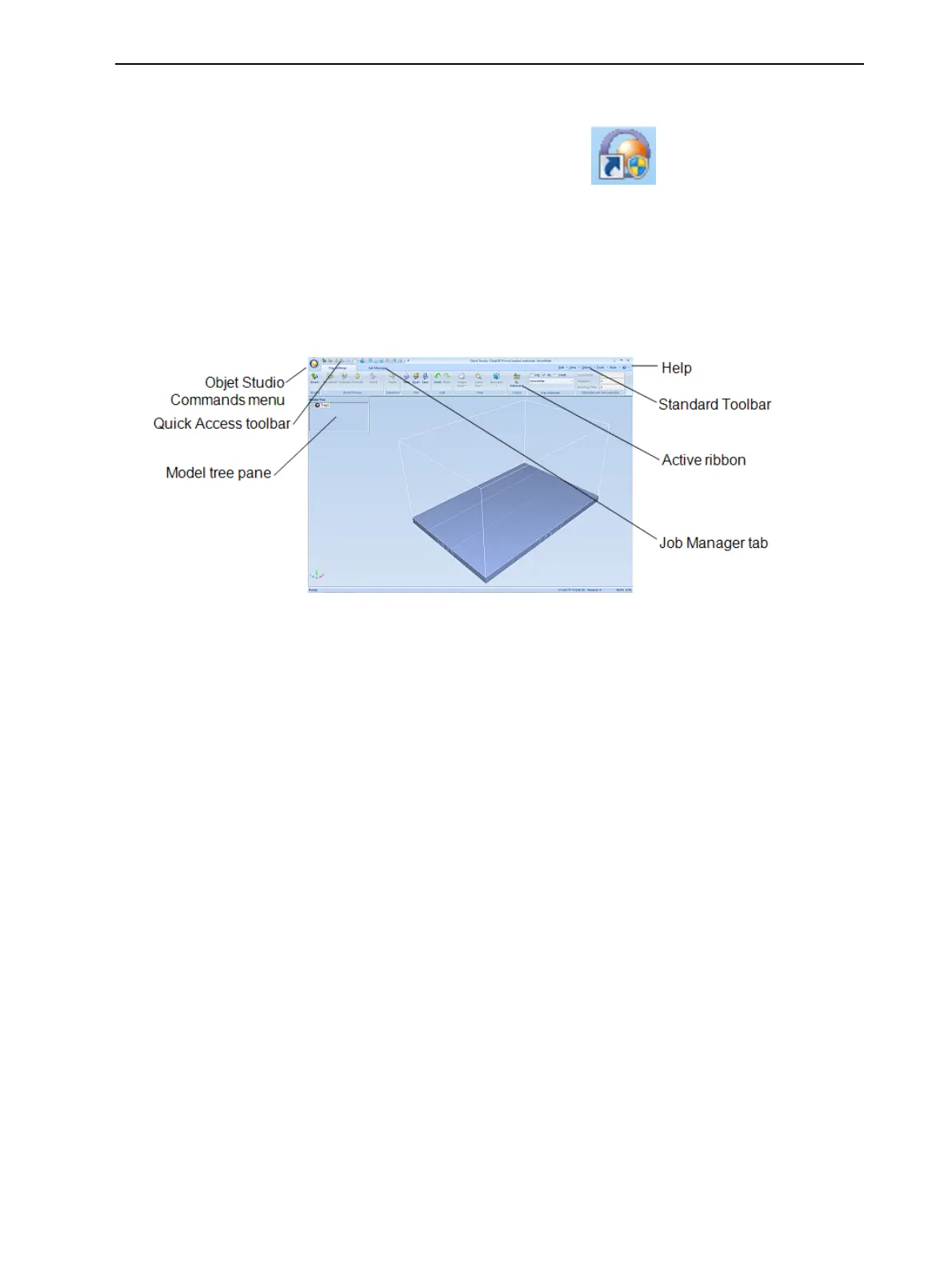
When Objet Studio opens, the Tray Settings screen appears, showing an
empty build tray.
Figure 5-1 Objet Studio opening screen
The Objet Studio interface consists of two main screens:
• Tray Settings—for arranging models and preparing them for printing.
• Job Manager—for monitoring and managing print jobs.
This screen is described in "Monitoring and Managing Print Jobs" on
page 5-66.
Each screen is controlled by menus and icons on its own ribbon. An additional
ribbon, Model Settings, displays controls for configuring and manipulating
selected models.
Objet Studio anticipates your workflow by displaying and enabling the options
relevant to your current task. For example, when you first open Objet Studio,
the Model Settings ribbon is disabled until you place a model on the build tray.
Similarly, options available from the standard toolbar menus are enabled or
disabled to match the current workflow.













 To Next Page