Objet30 User Guide 5 Using Objet Studio
DOC-34025 Rev. I 5-61
Automatic Zoom
When Auto Zoom is selected in the Advanced section of the Options dialog
box, the display zooms in, to display the objects placed on the build tray. This
allows you to carefully inspect and manipulate the objects.
By default, this feature is not enabled. In any case, you can change the zoom
level, as necessary (see "Zoom Options" on page 5-42).
OpenGL Driver Configuration
The OpenGL driver displays 3D graphics on your screen. There is normally no
reason to adjust its settings. If you suspect a problem with the way Objet Studio
displays objects, you can use the OpenGL Driver Configuration tool to check
and configure the driver settings.
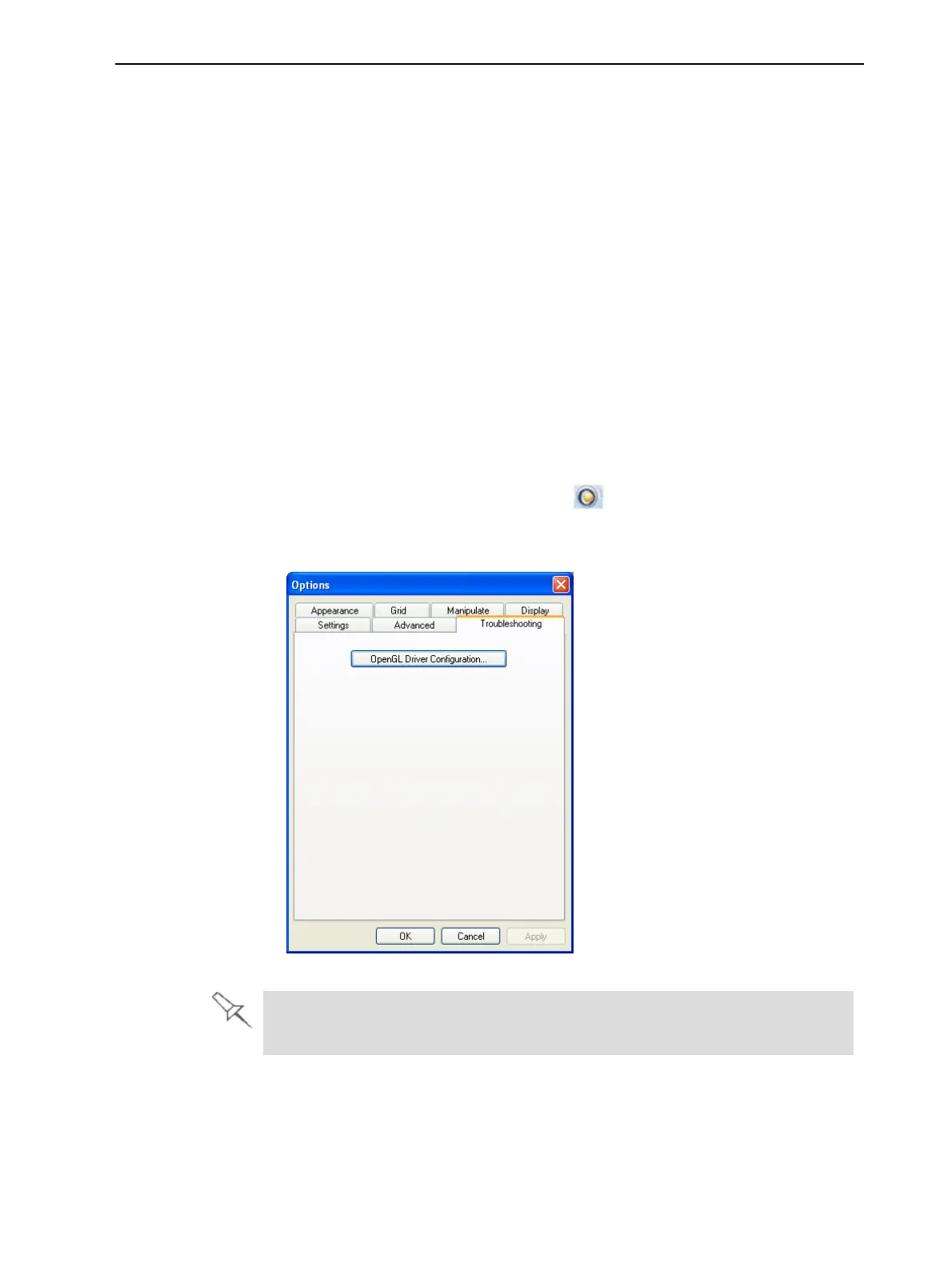
To access the OpenGL Driver Configuration dialog box:
1. From the Tools menu, select Options.
or—
In the Objet Studio Commands menu , click Options.
2. In the Options dialog box, display the Troubleshooting tab.
Figure 5-72 Access to OpenGL Driver configuration
The Troubleshooting tab is only accessible when Professional Mode is
active (see "Professional Mode Features" on page 5-59).













 To Next Page