Objet30 User Guide 5 Using Objet Studio
DOC-34025 Rev. I 5-73
Setting the Remote Printer Connection (Client Mode)
When you open Objet Studio for the first time in a client installation, you are
prompted to connect to a server computer that sends jobs to a 3D printer. To
do this, the server computer must be operating and connected to the local
network.
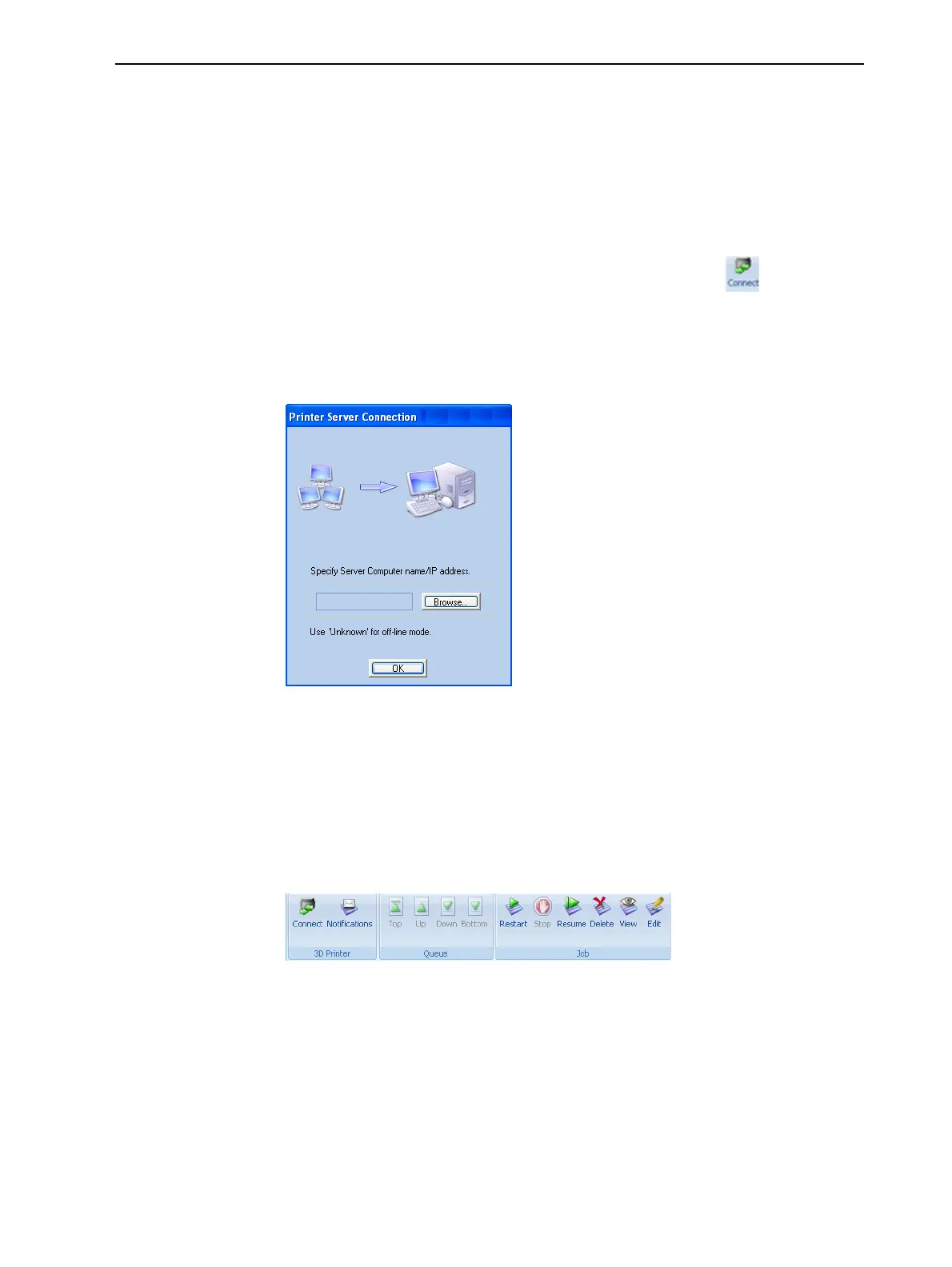
To set (or change) the connection to the server-computer:
1. On the Job Manager ribbon, in the 3D Printer group, click .
2. Enter the name of the server computer or its IP address, or click Browse to
find and select it.
3. Click OK.
Figure 5-87 Printer Server Connection dialog box
Job Manager Commands
The Job Manager ribbon has three icon groups:
❒ 3D Printer
❒ Queue
❒ Job
Figure 5-88 Job Manager ribbon commands
Icons are enabled or disabled according to their relevancy. For example, since
you cannot stop printing a job that is not being printed, the Stop command is
disabled when the printer is idle.
Job Manager icons are described in the table on the next page.













 To Next Page