1128600 SmartPAC 2 with WPC 2000 Integration User Manual
1-6 Introduction
2000 Main Processor board (see page 4-42). The auxiliary E-stop muting function is
necessary in applications where parts must be ejected through a light curtain. Auxiliary
relay muting does not prevent the auxiliary relays from issuing a Stop command when an
E-stop button is pressed or a cross-checked input is open.
Layout of the Auxiliary E-Stop Output Relay board is shown in Figure 2-14, page 2-28.
Wiring connections are shown in Table 2-29, page 2-115.
Resolver-based Operation
SmartPAC 2 is connected to a resolver mounted on the press that turns one to one (1:1) with
the crankshaft. Like an electrical generator, the resolver has internal windings and works on
the principle of inductance. As the resolver turns, the amplitude and phase of its two outputs
vary. SmartPAC 2 converts this analog signal to a number that specifies the position of the
press crankshaft in degrees.
SmartPAC 2 Front Panel
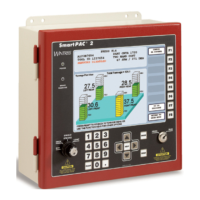
Programming and operation of SmartPAC 2 is accomplished via the SmartPAC 2 front panel,
which is shown in Figure 1-1, page 1-7. A brief description of each panel component is
provided below.
Display Used with the keyboard to make and adjust settings, load tool
numbers, and view diagnostic messages. The display, which
measures 10.4 in. (264 mm) diagonally, is a color liquid crystal
display (LCD).
Program/Run key switch Allows Program mode to be locked so settings cannot be
changed by the press operator. Key must be set to “Run” to
operate the press. Minor adjustments, including loading an
existing tool, can be made in Run mode.
Stroke Select key switch Allows you to select the operating mode of the press. There are
four settings: Off, Inch, Single-stroke, and Continuous.
Keyboard Consists of cursor keys and a numeric keypad (described
below) that are used with the display to make settings.
Cursor keys Enable you to select a display item with the highlight bar. Also
allow you to select alphabetic characters and special symbols
when naming the press, tools, cam channels, and sensors.
Number keys Enable you to input numeric values such as counter presets or
tool numbers
Function keys Eight keys labelled “F1” to “F8” that perform specific tasks.
Functions performed by pressing the key are displayed to the
left of the key label. Function keys can also be programmed as
“Hot keys” that take the user directly to desired screens.
HELP key Enables you to access a help screen that provides information
about the display you are looking at.


 To Next Page