1128600 SmartPAC 2 with WPC 2000 Integration User Manual
6-40 Run Mode
When the Emergency-stop is caused by a system fault, you must first clear the error by
pressing the RESET key on the SmartPAC 2 front panel; then you can return the press to top
dead center.
Selecting Operating Mode
You select Inch, Single-stroke, or Continuous operation with the Stroke Select key switch on
the SmartPAC 2 front panel. To choose an operating mode for one of these stroke selections,
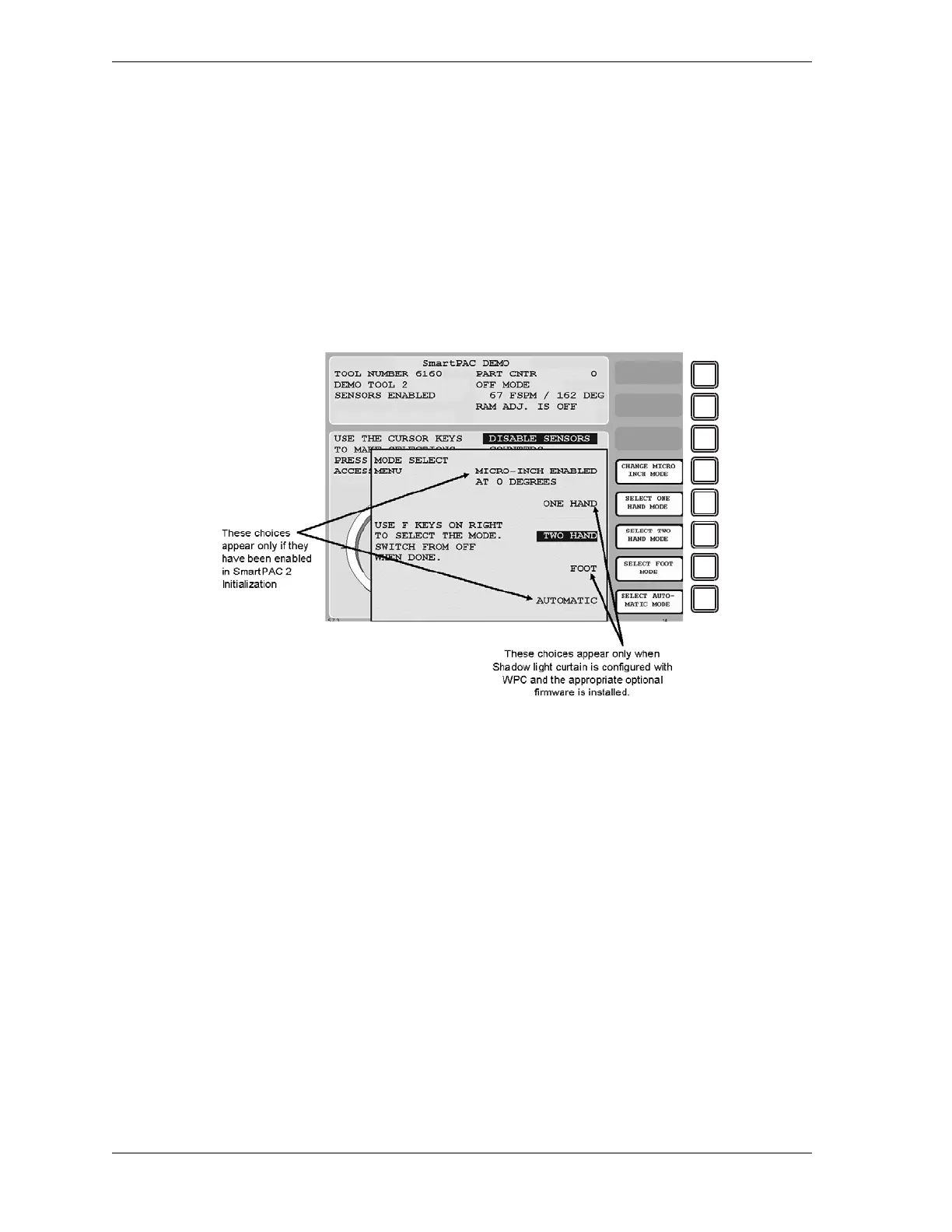
you must display the Mode Select Menu (see Figure 6-34), which you access by turning the
Stroke Select switch of OFF with SmartPAC 2 in Run mode.
The Mode Select Menu may display up to five operating mode selections, depending on the
firmware and hardware options you have installed:
• Two-hand
• One-hand (Requires Two-hand/One-hand/Foot firmware and a Shadow light curtain)
• Foot (Requires Two-hand/One-hand/Foot firmware and a Shadow light curtain)
• Micro-inch Enabled (Must also be enabled in SmartPAC 2 Initialization–see page 4-29)
• Automatic (Must be enabled in SmartPAC 2 Initialization–see page 4-41)
To select an operating mode on the Mode Select Menu, do the following:
1. With the Program/Run key switch on the SmartPAC 2 front panel set to RUN, turn the
Stroke Select key switch to OFF to display the Mode Select Menu.
Figure 6-34. Mode Select Menu


 To Next Page