Note: If the following conditions exist in the trajectory, the blend radius cannot be set
1) The location of the adjacent waypoints is the same, only the attitude difference exists, and the blend radius cannot be
set
2) The first point in the project cannot set the blend radius
3) Do not set the blend radius in the same Move command before and after changing the end tool
There are several situations where the blend radius is cancelled or changed:
1) The Move command waits for a condition (such as an IO signal) to be satisfied.
2) Over speed joints or strange points in the blend radius.
3) When the Pause command is pressed in the blend zone, it cannot be paused, and the blended zone may become
smaller after recovery.
4) When the reduced mode is activated, the operating time of the blended area will be changed.
Click【Copy】to copy all the waypoints under MOVE node.
Click【Copy Reversal】to copy all the waypoints in MOVE node in reverse.
Click【Paste】to paste all the waypoints in MOVE node into current waypoints.
Click【Remove】to delete the Move command.
Must click【Confirm】to finish the configurations and save it.
The Move command has three configurations: Move Joint, Move Line, and Move Track.
a) Move Joint
According to the joint angles between waypoints and configured motor’s limitation of speed and
acceleration (six manipulators’ common parameters), all the joints move simultaneously to the target
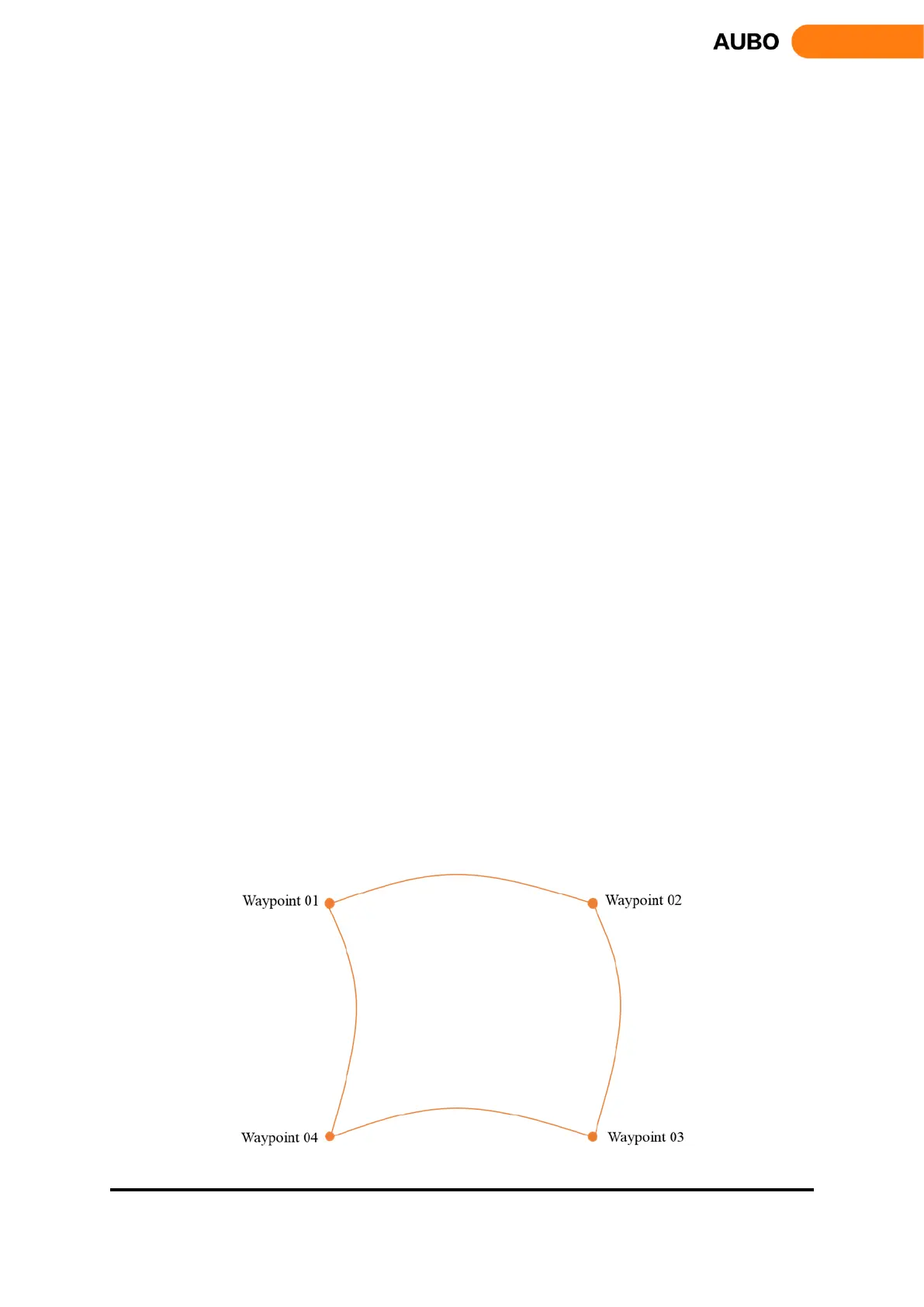
waypoint as fast as they can (Both initial velocity and final velocity are 0). The end moving path
between these waypoints during the move can be observed on Track display. If you want manipulator
to move quickly between waypoints and without considering the TCP’s moving path, this movement
type is a good choice. Move Joint applies for the enough space and moves by the fastest way. As
shown below.
Figure 11.21 Move Joint track



 To Next Page