Menu
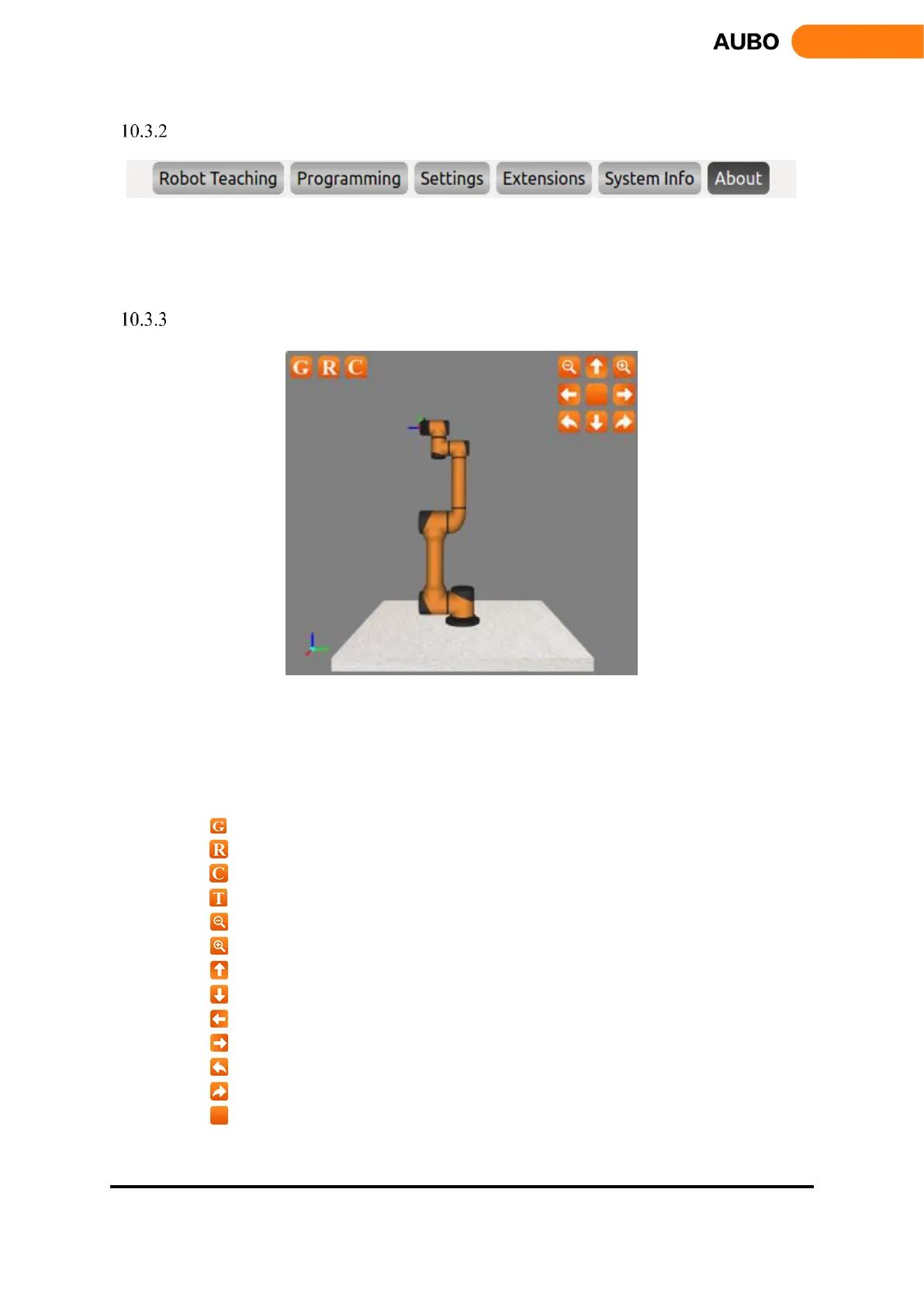
Figure 10.5 User interface menu
Press on the menu would select the menu item. The selected menu renders a light text on a dark
background.
Robot 3D display window
Figure 10.6 Robot 3D display window
Robot 3D display window verifies the user-written project without the real robot.
The buttons on the upper left corner are used to observe 3D model. From left to right: rotating
counterclockwise along Z axis, rotating clockwise along Z axis zoom in, and zoom out.
The function of the icons as follow:
:Base plane: click to hide the base reference plane in the simulation interface
:Actual waypoint model: click to hide
:User coordinate; click to hide
:Target waypoint model: click to hide
:Zoom out button
:Zoom in button
:Pan up button
:Pan down button
:Pan left button
:Pan right button
:Turn clockwise
:Turn counterclockwise
:Reset button
The simulation model can also be used to validate control programs before applying on the real robot.



 To Next Page