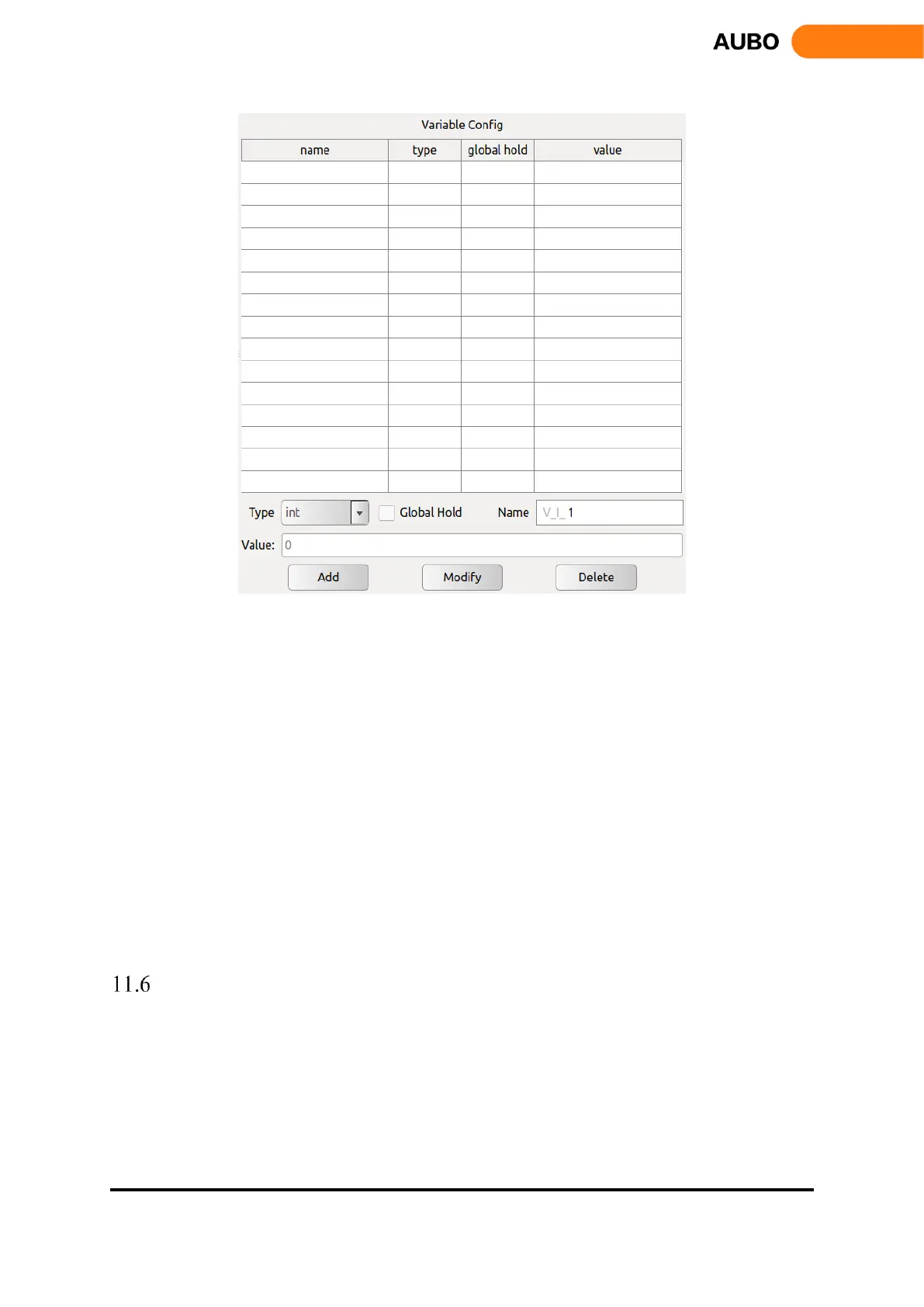
Figure 11.35 Variable Tab
Add variables: Choose a variable type, there will be corresponding type of input options box in
Variable value option. Input variable name and value, click【Add】. If new variable has been added,
it will be shown on the bottom of the list. Note: Variable names must be unique and can only contain
numbers, letters and underscores. Otherwise, it won’t be saved and pop up prompts.
Modify variables: Choose a variable in table and all information will be shown in operating area below.
Users can click【modify】to change the name and value of variable. Note: Variable type can’t be
changed, otherwise will pop up silent failure. If the variable has been used in existing project file, it
won’t prompt that this variable name condition is undefined until reload the project. After changing
variable name, users must reload the project before operation in case unknown errors occur.
Delete variables: Choose a variable in table and click【Delete】to delete this variable. Note: Similar
with modify variable, If the variable has been used in existing project file, it will not prompt that this
variable condition is undefined until reload the project. After deleting variable, users must reload the
project before operation in case unknown errors occur.
Timer
Timer records the time duration of the project when running from beginning until the node end. It can
measure the time usage during the movement.
Timer1 and Timer2 are the nodes specified in the project, time underlines the time intervals between
the beginning and node Timer1 and between Timer1 and Timer2.



 To Next Page