C8000 Battery Testing System User Manual
3 Cadex BatteryLab 213
4. Click the eclipse (“…”) button next to the Search Program
field to open the Program Editor for Load Capture
programs. All pre-defined programs will appear in a
window and the active program parameters will be
populated in the Test Parameters section.
The Test Parameters can be modified and will be saved
on selecting “OK”
5. Click OK. The capture begins.
6. Once the program is loaded, the Channel status reads LCU
ARMED until the trigger condition is met. When
capturing, the status reads LCU CAPTURING and FINISH
will appear on completion. A window appears indicating
the status and the Test ID that has been attached to the
captured waveform.
a. If no trigger condition is present the LCU will
begin capturing immediately. Note: There is an
approximate 3 ~5 second delay between the
program begin initialized and the C8000 begin the
capture. This is normal operation while the Load
Capture Unit is configured for use.
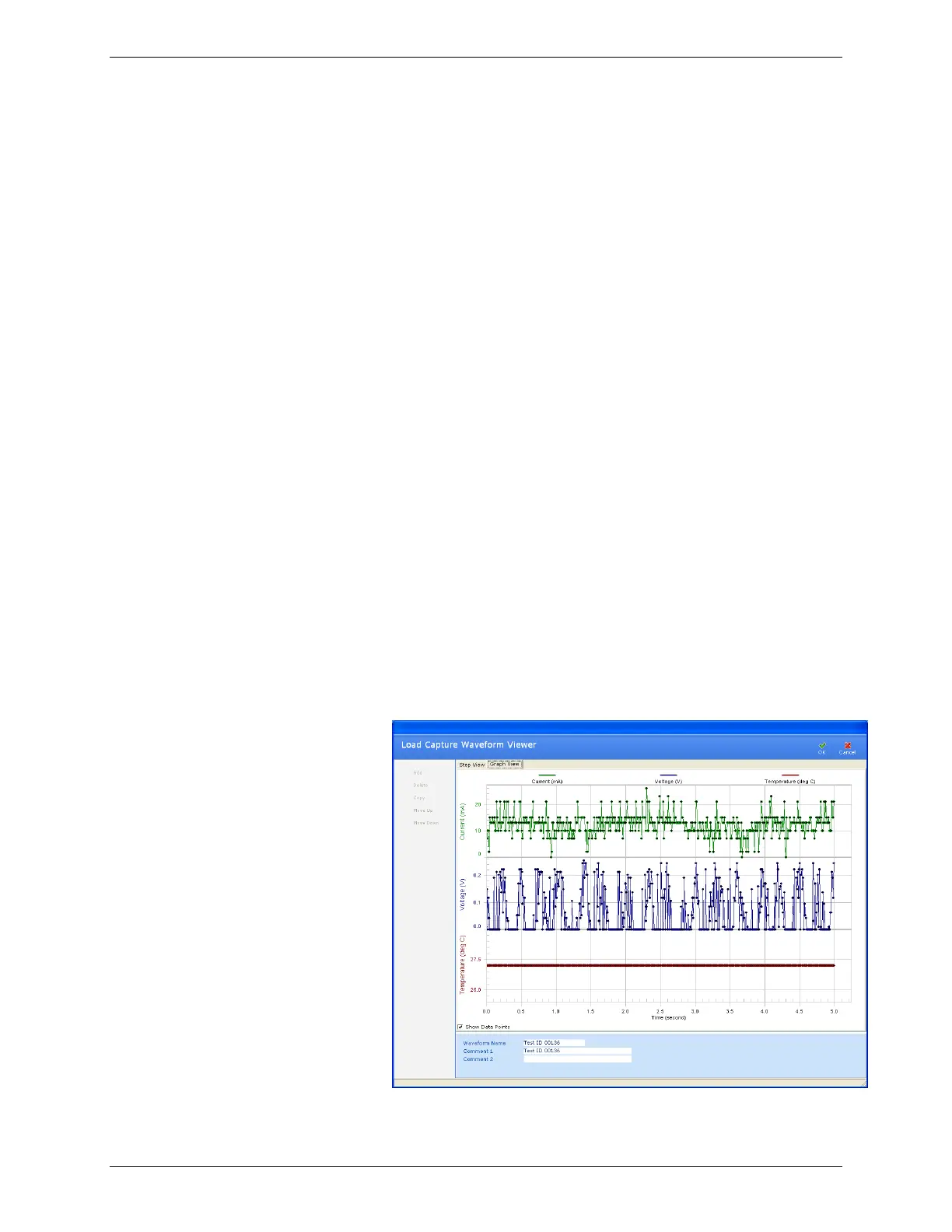
7. To view the captured waveform, click Waveforms in the
Database menu. The Waveform Database window
appears.
8. Click the Load Capture folder and open the corresponding
waveform ID indicated in the pop-up window.


 To Next Page