Processing Audio
102 APOLLO
Digital Broadcast Production Console
Connecting insert resources to
paths
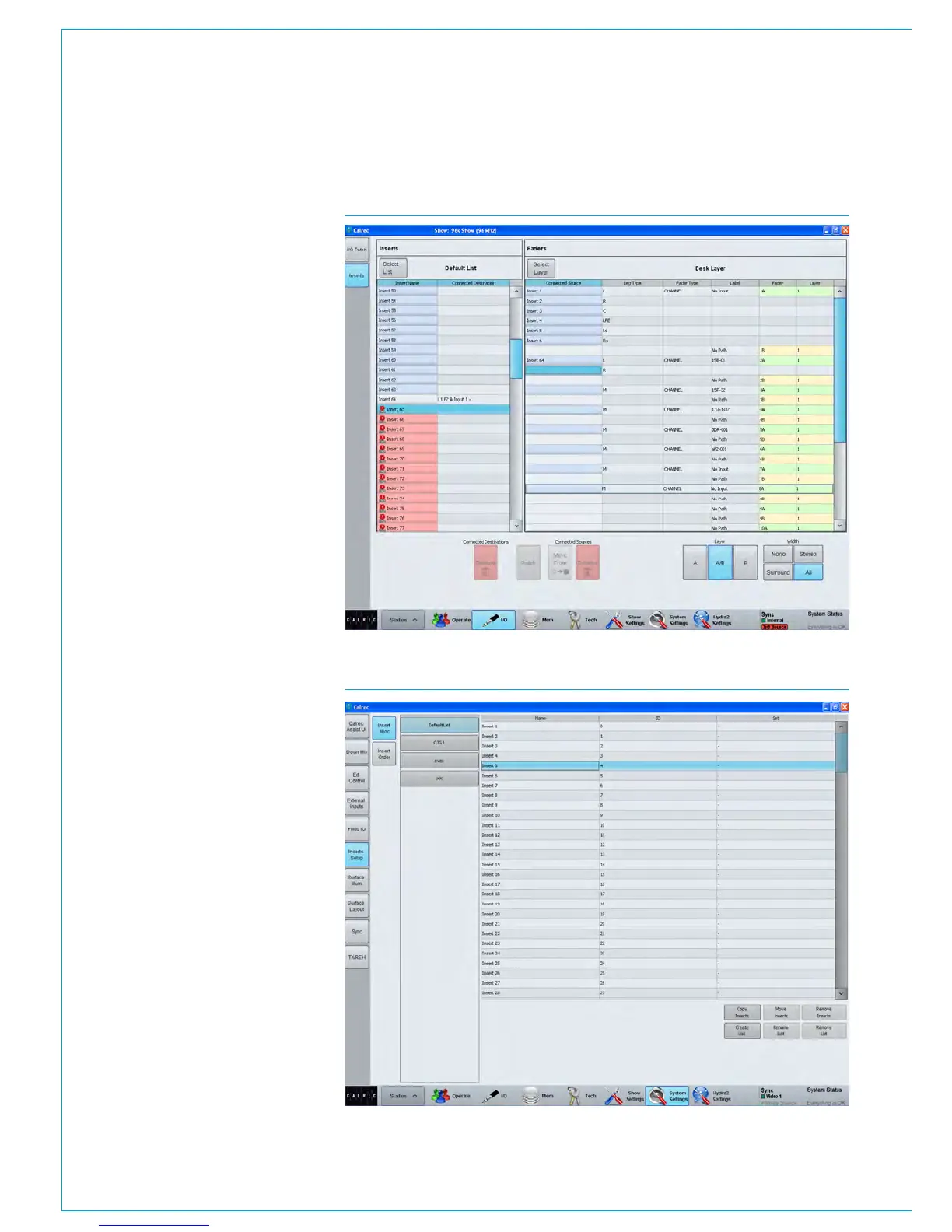
Navigate to the >I/O>Inserts screen
as shown in Fig 3. The available insert
resources are shown in the list on the left.
Paths on the surface are shown in the list
on the right. Select the required insert
resources, then the paths to which the
insert should be connected and touch the
‘Patch’ button.
Naming insert resources
Insert resources may be labelled in
the ‘Inserts Setup’ screen in the Show
Settings section of the main application,
as shown in Fig 4. In this screen, touch
the ‘Insert Alloc’ button. Double click an
insert resource name to provide a new
name, which must be 12 characters or
less.
Insert resource lists
Insert resources can be assigned to
lists. Lists provide a way of filtering the
insert resources and can be selected
when patching insert resource sends
and returns to ports, or connecting insert
resources to paths.
To access insert resources lists, go to
the ‘Inserts Setup’ screen in the Show
Settings section of the main application.
Select the ‘Insert Alloc’ button at the
left of the screen. The screen will show
all available insert resource lists just to
the right of the ‘Insert Alloc’ button. The
‘Default List’ is created automatically and
contains all available resources.
Creating lists
To create a new list, select the required
insert resources from the default list (or
any other list that already exists) and
touch the ‘Create List’ button. A popup
will appear prompting for the name of the
new list, which can be six characters or
less. Enter the name and touch OK.
FIG 3 - CONNECTING INSERTS TO FADERS
FIG 4 - INSERTS SETUP SCREEN



 To Next Page