CALREC Putting Sound in the Picture 173
Creating shows at different sample
rates
From version 8.0 the desk can be
configured to operate at different sample
rates such as 48kHz & 96kHz.
Fig 2 shows the ‘Create New Show’
template page from which either a 48kHz
show or a 96kHz show can be created.
At the higher sample rate the capacity of
the DSP is reduced. See “Apollo Sample
Rate Comparison” on page 13 for
details.
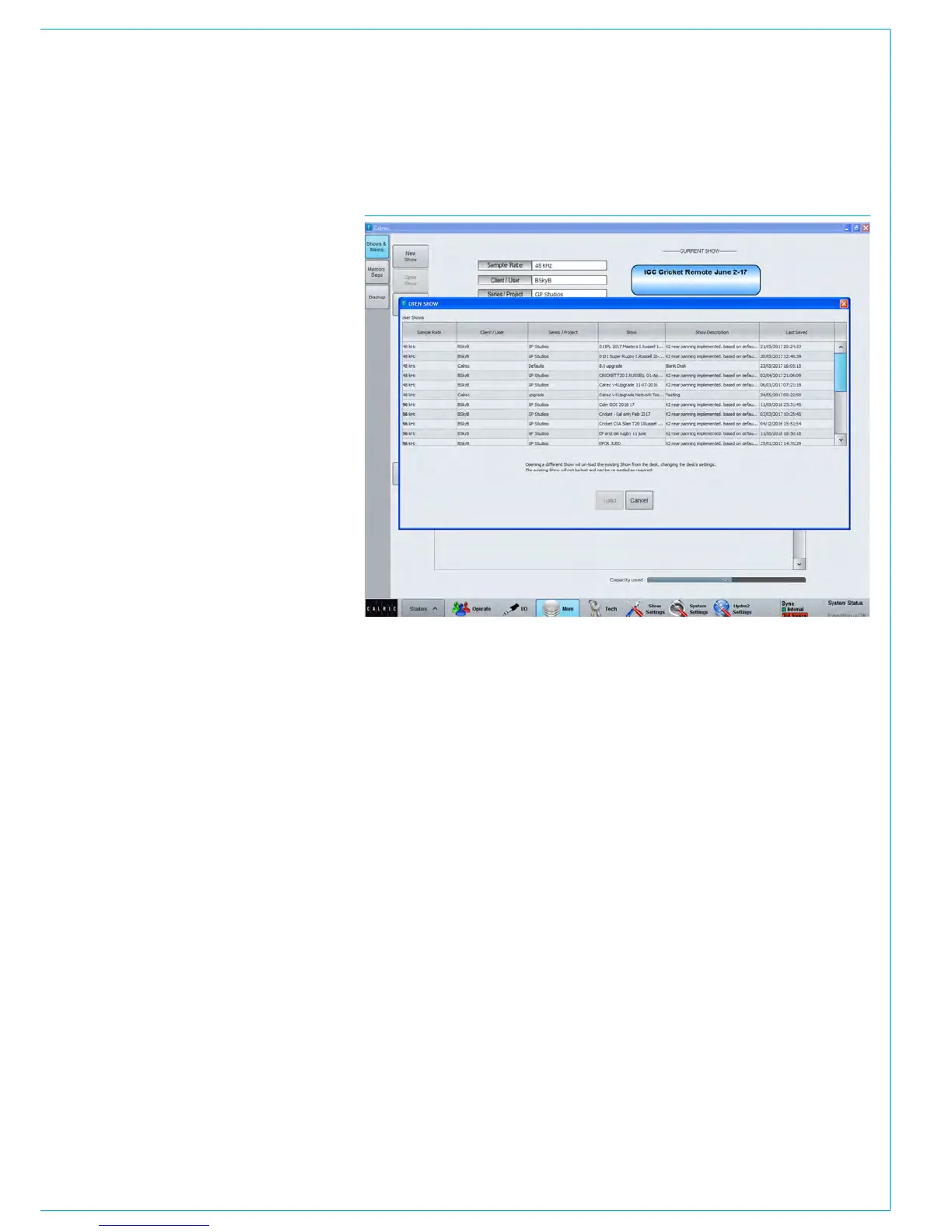
Opening an existing show
Press the ‘Open Show’ button to bring up
a list of all the shows currently present on
the console’s controller card. See Fig 3.
Select a show from the list to highlight it
and then press ‘Load’ to make the chosen
show active on the console, bringing it up
in its last used state, and making its user
memories available for loading.
Opening Shows at different sample
rates
Note that the sample rate of the show
is shown in the left hand column of the
show list, method for opening remains
unchanged.
Saving / duplicating shows
Shows do not need to be manually saved;
they are continuously saved automatically
and always open in their last used state.
Pressing the ‘Save Show As’ button allows
the show to be duplicated, under a new
name, allowing a new show to be created
based upon settings saved under an
existing show.
The new show will contain copies of all the
user memories contained in the original
which can then be edited or deleted as
required.
Creating and editing default shows
Users logged in to the main application
as technicians (From the Tech screen)
have the ability to convert or save existing
shows as defaults, making them available
as templates for new show creation.
Selecting ‘Convert to Default’ removes
the show from the Open Show list, and
places it in the New Show templates list.
The ‘Save Show As’, when logged in as
technician, provides the option to save the
show as a default, making a copy available
in the New Show template list whilst
leaving the original available to open from
the Open Show list.
Default show templates contain copies of
all the user memories from the original.
Default shows cannot be edited without
logging in as a technician, therefore
saving a show as a default is a method for
making a backup that is protected against
unauthorised or accidental changes.
Users logged in as technicians also have
the ability to open default shows from
the ‘Open Show’ dialogue. Any changes
made to the default show whilst it is open
will be maintained within the default
when it is used as a template for new
show creation, allowing technicians to
change settings and add or remove user
memories from default templates.
The factory standard Calrec default show
template cannot be opened or edited. If a
default show is open and the user logs out
of technician status, the default show will
be closed, and the console will revert to
the previously used show file.
Technicians should not leave the system
logged in to prevent unauthorised
changes to default templates.
FIG 3 - MAIN APPLICATION>MEM>OPEN SHOW SCREEN



 To Next Page