CALREC Putting Sound in the Picture 195
MIC OPEN SYSTEMS
Mic Open Systems are used to control
external devices, relative to the ‘on
air’ status of a signal source. Mic
open systems can CUT or DIM a loud
speaker feed to avoid feedback, or
control relays for switching purposes,
such as turning on ON AIR lights.
There are 5 mic open systems available
on the console, each is normally
associated with a physical area for control,
such as a studio or an area of a studio
floor. Mic open systems work for all input
ports, as microphones can be connected
to ports other than mic/line inputs.
Mic open systems detect whether the
assigned signal sources are on air.
A signal is deemed to be on air if:
• It is assigned to a channel input
(one or two).
• The channel is selected to that input
(one or two).
• Its fader is open and not cut.
• It is routed to a main output.
• That main output’s fader is open.
• If a signal is routed via a group or a
number of groups in series before
being routed to a main output, those
group faders must also be open and
not cut.
Note, the fader open trigger happens
at -90dB and the fader close trigger
happens at -95dB.
If a signal is routed to a console input via
a hydra2 patchbay and/or an input alias
the on air decoding will be the same as
described above.
When a mic open system detects that
a microphone is on air, it switches on
and the associated GPO/CUT/DIM is
executed.
Mic open systems are console-wide and
so do not split in line with user splits.
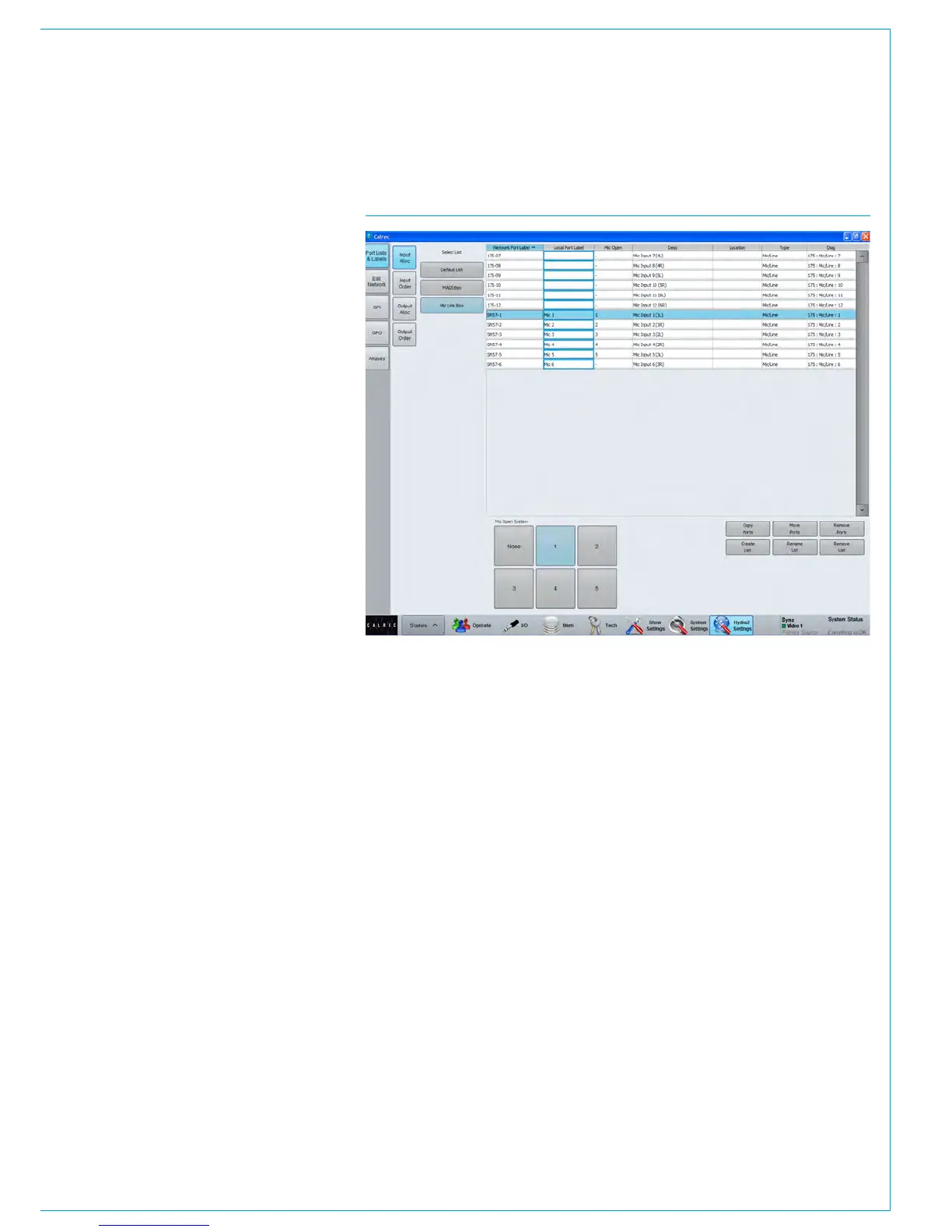
FIG 1 - ASSIGNING A MIC OPEN SYSTEM
Assigning Inputs to Mic Open
Systems
To allocate an input port to any of the
5 Mic Open Systems, select : >Hydra2
Settings>Port Lists & Labels>Input Alloc
as shown in Fig 1.
There are 6 buttons at the bottom of the
input allocation window for assigning
inputs to any of the 5 mic open systems.
Select an input port list from the select
list down the left hand side of the window,
then select an input port from the list
and press one or more of the 5 mic
open system buttons - notice that the
corresponding cell in the 3rd column now
reflects your choice.
This is reflected in all screens where
inputs are displayed within the main
application. Within screens with limited
space the mic open column will be
labelled, ‘MO’.



 To Next Page