CALREC Putting Sound in the Picture 75
ALIAS FILES
Alias files enable easier setup of
input and output configurations when
productions move to different studios.
In systems with several studios and
control rooms, moving a production
causes a change to some of the
resources used, but retaining a similar I/O
patching scheme. For example changing
a show from Studio 1 to Studio 2 is likely
to require a similar set of inputs patched
to the console channels but coming from
a different studio wall box. An alias file
provides easy re-patching. Similar alias
files also exist for output routing.
Editing alias files
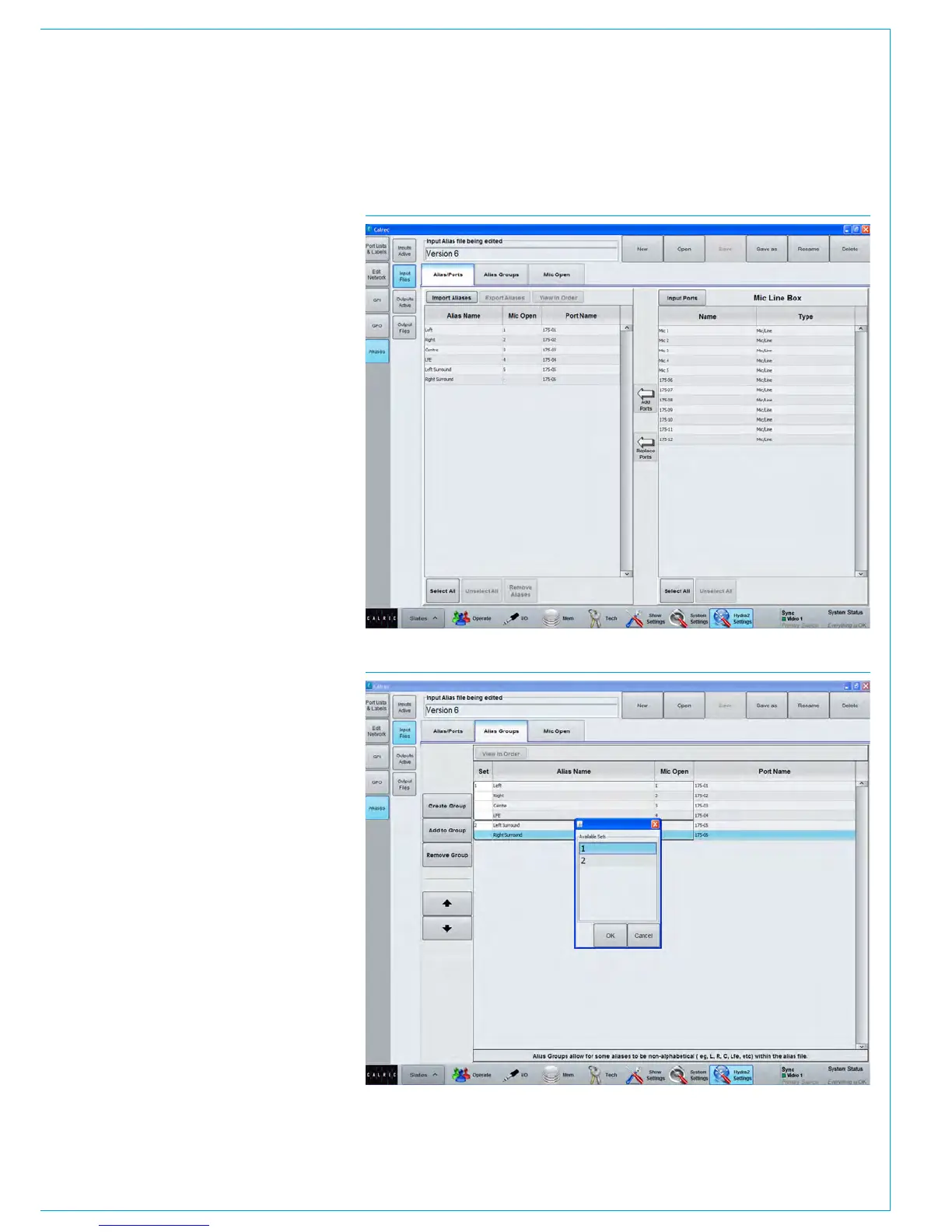
To create or modify an input alias file,
go to >Hydra2 Settings>Aliases>Input
Files. With either a new or existing file
open for editing, all the available input
ports are shown in the right hand window
and can be placed as part of the alias by
touching the ‘Add Ports’ button. Once
added, the ports can be given a function
related name as shown in Fig 1. The
commonly used CTRL X, CTRL C and
CTRL V for cut, paste and copy can be
used to speed the entry of text names.
Names must all be unique and any
temporary duplicate is shown with a red
warning.
Once the alias file for use with one set
of ports has been saved, another can be
created using an alternative set of ports,
assigning matching names for the audio
signal to those used in the first alias file.
It will often be convenient also to organise
the output ports into suitably named
Output Alias files.
Aliases at different sample rates
Although the alias is sample rate agnostic
the alias is made up from ports that may
be at a different rate to the desk. Only
ports inside the aliases that are at the
same sample rate as the desk will work.
FIG 1 - INPUT ALIAS FILE EDITING
FIG 2 - ALIAS GROUPS



 To Next Page