CALREC Putting Sound in the Picture 135
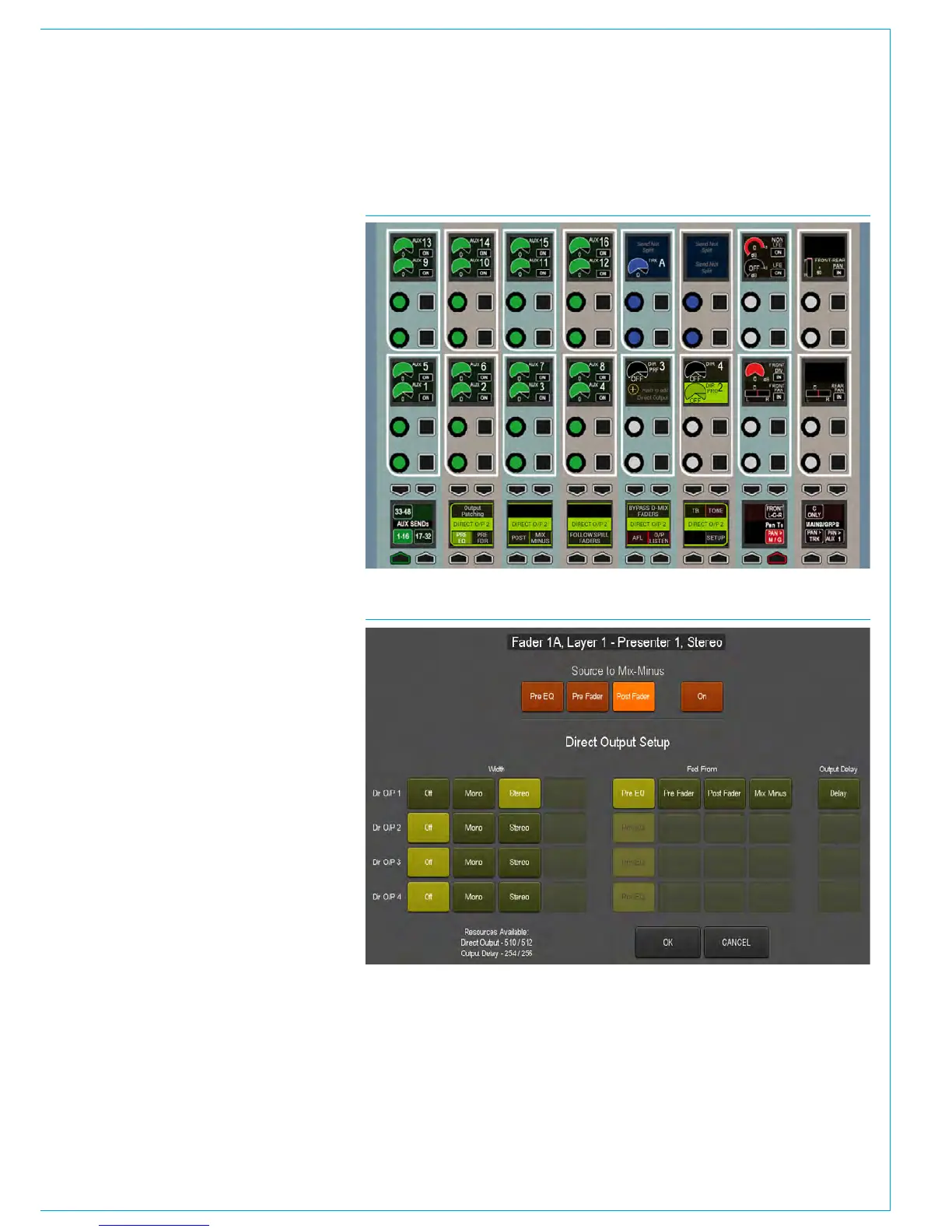
A pooled resource of 512 legs of
direct outputs can be assigned for
use with channel and group paths.
Up to four direct outputs can be created
per path, each can be set to be fed
Pre-EQ, Pre-Fader, Post-Fader or from
the Mix Minus bus. Output delay can
be assigned to any direct output—this
is taken from the same pool of delay
resources as bus output delay.
Direct Outputs at different sample
rates
From version 8.0 the desk can be
configured to operate at different sample
rates such as 48kHz & 96kHz.
At the higher sample rate the pool size
for Direct Outputs is halved, meaning that
the pool of 512 legs at 48kHz for Apollo
becomes 256 legs at 96kHz.
Assign Direct Outputs from the
Surface
To assign a direct output to a path using
the surface controls:
1. Push the ASSIGN button for the path
to which you want to assign the direct
output.
2. Place any panel into SEND-ROUTE
mode from the Modes row. The four
centre-right control cells will read:
‘Push to add Direct Output’, see Fig 1.
Push one of these cell’s rotary controls
and the Direct Output pop-up appears
on the TFT above, as shown in Fig 2.
3. Select Mono or Stereo to enable a
Direct Output and select either a feed
position (pre-eq, pre-fader or post
fader) or choose to have the Mix Minus
bus feed the Direct Output.
Assign Direct Outputs from the PC
To assign direct output resources to paths
using the console PC:
1. Select >I/O>I/O Patch from the menu
bar in the main application.
2. Press ‘Select Source’ and then ‘Direct
Outputs’ from the sources menu.
FIG 2 - DIRECT OUTPUT SETUP POP-UP
DIRECT OUTPUTS
FIG 1 - DIRECT OUTPUT ASSIGN FROM POP-UP
• Note, the Direct Output pop-up also allows you to route the Direct’s Output’s source
path to the Mix Minus bus using the buttons along the top of the pop-up
4. Select mono or stereo to enable a
Direct Output and select either a feed
position (Pre-EQ, Pre-Fader or Post
Fader) or choose to have the Mix Minus
bus feed the Direct Output.
3. Click on the Output (Assign) cell in
the table for the required path and the
direct output setup pop-up appears.



 To Next Page