CALREC Putting Sound in the Picture 47
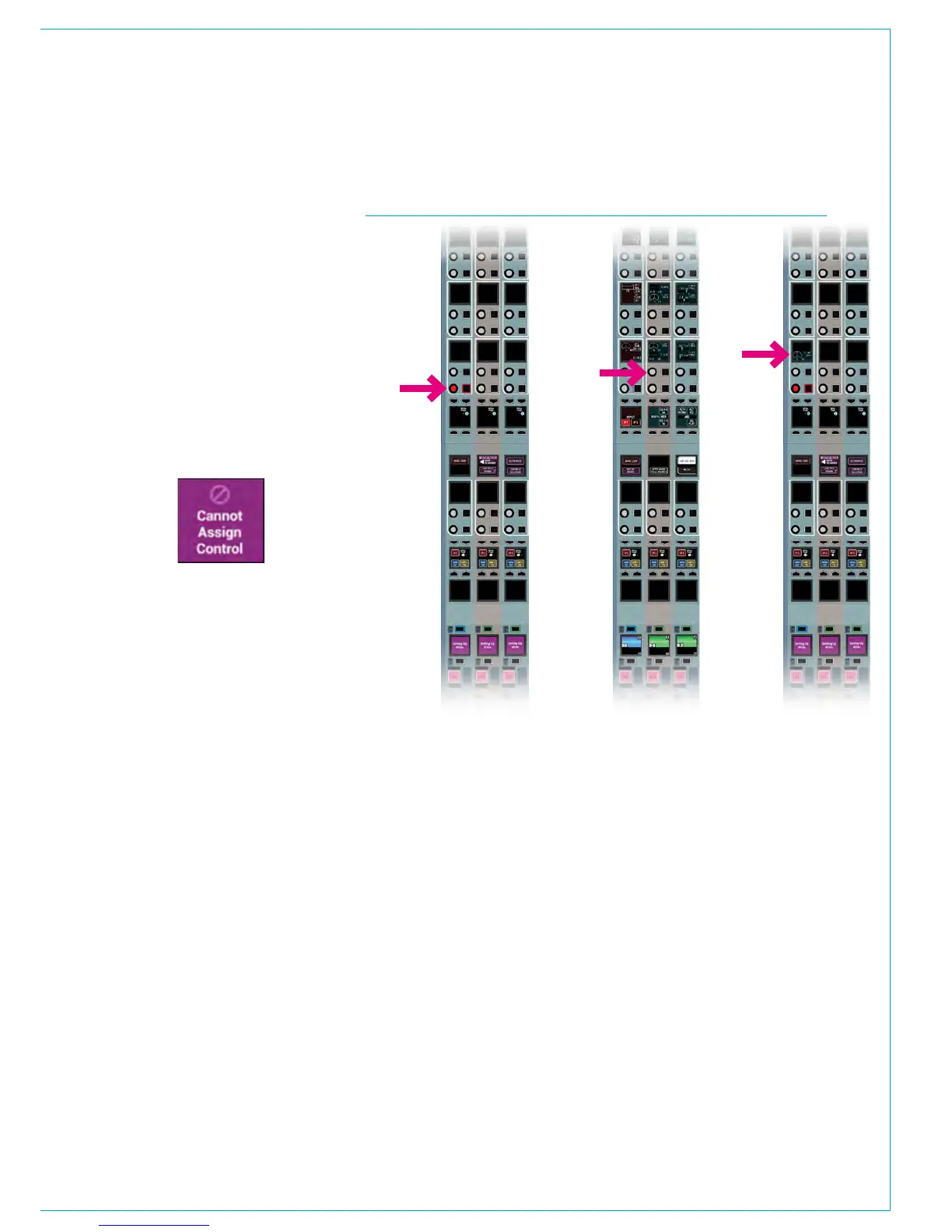
FIG 2 - SELECTING AND ASSIGNING WILDSAssigning and Clearing
Once a wild control has been selected
for assignment, any other valid control
from a different panel within the same
user section can be used as the source
for duplication. Once applied, the wild will
immediately display the same control as
the source.
The process for selecting and assigning
wilds is shown in Fig 2.
If an invalid source selection is made,
the relevant fader display will show the
message ‘Cannot Assign Control’:
Wilds are assigned on a fader rather than
a path basis so an unassigned fader can
be given wild controls which only become
active once a path has been assigned to
that fader.
Wilds and/or fader wilds can be copied
from one path to another using the
Copy Path settings function within
LAYER TOOLS (see Getting Signals
into Apollo>Paths and Faders for more
details).
If a path is moved or cloned, all wilds
assignments will move along with it. As
wilds are fader/layer based, wilds can also
be set differently for each layer.
To clear any selected wild control, press
the CLEAR WILD touch key on the
modes row. Note the CLEAR WILD key
will deselect after any successful ‘clear’
operation.
In ‘Setup
Wilds’ mode,
select Wild
rotary control
or button(s)
from the
assign
or fader
panel. The
selection will
flash red
From
another
console
panel, select
any control
from any
panel mode.
On the
original
panel, the
chosen
control
assigns to
the Wild
control(s)
Panel 1 Panel 1Panel 2
Wildable controls
The rotary control and button cells in
wild assignment areas can be assigned
to many controls including input, output,
equaliser, dynamics, auxs, pan, group and
monitor levels. For a full list of assignable
controls see “Wildable Controls” on page
49.
For instance, path delay, and if assigned,
input delay, direct output delay, aux output
delay, track output delay and main output
delay, could be assigned to a wild control.
Some controls such as pre eq/pre fader
& post fader, PFL, AFL and assign delay,
are not Wildable and will show the ‘Cannot
Assign Control’ message as above.
Alternate Fader Wilds
Whilst assigning a control, if a faders
assign button is held down whilst touching
its fader knob, rather than pushing an
assign rotary control, the fader control
for the alternate A/B sub-layer will be
assigned to the wild control. For example,
while operating on sub-layer A then the
fader control of sub-layer B would be
placed on the selected wild control.
Alternate fader wilds allow dual fader
functionality on a single fader panel.



 To Next Page