CALREC Putting Sound in the Picture 123
SPLITTING TRACK SENDS
Each channel has up to four track
sends although by default only one is
enabled.
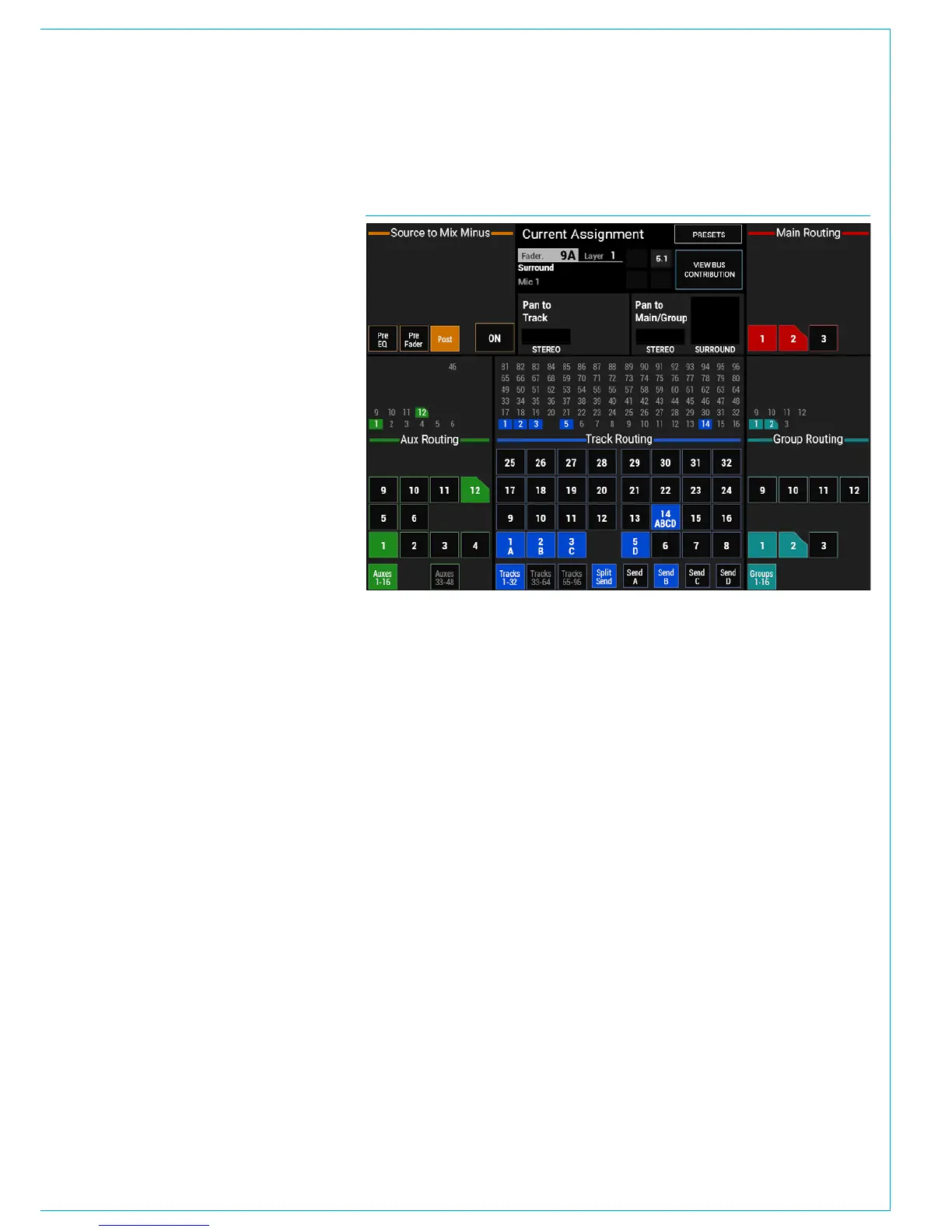
The enable the four sends, touch the
SPLIT SEND button below the track
routing buttons. This will enable four more
buttons for selecting the required send
(A, B, C or D) as shown in Fig 1.
Select one of these sends and then create
or remove routing to tracks as required.
A letter will appear below the track
number when a route is made to indicate
which send it is associated with.
Each of the four sends has an individual
level control and can be selected by
pushing the relevant rotary control to
appear in the ‘Selected’ button cells at the
bottom of the panel.
This enables access to a wider range of
controls for that specific send such as pre
or post fade.
Removing sends
If a channel has been routed to a track
using send C then send C must be
selected when removing the route. Only
routes made with the currently selected
send may be removed.
In order for the track routing to be
collapsed back into just one send, all
routes from sends B, C and D must be
removed. The SPLIT SEND button can
now be touched again to remove the three
unused send controls.
Partial sends
Note: If individual legs of a 5.1 or Stereo
path are routed to a bus the corner of
the box is cut off to show that it is only
partially routed, as shown right in Fig 1 for
Aux 12, Main 2 and Group 2
Track 14 in Fig 1 shows that all the legs
have been routed L/R to Send A, C to
Send B, Lfe to Send C and LsRs to Send
D which is why it shows as a fully routed
button image.
FIG 1 - ROUTING SCREEN



 To Next Page