CALREC Putting Sound in the Picture 57
When viewing a port list, ports are sorted
alphabetically according to their port
name. If ports are labelled with the box
name and port number this will present
a logical order in the list. If however,
the ports are labelled according to their
function, for example the name of the
source feeding the ports with a suffix of
each individual leg as shown in the left
column of Fig 3, the ports may not appear
in a sensible order in the list.
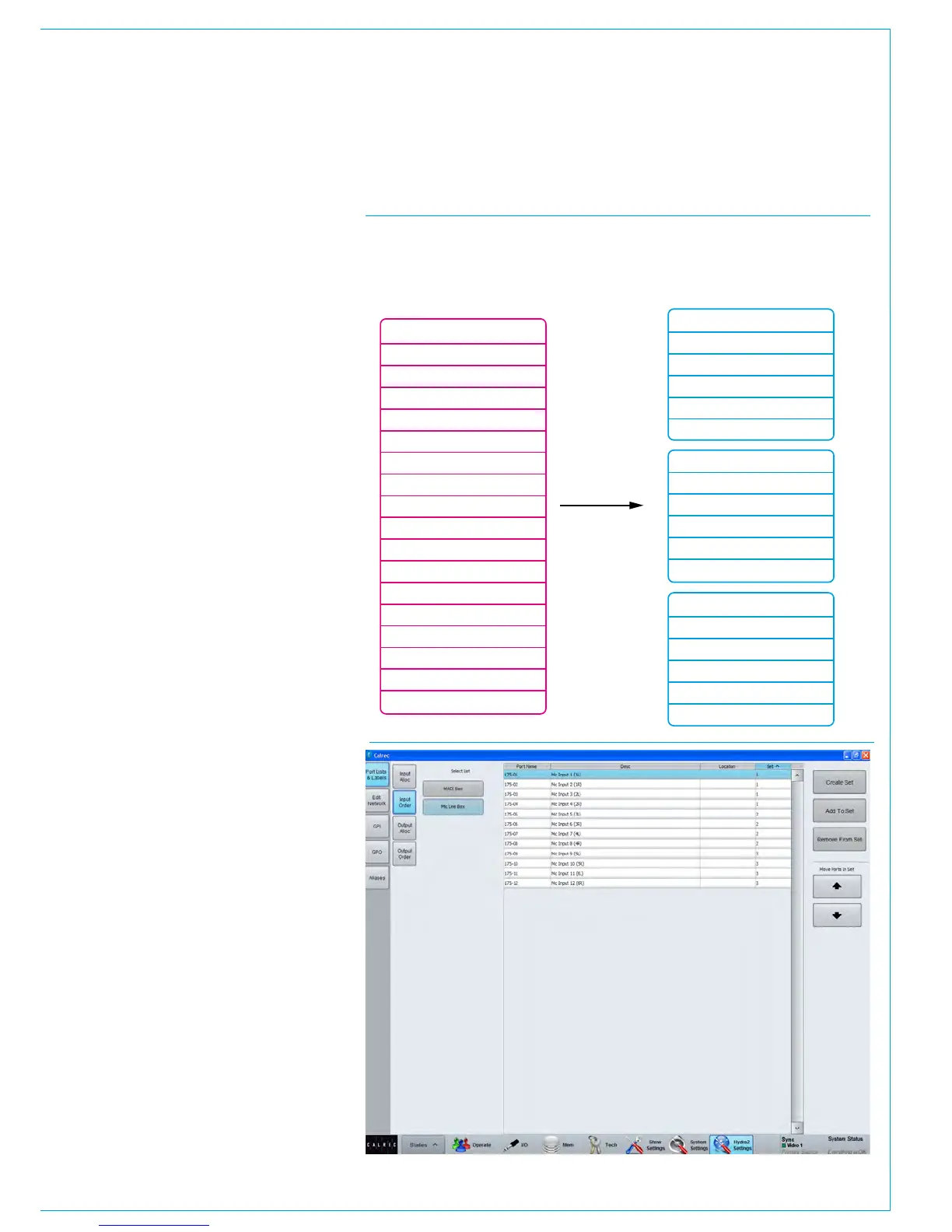
If all ports associated with a certain
source are added to a set and arranged
in the correct order within it, they will be
presented in the port list in that order.
The set will be sorted in the port list by the
name of the first port in the set.
Adding ports to sets
To add ports to a set, navigate to the
>Hydra2 Settings>Port Lists & Labels
screen in the main application and select
either ‘Input Order’ or ‘Output Order’ from
the buttons at the left of the screen, see
Fig 4.
On the left of this screen, the lists in the
current view are displayed. Press the
‘More Lists’ button to scroll through any
available views. Select a list to work on by
touching it. The main area will now update
to show the ports stored in the selected
list. Select the ports that re to be stored
in a set and touch the ‘Create Set’ button.
The number of the set will appear next to
the ports. The order of the ports within
the set can be changed by selecting a
port and touching the up or down arrow
buttons.
Ports can be removed from a set by
selecting them and touching the ‘Remove
From Set’ button. Ports can be added
to an existing set by selecting them and
touching the ‘Add To Set’ button. This will
bring up a popup dialogue which allows
the user to select the destination set.
FIG 3 - SETS EXAMPLE
Playback 1 C
When ports are not assigned to sets,
they appear in the port lists in
alphabetical order. This may not list the
ports in a sensible order, for example in
the case of 5.1 surround sources.
By using sets to group ports for related
inputs, the lists will display the ports in
the correct order. The ports will be
sorted by the name of the first port in
each set.
Playback 1 L
Playback 1 LFE
Playback 1 LS
Playback 1 R
Playback 1 RS
Playback 2 C
Playback 2 L
Playback 2 LFE
Playback 2 LS
Playback 2 R
Playback 2 RS
Playback 3 C
Playback 3 L
Playback 3 LFE
Playback 3 LS
Playback 3 R
Playback 3 RS
Playback 1 L
Playback 1 R
Playback 1 C
Playback 1 LFE
Playback 1 LS
Playback 1 RS
Playback 2 L
Playback 2 R
Playback 2 C
Playback 2 LFE
Playback 2 LS
Playback 2 RS
Playback 3 L
Playback 3 R
Playback 3 C
Playback 3 LFE
Playback 3 LS
Playback 3 RS



 To Next Page