Metering
164 APOLLO
Digital Broadcast Production Console
FADER AND DYNAMICS METER SETTINGS
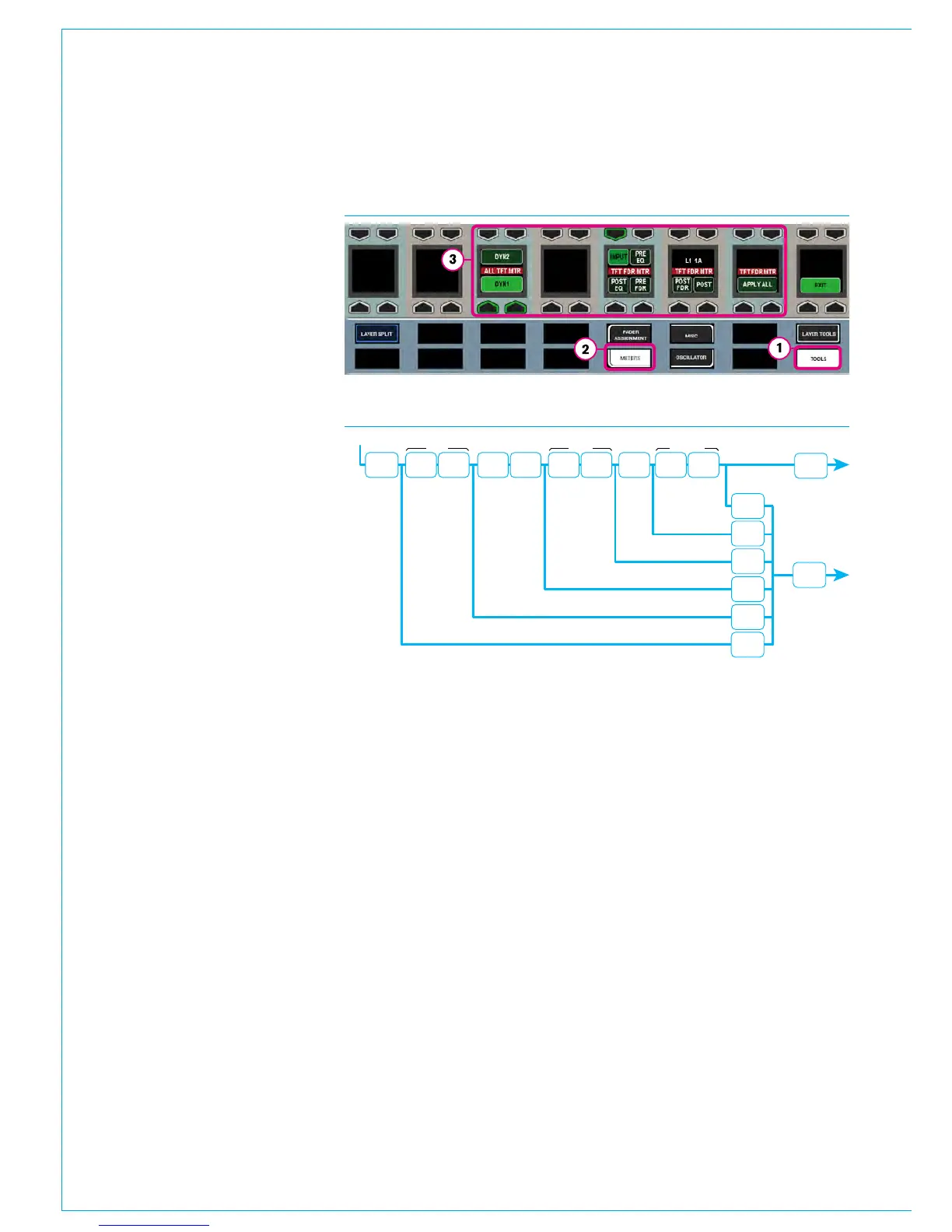
Some additional upstand TFT meter
settings can be selected from any
panels Layers row, TOOLS>METERS
menu, as shown in Fig 1.
Fader meters
Upstand metering displaying audio on
fader paths can be selected to display
audio from various points within the
path’s signal flow. Change the currently
assigned fader’s meter simply by
pressing a selection button from the
TOOLS>METERS menu. See Fig 1.
Change multiple fader meters by holding
the selection down and then selecting
the desired faders by pressing their fader
assign buttons. Press and hold APPLY
ALL, and then choose a signal path point
selection to change all fader meters
across the surface, or within the user split.
The meter’s label will display the point
from which the audio is being accessed.
Fig 2 shows the TFT Fader Meter
selection points.
Dynamics meters
The dynamics meters located to the right
of channel, group and main meters can
be configured to show the first or second
dynamics units.
To do this, touch the TOOLS button
on the layers row. The Layers row will
update to display various meter setup
options. Pressing the buttons above
DYN2 or below DYN1 as shown in the
TOOLS>METERS menu above right will
change all relevant TFT meters to display
the selected information.
INPUT INSERT DYNAMICS EQ WIDTH INSERT DYNAMICS FADER INSERT DYNAMICS
POST SEND
/ ROUTING
SIGNAL IN
PRE EQ
POST EQ POST FADER
POST
EQ
PRE
FADER
PRE
EQ
INPUT
TFT FADER
METER
POST
POST
FADER
FIG 2 - PATH SIGNAL FLOW & TFT FADER METER SELECTION POINTS
FIG 1 - TOOLS>METERS - CONTROL SURFACE METER OPTIONS



 To Next Page