Control Overview
18 APOLLO
Digital Broadcast Production Console
CONFIGURATION PC OVERVIEW
The configuration PC is mounted
inside the surface. The only access
available to the PC is through the
keyboard, trackball, touchscreen
display and USB port on the console
upstand.
No control, audio or router processing is
carried out by the system PC. Processing
is carried out on dedicated independent
hardware located in the processing
rack. The system PC provides a control
interface for setup and configuration. The
control surface itself, as well as audio and
routing systems will all boot and continue
to run irrespective of whether or not the
PC is active or powered.
Peripherals
A standard control surface will have the
PC’s touchscreen monitor mounted to
an adjustable arm on the right hand side.
A keyboard with trackball is normally
located in a retractable tray mounted to
the underside of the surface at the right
hand side. As an option, consoles can
be built with the PC peripherals on the
left-hand side. Consoles are also often
ordered with PC monitor screens and
keyboards on both sides of the surface.
In these cases only one of the pair will be
connected to the system PC, the other
set is typically used to control 3rd party
equipment such as playout systems.
Windows login
The default user login for operators is
‘calrec’ and requires no password.
Main application
The main purpose of the configuration
PC is to run the main application, which
provides access to many important
console options.
The main application is launched
automatically when the configuration PC
is booted. If the application has been
closed, it can be re-loaded from the Start
menu.
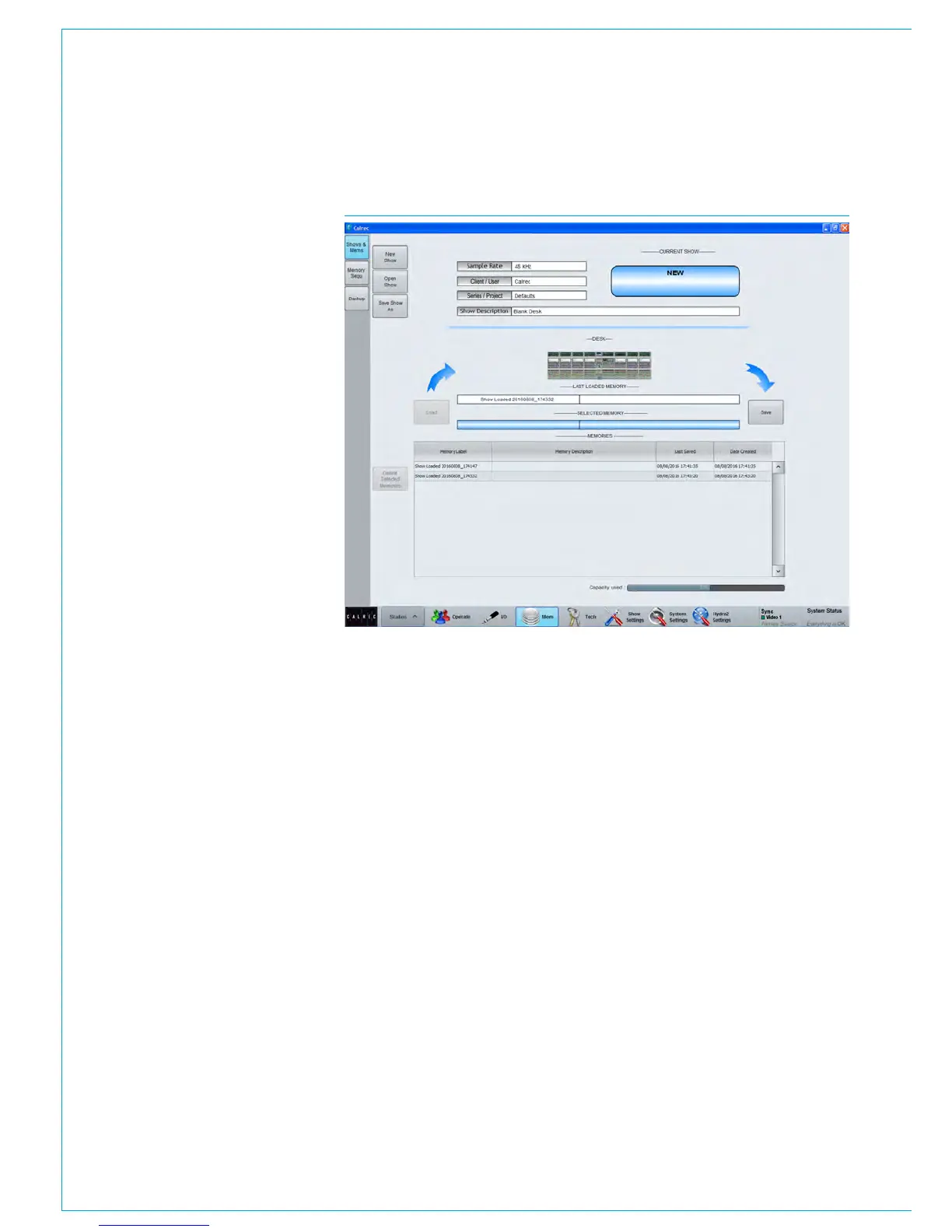
Fig 1 shows the layout of the main
application. Along the bottom edge of
the application is the main menu which
contains buttons for each of the main
sections of the application. When this
document instructs you to go to the
>MEM section, for example, it is the
equivalent of saying: ‘touch the MEM
button in the main application main menu’.
Once a certain section has been selected,
a list of available screens will appear
vertically along the left hand edge of
the application. Touching one of these
buttons will update the main application
to display the relevant screen. When this
document instructs you to go to a certain
screen, it is referring to touching the
relevant button on this list, down the left
hand side of the screen.
USB Port
A USB port linked to the configuration PC
is available in the broadcast facilities panel
located in the TFT meter upstand. This
can be used for backing up and restoring
memories or settings from the console. It
is designed for portable flash based USB
memory devices and as such may not
provide power for larger USB hard drives.
FIG 1 - MAIN APPLICATION
Installing 3rd party software
Although not relied upon for console
operation, the system PC should be
considered as broadcast equipment.
Installation of software unauthorised
by Calrec may impact on the PC’s
performance and as such can invalidate
the warranty.
Power and reset
The system PC should automatically boot
u p w h e n t h e c o n t r o l s u r f a c e i s p o w e r e d .
If the PC screen is dark and does not
wake up when the trackball is moved,
check the AC power to the back of
the monitor and that it has not been
t u r n e d o f f b y p r e s s i n g i t s ’ p o w e r s w i t c h .
A simple way to check if the PC is
powered is to press Caps Lock on the
keyboard and check if the Caps Lock LED
on the keyboard responds. A reset switch
for the PC is located behind the keyboard,
at the rear left-hand side. If the PC
has been shutdown but is still powered.
Pressing the reset switch should reboot it.
Online Documentation
Electronic versions of all documentation
may be accessed on the configuration PC.



 To Next Page