Processing Audio
94 APOLLO
Digital Broadcast Production Console
DELAY SETTINGS
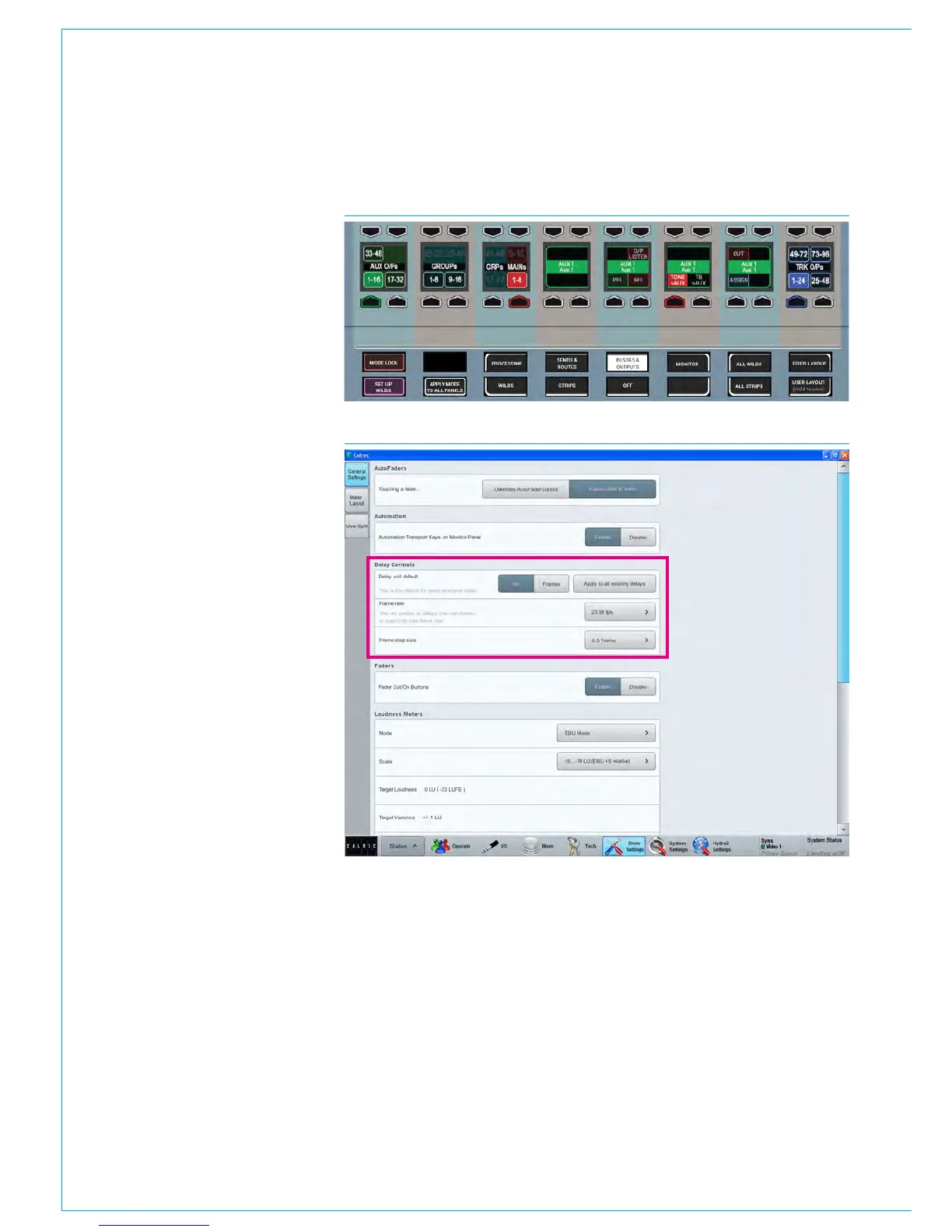
FIG 1 - ASSIGNING DELAY WHEN A PATH IS NOT ASSIGNED TO A FADER
FIG 2 - GLOBAL DELAY CONTROLS - MAIN APPLICATION
Once Input or Output Delay is assigned
(or for Path Delay already present), the
rotary controls and up/down stepper
buttons for use as an alternative to the
rotary controller for setting the delay time
become available to the user.
The TFT screen shows the Delay Units
either in Time format in milliseconds /
seconds or Frame format which can be
set for each delay type from the screen
buttons.
The current delay settings and ON / OFF
status are shown at the bottom of the
screen. See Fig 1 on the previous page
for the Delay processing mode.
Assigning Delay to a Path
w h i c h i s n o t a t t a c h e d t o a F a d e r
To assign Delay to a path which is not
assigned to a fader, put a panel into
OUTPUTS mode and press on the rotary
controller associated with that output.
This brings up the selected bus controls
within the Wild Assign row, on which there
is an assign button. Press this assign
button and then assign delay in the usual
way from any surface panel that is in
PROCESSING-DELAY mode, see Fig 1.
Global Delay Settings
Global delay controls can be accessed
from the main application by selecting:
>Show Settings>General Settings
There are three global delay settings as
shown in Fig 2 on the right.
Default Delay Unit sets the resolution
type for all new delay assignments,
the interface is a two state button to
switch between ‘ms’ and ‘frames’. This
‘ms’/’frames’ selection can be applied to
a l l e x i s t i n g d e l a y a s s i g n m e n t s b y c l i c k i n g
‘Apply to all existing delays’.
The Frame rate selection button is used
to set the video frame rate for all frame-
based delay assignments. The frame rate
should be set to match the frame rate
of the video signal that the audio feed is
related to.
Finally there is the Frame Step Size
selection button which sets the resolution
of the stepper button within the surface
pop-up shown above. There are two
options: 1 frame and 0.5 frames.



 To Next Page