Shows, Memories and Presets
176 APOLLO
Digital Broadcast Production Console
MEMORY SEQUENCING
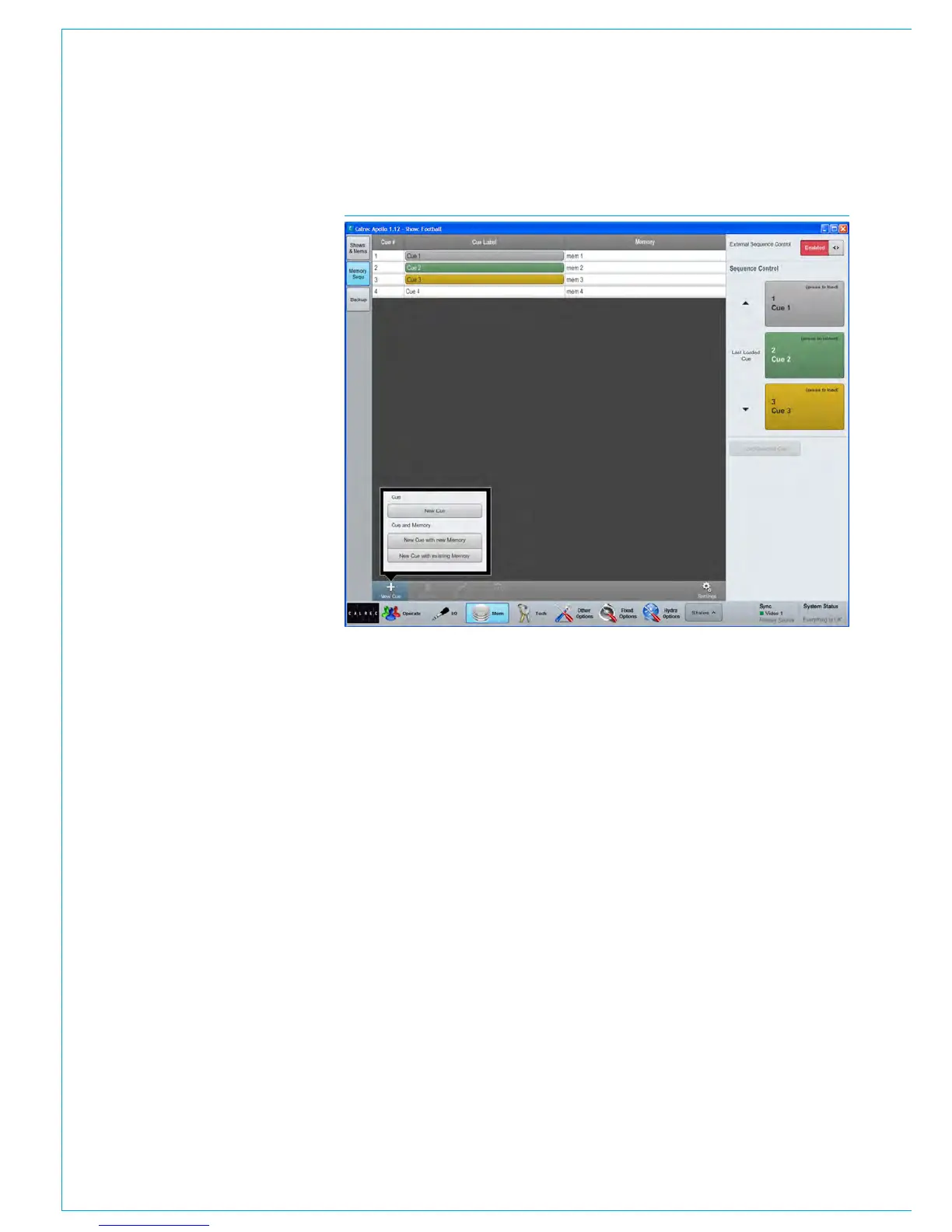
FIG 1 - MAIN APPLICATION, MEM>MEMORY SEQU SCREEN
The main application >Mem>Memory
Sequ screen, see Fig 1 allows for user
memories to be stacked in order to be
able to recall them in sequence.
Each user memories is added to the
sequence list as a ‘Cue’. To add a cue to
the list, click the ‘New Cue’ button at the
bottom of the screen. Selecting ‘New
Cue’ puts a place-holder into the list which
can be later edited to add a user memory.
Selecting ‘New Cue with new Memory’
will save the current console settings as
a user memory and add it to the cue list.
This memory also becomes available to
load from the standard ‘Shows & Mems’
list like any other memory. Selecting ‘New
Cue with existing Memory’ allows the user
to choose a pre-saved user memory from
the current show to add to the cue list.
Items in the cue list are colour-coded as
green for current, yellow for next and gray
for previous. Memories in the sequence
can be loaded onto the control surface
using the buttons on the right hand side of
the screen.
The ‘Update Mem’ button at the bottom of
the screen can be used to overwrite any
memory in the cue list with the current
settings on the control surface. Note,
this does not replace the cue with a new
memory (as with New Cue>New Cue with
new Memory), instead it overwrites the
memory location being addressed by the
cue.
This is in essence the same as saving
the memory from the standard ‘Shows &
Mems’ page. As with all memory saves,
care should be taken to ensure the
intended memory is being overwritten
with the correct settings and that it will not
unduly affect other users.
Any changes made to memories by
saving from the ‘Shows & Mems’ page
will automatically affect them when they
are loaded from the sequence screen -
cues do not need updating to ‘refresh’ the
memory.
Cues can be edited or removed by clicking
the Edit Cue or Delete Cue buttons at the
bottom of the screen.
Remote control
The load next and load previous cue
commands can be triggered remotely, via
GPI. The ‘General Functions’ list from the
>Hydra2 Settings>GPI screen contains
‘Next Cue’ and ‘Prev Cue’ entries which
can be assigned to GP inputs.
A slider control (touch/click and slide
left or right to change status) in the top
right corner of the ‘Memory Sequ’ screen
enables or disables GPI remote control
over this functionality.



 To Next Page