Control Panel Modes
48 APOLLO
Digital Broadcast Production Console
Setting Up Fader Wilds
Note that Fader Wilds are only available
on Apollo Single Fader Panels.
To set up Fader Wilds exclusively (existing
settings within the Assign panel are not
affected), select the SET UP FADER
WILDS key on the modes row. SET UP
FADER WILDS is only available when
not in WILDS mode. If WILDS mode is
selected, then the same key becomes
SET UP WILDS and acts on both Fader
Wilds on the single fader panel and Wilds
on the Assign panel, see Wilds mode
above.
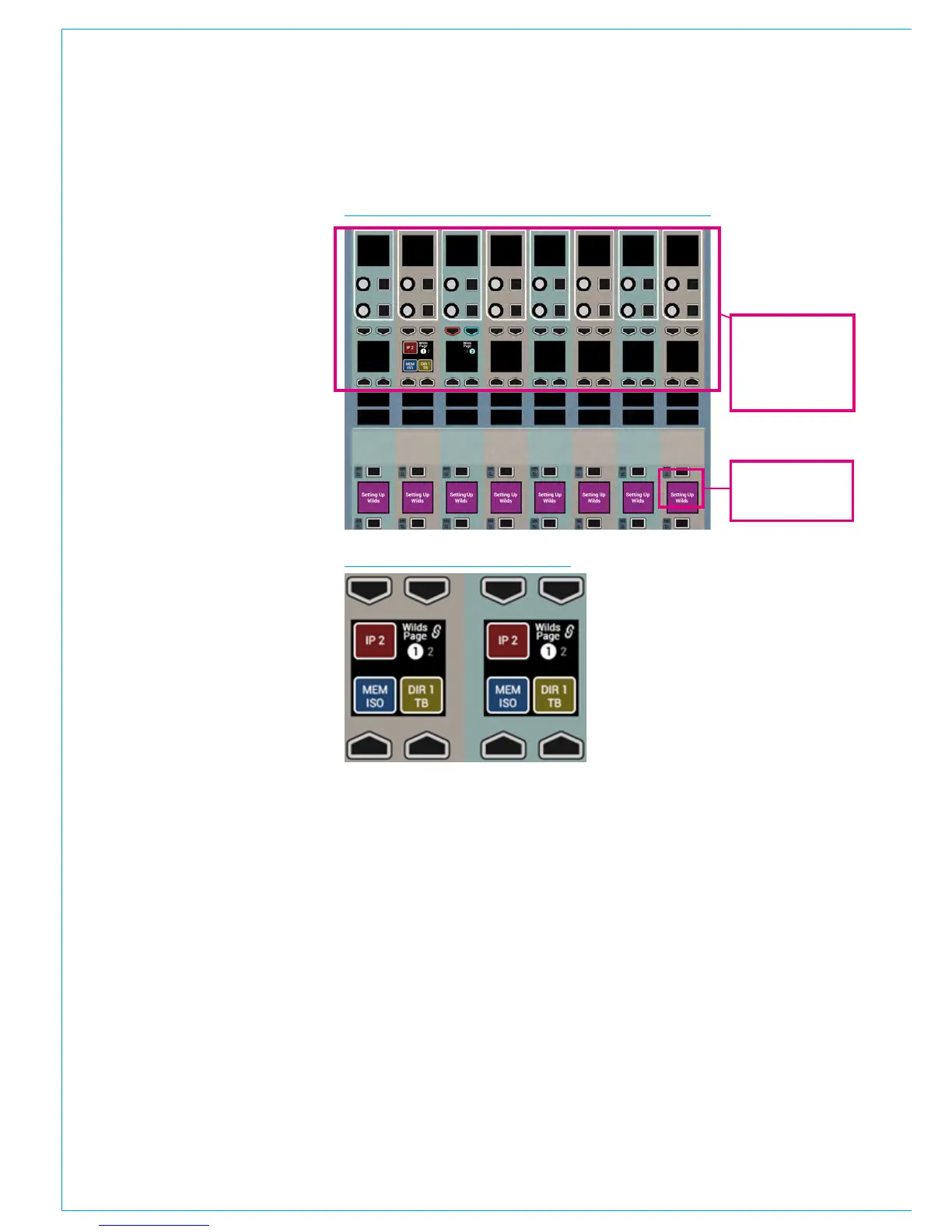
As in Wilds mode, the fader display
toggles between normal and ‘Setting Up
Wilds’ to show a panel is in Set Up Wilds
mode. The assignable wilds controls
within the single Fader Panel are show in
Fig 3.
Other functionality is the same as
described for Wilds mode, except the user
is confined to assigning Fader Wilds.
Memory Isolation
The Memory Isolation function includes
the ability to prevent the wilds of any path
from being overwritten when loading a
memory.
To do this, you must set the scope of
memory isolation to include Wilds and/
or Fader Wilds using the LAYER TOOLS
button in the layers row.
See “Memory Isolation” on page 177.
FIG 3 - SETTING UP FADER WILDS
FIG 4 - LINK WILD PAGING
‘Setting Up Wilds’
flashes in Fader
Wilds Set Up mode
Assignable Fader
Wilds controls. Red
indicates a selected
rotary control or
button
Wilds pages
The system provides two pages of wilds,
per fader, allowing twice as many controls
as there are control and button cells. The
top right button in each fader quad button
cell toggles between pages 1 and 2.
Pressing LINK WILD PAGING in SET UP
WILDS mode links all wilds page buttons
together, and any page toggle changes all
paths to show page 1 or 2 . When wilds
pages are linked, a link symbol appears on
each - see Fig 4.



 To Next Page