CALREC Putting Sound in the Picture 155
Patching talkback/reverse talkback
inputs
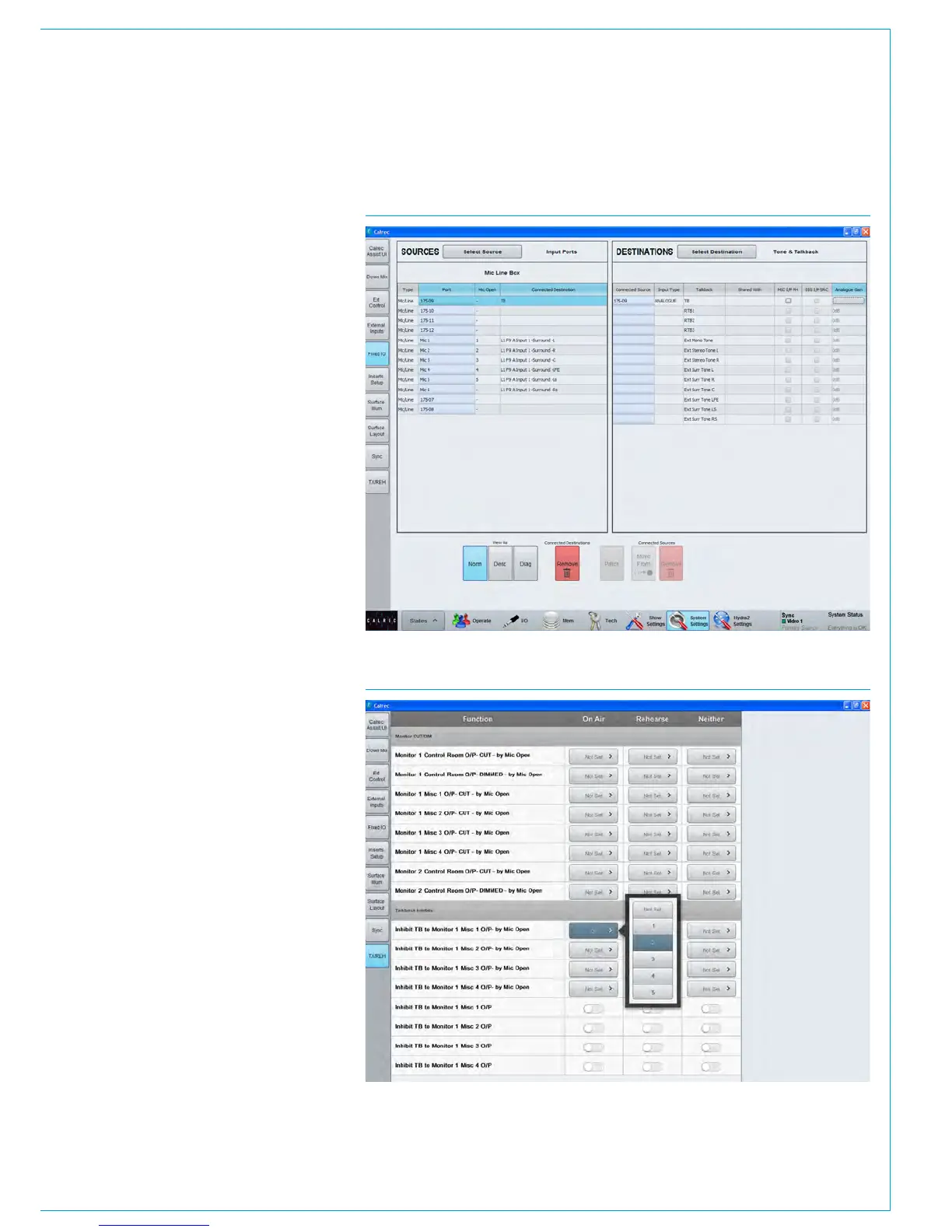
Navigate to >System Settings>Fixed I/O
as shown in Fig 2. Locate the physical
input ports which will feed the talkback
(this will be the port to which the
talkback microphone is patched) and the
reverse talkback inputs (these could be
microphones in other areas of the facility).
With an input port selected, also select
the desired input from the list on the right
then touch the ‘Patch’ button.
The method for physically connecting the
surface talkback microphone is covered
in the Installation manual. The studio
technician should be consulted if it is not
clear where talkback sources are patched.
Microphone settings
When a microphone is patched to a
talkback input, the mic may be provided
with phantom power (analogue inputs) or
SRC applied (AES3 inputs) by checking
the relevant box as shown in Fig 2. To
adjust the gain of a microphone, the
relevant ‘Analogue Gain’ cell should be
touched to bring up a dialogue allowing
selection of the desired gain.
Monitoring reverse talkback signals
In order to monitor reverse talkback
inputs, the RTB bus must be patched
to an output port where relevant
loudspeakers are connected.
Inhibiting Talkback
If you require further control over whether
talkback is routed to a loudspeaker use
Monitor 1’s Misc outputs. You can choose
to permanently inhibit talkback to a Misc
output or set the inhibit to be activated
when one of the Mic open systems
becomes active. These settings can be
configured separately for when the desk
is in On Air, Rehearse or Neither mode.
See Fig 3.
To access the settings select
>System Settings>TX/REH from the left
hand menu.
FIG 2 - TALKBACK INPUT PATCHING
FIG 3 - TALKBACK INHIBIT SETTINGS



 To Next Page